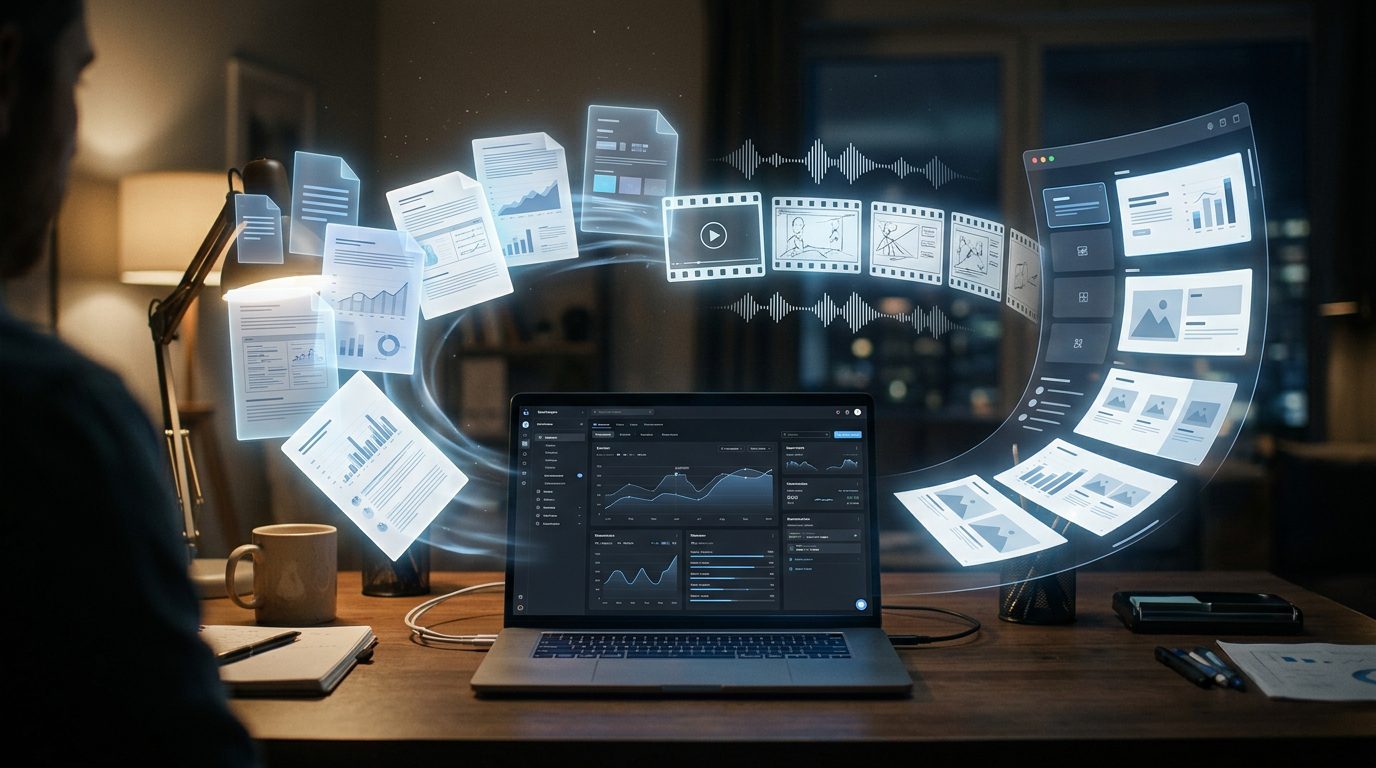
Gemini Notebook is making it easier to turn research materials into visual learning resources, presentations, and video explainers. Formerly known as NotebookLM, Gemini Notebook lets users work with selected sources and transform information from documents, web pages, videos, and other materials into useful study and presentation formats. Its Video Overview and Slide Deck tools can help students, teachers, researchers, and professionals explain complicated topics without building every asset from scratch.
The important change is not simply that the platform can generate videos and slides. Users can guide the output with instructions, choose formats and visual approaches, and revise generated slides. This makes Gemini Notebook useful for creating a more structured path from source material to a finished learning resource, although the results still need to be checked for accuracy.
What Is Gemini Notebook?
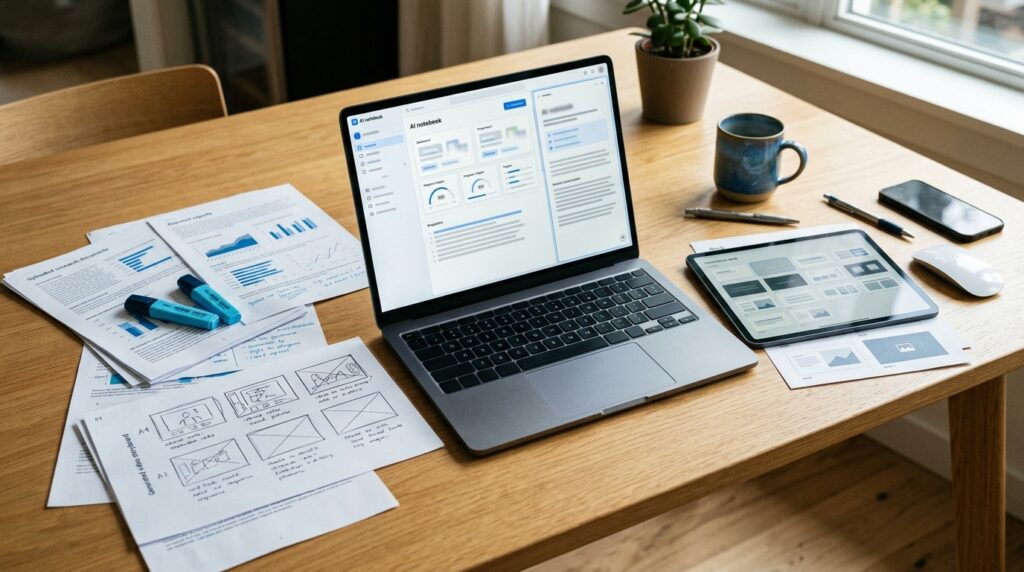
Gemini Notebook is Google’s research and learning workspace, designed to answer questions and create material grounded in sources selected by the user. You can add documents, PDFs, websites, YouTube videos, and other supported materials to a notebook, then use its chat and Studio tools to explore the content or produce learning assets. Google renamed NotebookLM to Gemini Notebook in July 2026 as the product became more connected with its broader AI ecosystem.
For people who regularly prepare lessons, reports, training sessions, or presentations, it can reduce the time spent turning raw information into a first draft. Its generated content is based on the sources in the notebook, but AI output is not guaranteed to be correct. Review key claims, figures, citations, visuals, and audio before sharing anything publicly.
Gemini Notebook Video Generation: What It Does
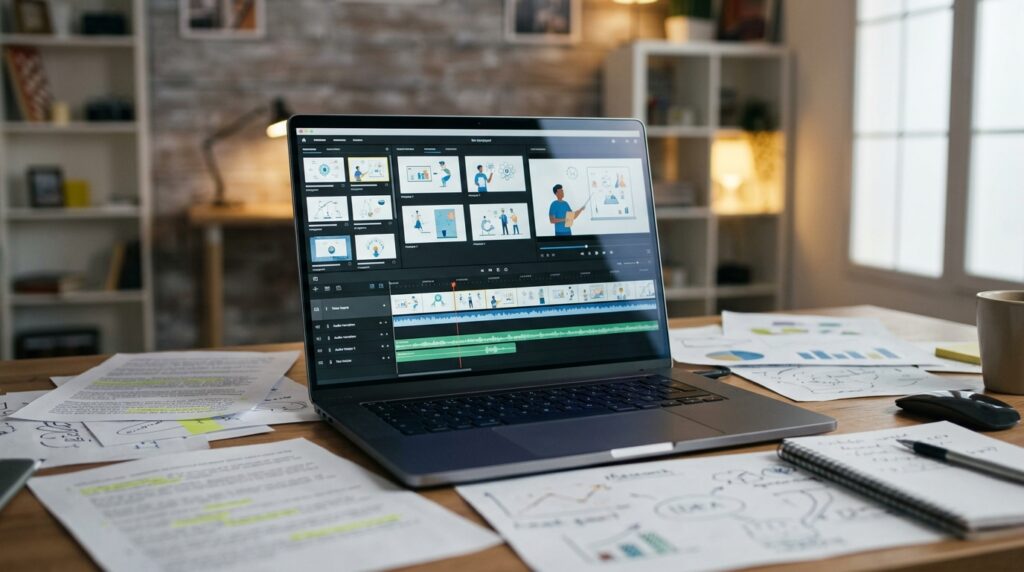
Video Overviews in Gemini Notebook turn the sources in a notebook into a narrated visual explanation. Rather than asking users to assemble every scene manually, the feature creates a video that summarizes and connects information from the supplied materials. Google offers customization options that can include the video format, language, visual style, and additional instructions, depending on the options available to the account.
This is useful when a long report, collection of articles, or educational source needs to become a more approachable visual overview. A video can help introduce a subject, highlight the main arguments, or provide a quick recap before a class or meeting. However, generated narration, images, and structure may contain mistakes or audio glitches, so users should review the finished video before relying on it.
How to Generate a Video Overview Step by Step
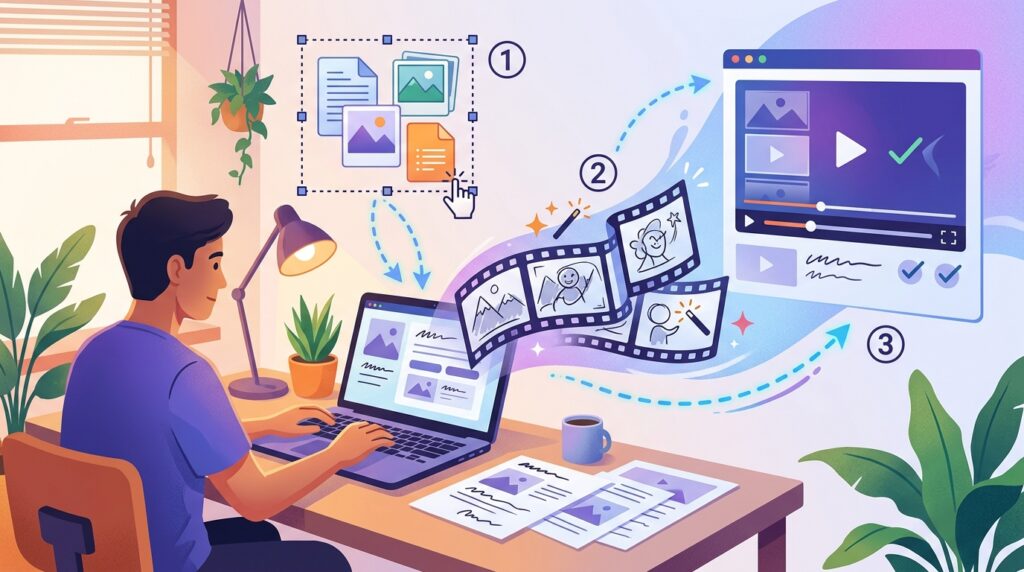
To create a video in Gemini Notebook, start with a notebook that contains the sources you want the video to cover. Add the relevant PDFs, documents, website links, or other supported materials, and check that they represent the subject accurately. A focused source collection usually gives the video a clearer purpose than a notebook containing unrelated information.
Open your notebook. Sign in to Gemini Notebook and open an existing notebook or create a new one.
Add and review sources. Upload or select the materials you want the video to explain. Remove irrelevant sources and make sure the important information is included.
Open Studio. Find the Studio panel and select Video Overview.
Customize the result. Where available, choose the format, language, visual style, and any custom instructions. For example, ask for a beginner-friendly explanation that introduces the key idea, explains three major points, and finishes with a concise recap.
Generate the video. Select the generation option shown in the interface. Google notes that video generation can take time and may sometimes take more than 30 minutes.
Review before sharing. Check the spoken explanation, visuals, factual claims, and audio. If something is inaccurate or unclear, adjust your source materials or instructions and generate a new version if the controls allow it.
These steps make video generation more deliberate. Instead of accepting the default result automatically, define the audience and learning goal first. A video for new employees, for example, may need plain language and practical examples, while a research briefing may require technical terminology and a closer focus on evidence.
Gemini Notebook Slide Generation: Create a Presentation
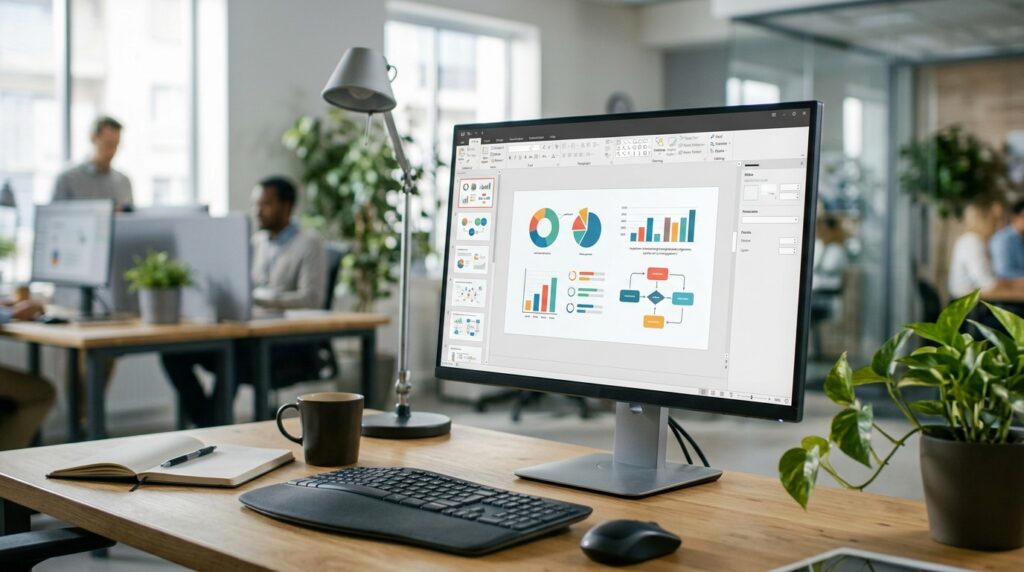
The Slide Deck feature in Gemini Notebook converts notebook sources into a presentation that can be viewed in the product and shared or downloaded. Google documents two formats: Detailed Deck, which provides more complete text and context for reading independently, and Presenter Slides, which emphasizes visuals and talking points for a live presentation.
Users can customize the output language, length, and prompt. That prompt can specify the audience, tone, structure, and focus, including a request for a beginner-friendly deck that explains a process step by step. Once generated, slides can be revised, reordered, and managed from the Studio panel. Google warns that generated decks can contain visual or factual inaccuracies, so a review is still essential.
How to Generate Slides Step by Step
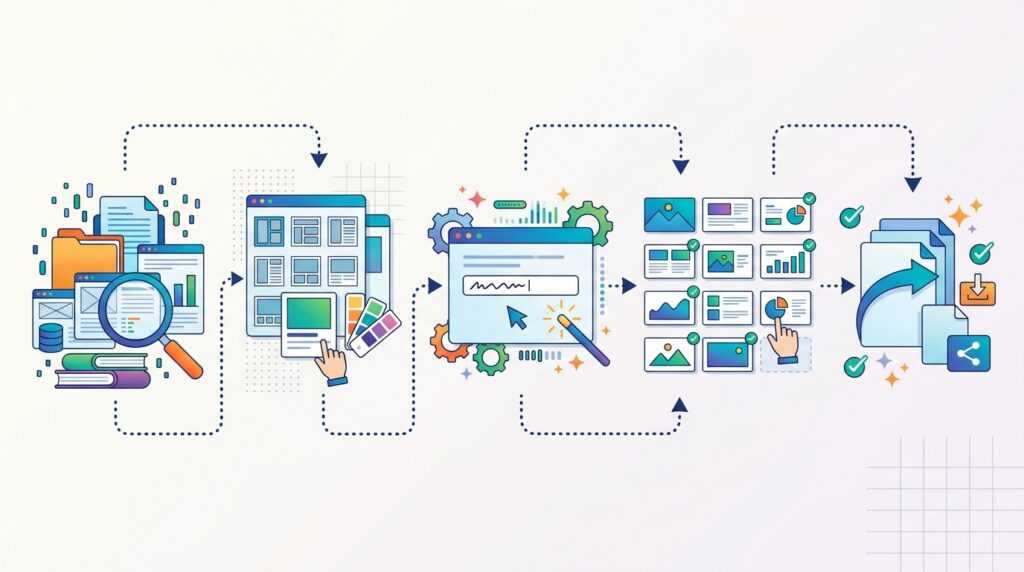
Creating a presentation follows a similar source-first workflow, but the customization choices should reflect how the deck will be used.
Open a notebook with relevant sources. Confirm that the materials cover the subject and contain the facts you want to present.
Go to Studio and select Slide Deck. You can start generation directly or use the pencil icon to customize the deck before it is created.
Choose the deck format. Select Detailed Deck for a fuller, self-contained presentation or Presenter Slides for concise talking points and visuals.
Set the language and length. Choose the available options that fit your audience and presentation time.
Write a clear prompt. Specify the audience, purpose, tone, and preferred structure. For example: “Create a 10-slide presentation for beginners. Explain the topic in chronological order, include one key takeaway per slide, use clear diagrams where helpful, and finish with practical next steps.”
Generate and inspect the deck. The deck is created in the background, so you can continue working while it processes.
Revise and export. Use the slide revision controls to request changes, adjust layouts or visuals, and reorder slides. When ready, use the available menu to share the deck or download it as a PDF or PowerPoint file.
A clear prompt improves the chances of getting a useful first draft, but it does not guarantee a perfect presentation. Check that each slide supports the main point, the information follows a logical order, and charts or illustrations do not imply something the sources never established.
How to Get Better Video and Slide Results
The strongest results start with good source selection. If a notebook contains a large number of unrelated documents, the tool may struggle to produce a focused explanation. Group sources by topic, remove duplicates where practical, and make sure the core material is reliable and up to date.
Instructions should also be specific. Instead of asking for “a video about cybersecurity,” describe the intended audience, learning objective, preferred tone, and the points that must be covered. For slides, specify the approximate length and whether the deck is intended for presenting or reading. For video, explain whether the goal is a quick overview, a detailed lesson, or a visual summary of a report.
Finally, treat generated assets as drafts. The platform can speed up content preparation, but a person should verify the facts, quotations, calculations, visual details, and overall narrative. This review is particularly important for healthcare, legal, financial, scientific, or other high-stakes topics where a misleading explanation could cause harm.
Who Can Benefit From Gemini Notebook?

Teachers can use Gemini Notebook to turn course readings into introductory videos and lesson presentations. Students can create visual revision material from their own notes and assigned sources, while remembering to check the content rather than treating the output as a substitute for learning. Researchers can prepare a first-pass overview of a paper or project, and workplace teams can use source-based decks to introduce policies, explain processes, or summarize project documentation.
These features are also useful for people who need to communicate the same information in different formats. A report might be easier to review as a slide deck, while a narrated video may be more accessible to an audience that prefers watching and listening. Gemini Notebook gives users a way to start both formats from a shared set of sources, then refine each output for its intended audience.
Limitations to Keep in Mind
AI-generated videos and presentations can misstate facts, omit important context, or produce awkward visuals and audio. A polished appearance should not be confused with verified accuracy. Always compare important claims with the original sources, particularly when the material includes statistics, scientific findings, dates, or technical instructions.
Availability and controls can vary by account, device, and product rollout. Some generation tasks take several minutes or longer, and mobile interfaces may not expose every option found on desktop. Before planning a deadline around Gemini Notebook, check the controls available in your own account and leave time for review and revision.
Conclusion
Gemini Notebook is expanding the ways people can turn selected sources into useful learning and communication materials. Video Overviews provide a narrated visual summary, while Slide Decks create presentations that can be customized, revised, and shared. Together, these tools offer a practical starting point for educators, students, researchers, and teams that need to explain information clearly.
The best approach is to start with reliable sources, write a specific prompt, and review every generated asset before publishing or presenting it. The tool can reduce the work required to create a first draft, but human judgment remains essential for accuracy, context, and quality.
Frequently Asked Questions
Can Gemini Notebook generate videos from my sources?
Yes. Its Video Overview feature creates a narrated visual overview from sources in a notebook. You can customize available settings before generation, but you should review the result for factual errors and audio or visual issues.
Can Gemini Notebook create presentation slides?
Yes. The Slide Deck feature creates a presentation from notebook sources. You can choose between Detailed Deck and Presenter Slides, customize the language and length, and provide a prompt describing the audience and purpose.
Can I download slides from Gemini Notebook?
Google’s documentation describes options to download generated Slide Decks as PDF or PowerPoint files, depending on the available interface and account capabilities.
Are Gemini Notebook videos and slides always accurate?
No. Google warns that generated videos and decks may contain inaccuracies. Check important claims against the original sources before using the content in teaching, business, or public communication.
What is the best way to get useful results?
Use a focused set of reliable sources and write instructions that specify the audience, purpose, format, and key points. Review the output and revise it where necessary rather than relying on the first generation.
Create Better Digital Learning Experiences With Progressive Robot
Progressive Robot helps businesses explore practical IT solutions, software development, and AI-powered digital experiences. If your organization wants to make information easier to understand, improve digital workflows, or explore AI-enabled services, visit the Progressive Robot website or learn more about its AI and automation services.
References
More AI coverage: explore Progressive Robot's AI Models, Tools & Releases hub — hands-on reviews, setup guides and benchmarks in one place.