
Wondershare Repairit has become a practical symbol of a larger shift in digital recovery. People no longer lose only a single document when a file breaks; they lose client videos, product photos, legal PDFs, classroom recordings, design assets, and memories stored across phones, cameras, laptops, and cloud drives. The new value of repair software is not magic recovery, but a faster way to make damaged media usable again.
The pressure is easy to understand. Cameras shoot larger files, creators work across more codecs, offices depend on shared documents, and everyday users move files between devices that do not always handle interruptions gracefully. A failed transfer, a drained battery, a bad sector, or an incomplete export can turn an important file into a blank preview or an error message.
This article explains where Wondershare Repairit fits in that recovery workflow. It looks at the repair categories, AI features, business use cases, limits, privacy questions, and buying considerations that matter before you trust any automated tool with corrupted media.
Table of contents
- Why file repair matters now
- What Wondershare Repairit does
- Video repair workflow
- Photo and image restoration
- Business and creator use cases
- Limits and risk controls
- Frequently asked questions
Why file repair matters now
Wondershare Repairit matters because the cost of damaged files has moved beyond inconvenience. A corrupted interview video can delay a campaign, a broken spreadsheet can slow a finance close, and an unreadable image archive can block insurance, legal, or medical documentation. The file is often small compared with the workflow it interrupts.
Modern file damage also comes from more sources. Phones record in high-efficiency formats, drones split clips into large chunks, cameras write to removable cards, and collaboration platforms constantly sync partial changes. Each handoff creates another point where metadata, headers, indexes, or embedded streams can be damaged.
The practical goal is not to pretend every file can be restored perfectly. The goal is to reduce the number of cases that need specialist recovery, preserve enough quality for real use, and give non-technical users a repeatable process before they give up or overwrite the original evidence.
What Wondershare Repairit does
Wondershare Repairit is positioned as a file repair tool for corrupted videos, photos, documents, and audio files. Instead of scanning a storage device for deleted items, it focuses on files that already exist but cannot open correctly, play smoothly, preview properly, or render with their original structure intact.
That distinction is important. Data recovery tries to find missing files on a drive, while file repair tries to rebuild damaged files after they have been recovered, copied, downloaded, exported, or transferred. In real incidents, teams may need both categories, but the work is different.
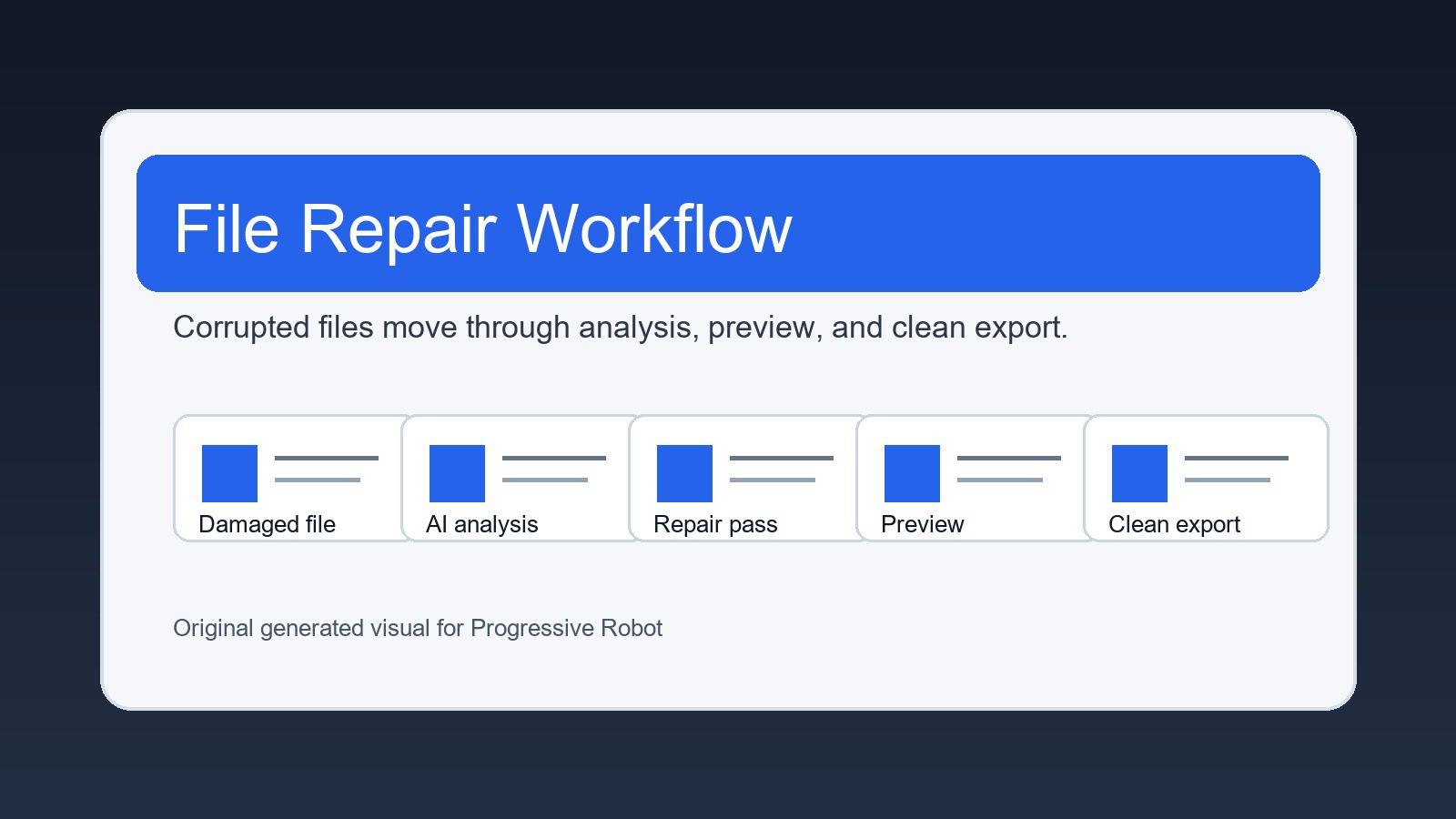
The appeal of Wondershare Repairit is the guided workflow. A user adds damaged files, selects a repair mode, previews recoverable output where supported, and exports repaired versions. That simple path matters because file corruption often appears during stressful moments when users do not want a forensic tool with dozens of unexplained switches.
Core repair categories
The strongest use case is damaged media. Videos can fail after interrupted recording, incomplete downloads, unstable editing exports, or camera storage errors. Photos can show banding, missing thumbnails, distorted colors, gray blocks, or partial frames. Audio can become unreadable when headers or stream indexes are damaged.
Wondershare Repairit also supports common office document repair scenarios, including files that refuse to open after a crash, transfer error, or failed save. In business settings, this can be as important as media repair because spreadsheets, presentations, and documents often carry decisions, approvals, and client deliverables.
The category mix is useful because corruption rarely arrives neatly. A marketing team might have a broken video, a damaged thumbnail set, and a client presentation in the same project folder. A single repair interface reduces context switching even if each format needs a different repair method behind the scenes.
Video repair workflow
Video repair is where Wondershare Repairit will attract many creators. Damaged video files are common because recording devices write metadata while footage is being captured. If power fails, storage fills, or the device stops unexpectedly, the visual stream may exist but the file wrapper can be incomplete.
A useful repair tool needs to understand containers, codecs, frame timing, audio tracks, and missing indexes. Basic repair may rebuild file headers or metadata, while advanced repair can use a healthy sample video from the same device to infer how the damaged file should be structured.
For creators, the preview step is essential. A repaired file that opens but drops audio, desynchronizes speech, or stutters under normal playback may still be unusable. The tool should be judged by whether the repaired clip can survive editing, export, and client review, not merely by whether it opens once.
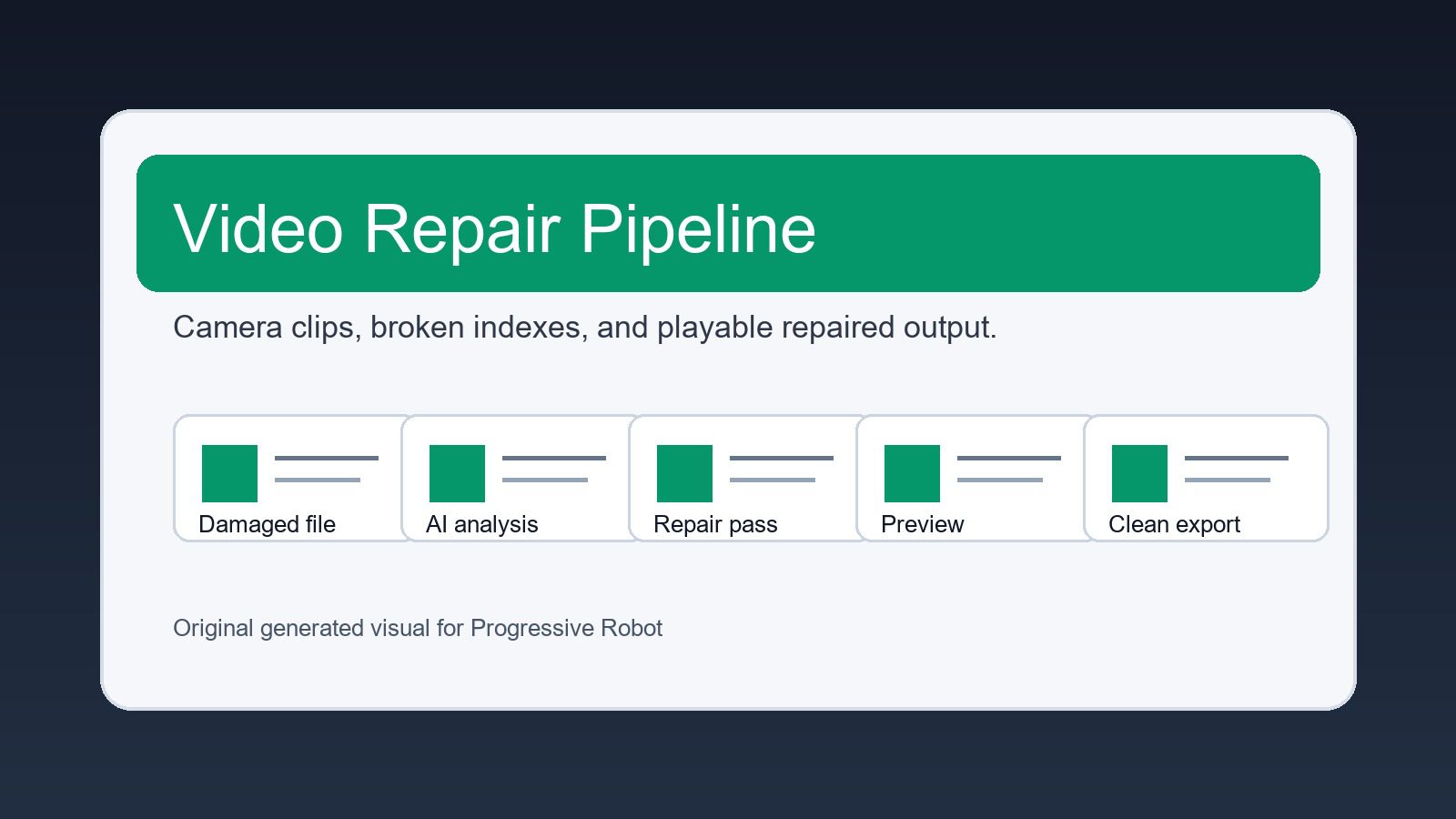
Photo and image restoration
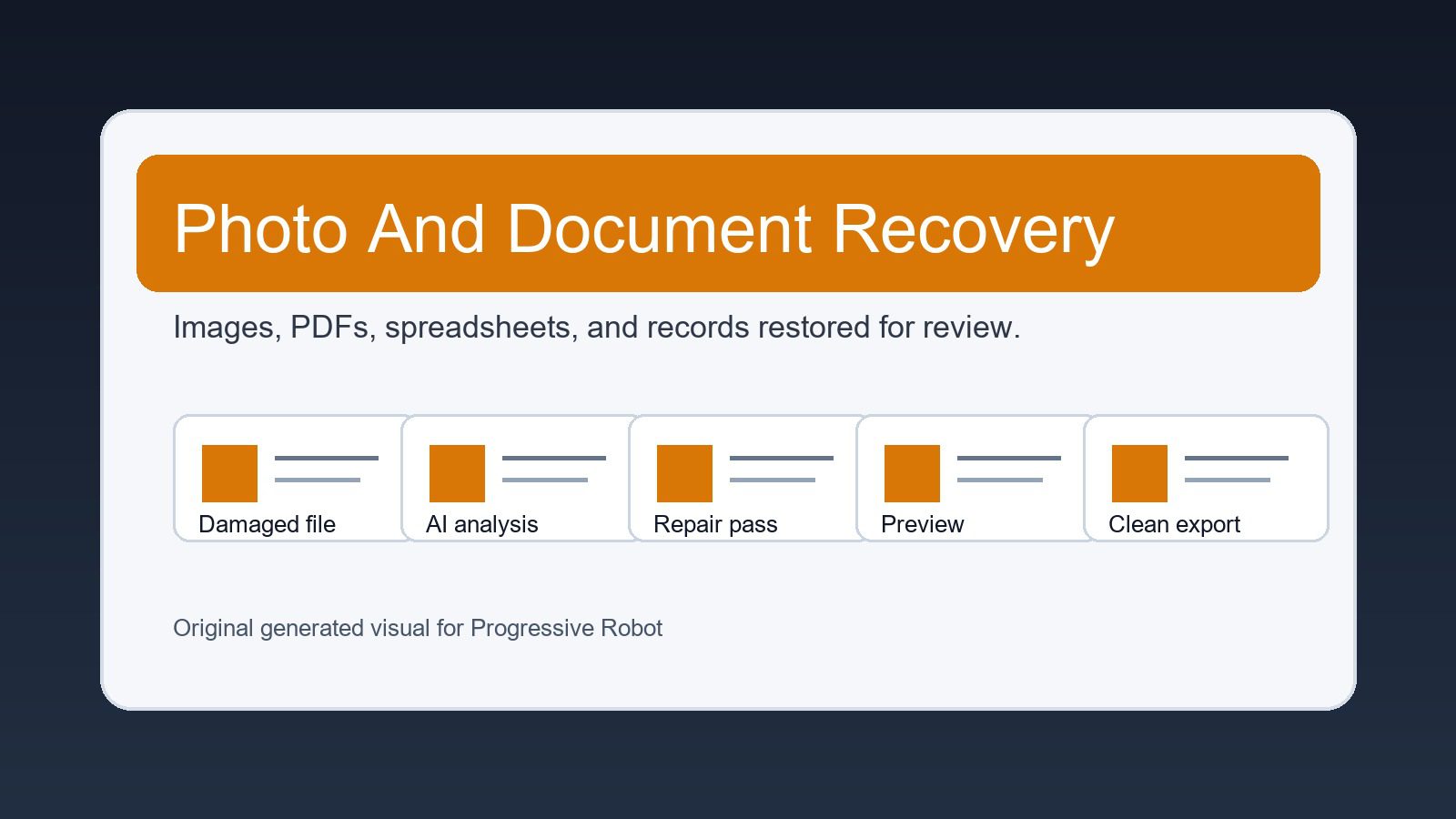
Wondershare Repairit also targets damaged photos, which can be emotionally and commercially valuable. A wedding photographer, ecommerce seller, insurer, or family archive owner may have no easy substitute for a corrupted image set. Repair quality matters because tiny artifacts can still make an image unusable.
Photo corruption can appear as missing thumbnails, broken previews, color shifts, blocky regions, or files that open only in one viewer. Some failures are caused by storage damage, while others come from incomplete transfers or software that wrote a file incorrectly before closing.
AI enhancement adds a separate layer. Repair and enhancement should not be confused: repair tries to make the original image usable, while enhancement may sharpen, denoise, colorize, or improve facial detail. Users should keep originals and exports separate so they know which version is evidentiary and which version is visually improved.
Documents, audio, and everyday file damage
Documents fail differently from videos and photos. A damaged Word file, Excel workbook, PDF, or presentation might contain recoverable text but broken layout information. The best outcome may be partial recovery of content, formulas, slides, or tables rather than a perfect reconstruction of formatting.
Wondershare Repairit is useful here because it gives non-specialists a first recovery step before they rebuild from memory. Even partial recovery can save hours when a report, invoice package, class assignment, or client deck becomes unreadable close to a deadline.
Audio repair has its own logic. Podcasters, trainers, journalists, and meeting hosts often need recordings that are clear enough to transcribe or republish. If a damaged audio file can be made playable, downstream tools can then clean noise, generate transcripts, or extract quotes.
Where AI helps the repair process
The AI story around Wondershare Repairit is strongest when it reduces manual trial and error. AI-assisted repair can analyze damaged patterns, estimate missing visual information, improve faces in old photos, or help reconstruct media when simple metadata repair is not enough.
That does not mean AI can invent an accurate original from nothing. If the source file lacks key frames, has overwritten data, or contains severe physical storage damage, a tool can only infer so much. Good recovery practice still starts with preserving the original file and avoiding repeated writes to the affected storage device.
The real benefit of Wondershare Repairit is that AI features are packaged inside a consumer workflow. Instead of asking users to understand codecs, image pipelines, and file structures, the software tries to automate diagnosis and guide the next step.
User experience and workflow design
File repair tools live or die by clarity. Users need to know which file they selected, what repair mode is being used, whether a preview is available, where the repaired export will be saved, and whether the original file remains untouched. Confusion at any point increases the risk of losing the best remaining copy.
Wondershare Repairit follows a guided pattern that works well for mixed-skill users. Add files, repair, preview, and save is a simple sequence. More advanced cases can still require sample files or repeated attempts, but the main flow is understandable without reading a manual first.
Batch handling is also important. Teams rarely discover one broken file in isolation. They may have a whole card, folder, export batch, or archive with similar symptoms. A tool that can handle multiple files in one session reduces operational friction and makes results easier to compare.
Business and creator use cases
Wondershare Repairit is especially relevant for creators, agencies, educators, and small businesses that cannot pause work while waiting for specialist recovery. A damaged tutorial, course recording, testimonial video, product shoot, or presentation can disrupt revenue and reputation quickly.
Marketing teams may use repair software as part of post-production hygiene. Before declaring footage unusable, they can attempt repair, save recovered output separately, and document what changed. This creates a calmer escalation path when a shoot cannot be repeated.
Support teams can also benefit. When customers send damaged attachments, screenshots, clips, or documents, a controlled repair workflow can help identify whether the file contains enough information to troubleshoot the issue. The key is to apply privacy and consent rules before opening client files.
Data recovery versus file repair
The most common misunderstanding is confusing deleted-file recovery with corrupted-file repair. Data recovery looks for files that are missing, deleted, or inaccessible because the storage device has a problem. File repair works on files that are already present but damaged internally.
Wondershare Repairit belongs mainly in the second category. If a memory card is clicking, a hard drive is failing, or files disappeared after formatting, users may need recovery software or a professional lab first. Once a file is recovered but will not open, repair software becomes relevant.
This distinction protects users from making the situation worse. If storage hardware is physically failing, repeated scans, downloads, and repair attempts can increase risk. The right order is preserve, clone where necessary, recover, then repair copies of damaged files.
Privacy and security questions
Any evaluation of Wondershare Repairit should include privacy. Damaged files may contain contracts, medical images, financial workbooks, student records, unpublished videos, or personal memories. Users should understand which repairs happen locally, which features require cloud processing, and what retention rules apply.
Businesses should define file classes before adoption. Public marketing assets can be treated differently from regulated records, legal evidence, or confidential client data. A simple policy can say which file types may be processed, who approves uploads, and how repaired exports are stored.
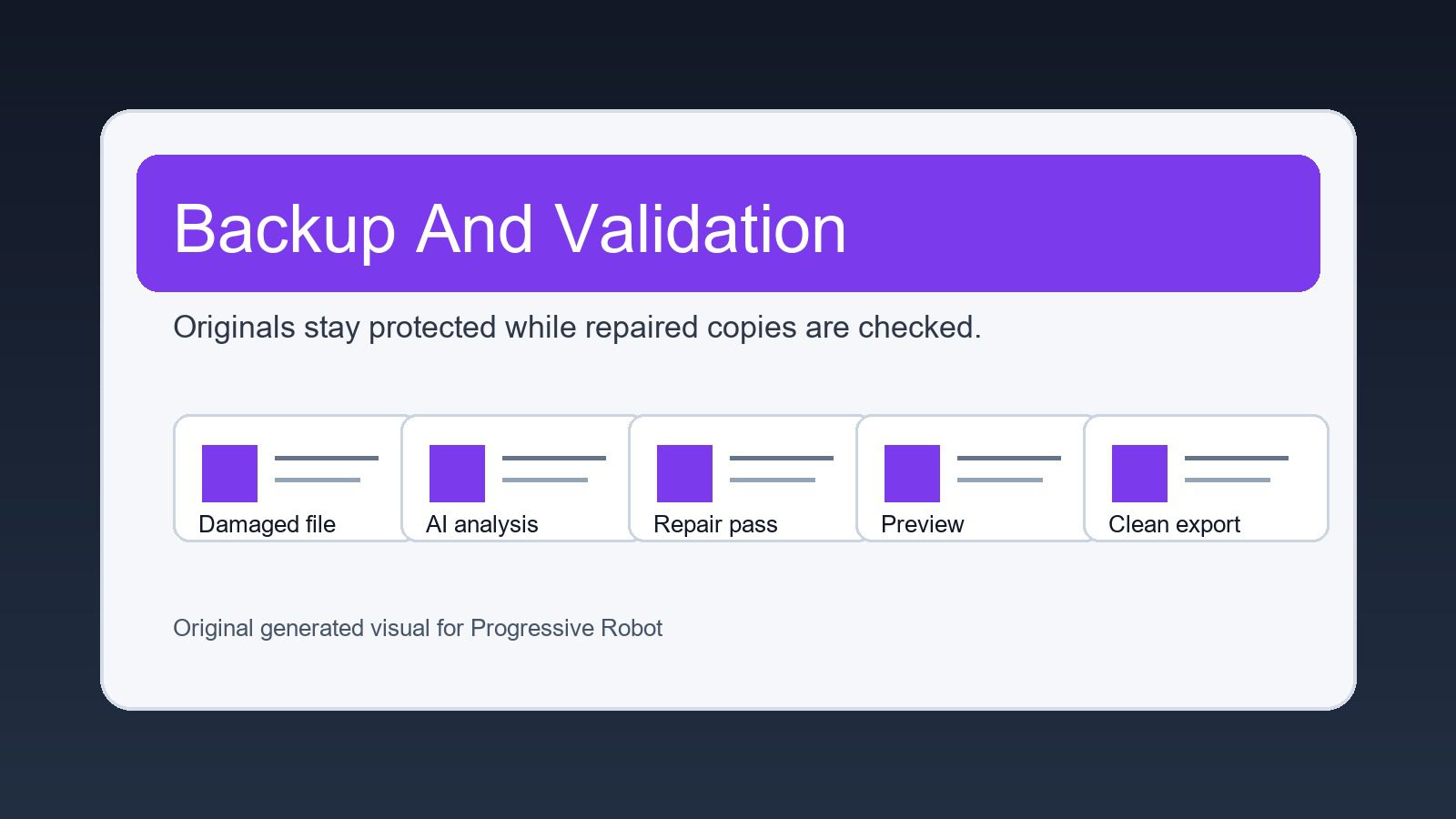
Security also includes version control. Keep the original damaged file read-only, work on copies, save repaired versions with clear names, and document the tool version used. This is useful for audits, disputes, client handoffs, and internal troubleshooting.
Limits, accuracy, and realistic expectations
Wondershare Repairit should be treated as a strong first-line repair option, not a guarantee. Some files are too incomplete, overwritten, encrypted, or physically damaged to reconstruct. In those cases, a failed repair attempt does not necessarily mean the file never contained useful data; it may mean the case needs a different recovery path.
Users should judge output carefully. A video might play but contain frame skips. A photo might look acceptable at small size but show artifacts when printed. A spreadsheet might open but lose formulas. Repair success should be measured against the actual job the file must perform.
The safest habit is to compare outputs against backups, thumbnails, proxy files, camera originals, cloud versions, or exported previews. Corruption often affects structure before content, so supporting material can help users decide whether the repaired file is trustworthy.
Pricing, value, and buying criteria
Value depends on how often file damage affects real work. A casual user might only need a one-time repair path for family photos or a broken video. A creator, support team, or agency may justify a recurring tool because damaged assets appear regularly across projects.
When comparing Wondershare Repairit with alternatives, focus on supported formats, preview quality, batch processing, sample-file repair, export limits, platform support, refund policy, and whether the paid tier unlocks the specific format you need. The cheapest plan is not useful if it excludes the damaged file type in front of you.
Teams should also evaluate time saved. If a tool recovers a client clip in minutes, it can avoid reshoots, missed deadlines, and manual reconstruction. The economic value is often tied to urgency rather than the file size itself.
How it compares with alternative approaches
Alternative approaches include restoring from backup, exporting from the original app again, trying open-source repair utilities, using media-specific command-line tools, sending the file to a data recovery lab, or recreating the asset manually. Each path has a different cost, skill requirement, and risk profile.
Wondershare Repairit competes by reducing the skill barrier. It will not replace expert tools in every complex case, but it can solve enough common problems to be worth trying before escalation. The biggest advantage is accessibility for users who cannot diagnose container damage or document structure by hand.
Open-source and command-line tools still matter for technical teams. They may offer more visibility, automation, or scripting. A sensible workflow can include a consumer repair tool for everyday cases and specialist utilities for repeatable, technical, or forensic scenarios.
Implementation checklist for teams
Before rolling out Wondershare Repairit, teams should define who can use it, which files may be processed, where repaired copies are stored, and when cases escalate to IT or legal. This turns a helpful utility into a controlled workflow rather than an improvised emergency response.
A practical checklist includes keeping originals read-only, creating duplicate working copies, testing repaired files in the destination application, recording which repair mode was used, and tagging outputs clearly. These small controls prevent confusion weeks later when someone asks which version is authoritative.
Training should be brief but concrete. Show users the difference between deleted files and corrupted files, explain why backups come first, and demonstrate how to preview repaired output before saving. The goal is confidence without encouraging risky experimentation on the only remaining copy.
Three common repair scenarios
Scenario 1: A creator has a corrupted camera clip
A videographer imports footage and finds that one important clip will not play. Wondershare Repairit can be used on a copy of the damaged file, ideally with a healthy sample clip from the same camera. If the repaired version previews correctly and survives export from an editor, the shoot may be saved.
Scenario 2: A business document fails before a deadline
A proposal, spreadsheet, or slide deck becomes unreadable after a crash or sync conflict. The team first checks version history and backups, then attempts repair on a duplicate file. Even partial recovery of text, tables, or slides can reduce the amount of manual reconstruction needed.
Scenario 3: An archive contains mixed damaged media
A user discovers that an old drive contains broken photos, videos, and audio files. Wondershare Repairit can triage files by type and test which assets are worth saving. The highest-value files should still be copied and documented before repeated repair attempts.
Quality control after repair
Repair is not finished when the software reports success. Users should open the exported file in the application that will actually be used, scrub through media timelines, inspect photos at full resolution, check document formatting, and confirm audio sync or transcript quality.
Wondershare Repairit can make files usable again, but humans still need to validate whether the output is acceptable for publication, legal use, client delivery, or long-term archiving. Different use cases have different tolerance for artifacts.
For important files, save a short note beside the export. Include the original filename, repair date, symptoms, tool used, and any visible issues. This creates traceability without requiring a full incident report for every damaged file.
Why repair should reinforce backup strategy
The best repair story is the one you do not need. File repair software should push teams toward better backup habits, not replace them. Redundant storage, reliable sync, tested exports, and version history still prevent more damage than any repair tool can fix afterward.
Using Wondershare Repairit after an incident can reveal weak points. Maybe the team reused old memory cards, exported only one master file, skipped cloud versioning, or failed to verify recordings before leaving a location. Those lessons should become workflow improvements.
A simple rule works well: backup first, repair second, overwrite never. If users follow that order, repair tools become a recovery layer instead of a risky last gamble.
Frequently asked questions about Wondershare Repairit
Is Wondershare Repairit the same as data recovery software?
No. Wondershare Repairit is mainly for repairing corrupted files that already exist. Data recovery software is used when files are deleted, missing, or inaccessible because a storage device has a problem. In serious incidents, users may need recovery first and repair afterward.
Can Wondershare Repairit repair every damaged video or photo?
No repair tool can guarantee perfect recovery. Results depend on how the file was damaged, whether key data still exists, and whether a healthy sample file is available for advanced repair. Severe overwrites and physical storage damage may require specialist help.
Should businesses use Wondershare Repairit on confidential files?
Businesses should check processing location, privacy terms, internal policy, and file sensitivity before using any repair tool. Confidential, regulated, or client-owned files need clearer approval than public marketing assets or personal test files.
What should I do before trying Wondershare Repairit?
Make a copy of the damaged file, preserve the original, stop writing to any suspect storage device, check backups, and collect healthy sample files from the same camera or application if advanced repair may be needed.
Bottom line
Wondershare Repairit is useful because file damage is now a mainstream productivity problem. It gives creators, businesses, educators, and everyday users a structured way to attempt repair before escalating to more technical or expensive recovery paths.
The smartest way to use it is with realistic expectations. Preserve originals, repair copies, preview output carefully, and document repaired versions when the file matters. AI can improve the repair process, but it cannot replace disciplined storage and backup habits.
In that context, Wondershare Repairit is best understood as a practical recovery layer: not a miracle button, but a focused tool that can turn many damaged files from dead ends into usable assets again.
References and further reading
- Wondershare Repairit official site
- Wondershare support center
- NIST guidance on backing up data
- Internal: evaluating practical AI tools inside everyday workflows
More AI coverage: explore Progressive Robot's AI Models, Tools & Releases hub — hands-on reviews, setup guides and benchmarks in one place.










