
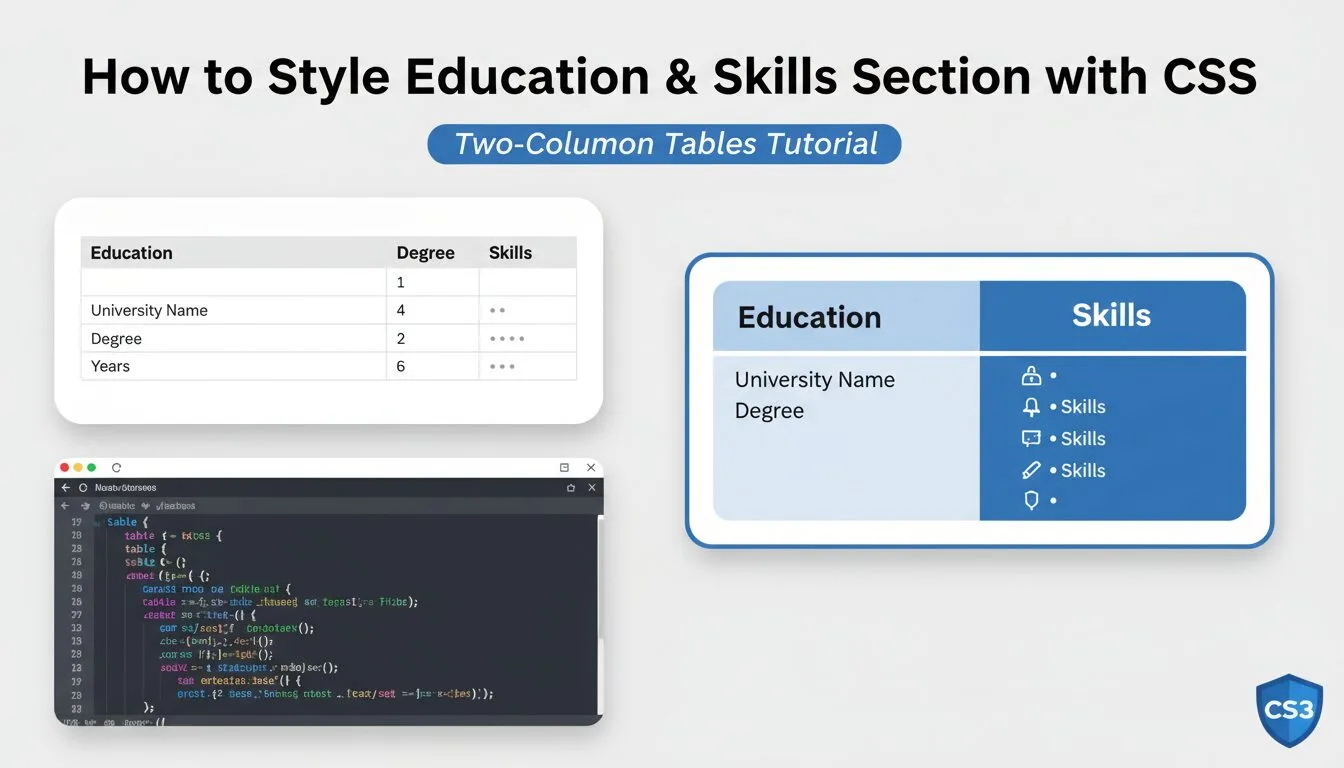
Learning how to style education & skills section with CSS is a key step in turning your portfolio or resume website into a complete professional showcase — this section highlights your academic background, certifications, and technical/personal abilities, giving recruiters and visitors quick insight into your qualifications. In this hands-on guide (Section 5 of our full HTML CSS website project series), you’ll recreate the demonstration site’s “Education” and “Skills” section using pure HTML tables and CSS classes: two side-by-side columns (education history on left, skills with star ratings on right), clean white backgrounds, proper spacing, and responsive stacking on mobile.
This tutorial builds directly on your css-practice folder — you’ll create a polished, easy-to-customise credentials section that looks professional on every device.
Prerequisites
- Your css-practice project folder from previous lessons (with header, About Me, and Projects sections already added)
- index.html
- css/styles.css
- Visual Studio Code with Live Server extension (highly recommended)
- Modern browser (Chrome/Edge/Firefox)
1. Add Education & Skills HTML Structure
Open index.html and add the following code after your closing </section> or </div> from the Projects section:
					<!-- Section 5: Education & Skills -->
<section class="education-skills-section">
    <div class="two-column-container">
        <!-- Education Column -->
        <div class="column-2a education-column">
            <h2>Education</h2>
            <table class="resume-table">
                <tr>
                    <td>Barnacle Bootcamp</td>
                    <td>2020</td>
                </tr>
                <tr>
                    <td>Seaweed University</td>
                    <td>2019 – 2020</td>
                </tr>
                <tr>
                    <td>Highwater High School</td>
                    <td>2018 – 2019</td>
                </tr>
                <tr>
                    <td>Middle-Sized Pond Middle School</td>
                    <td>2017 – 2018</td>
                </tr>
                <tr>
                    <td>Minnow Elementary School</td>
                    <td>2016 – 2017</td>
                </tr>
                <tr>
                    <td>Phytoplankton Preschool</td>
                    <td>2015 – 2016</td>
                </tr>
            </table>
        </div>

        <!-- Skills Column -->
        <div class="column-2a skills-column">
            <h2>Skills</h2>
            <table class="resume-table">
                <tr>
                    <td>Social Media</td>
                    <td>⭐⭐⭐⭐⭐</td>
                </tr>
                <tr>
                    <td>Public Speaking</td>
                    <td>⭐⭐⭐⭐⭐</td>
                </tr>
                <tr>
                    <td>Internet Ethics Ambassador</td>
                    <td>⭐⭐⭐⭐</td>
                </tr>
                <tr>
                    <td>Content Production</td>
                    <td>⭐⭐⭐⭐⭐</td>
                </tr>
                <tr>
                    <td>HTML</td>
                    <td>⭐⭐⭐</td>
                </tr>
                <tr>
                    <td>CSS</td>
                    <td>⭐⭐⭐</td>
                </tr>
            </table>
        </div>
    </div>
</section>
Notes for beginners:
- <section> — semantic wrapper for credentials area
- .two-column-container — parent for side-by-side columns
- .column-2a — reusable class for equal-width columns (from earlier)
- .education-column & .skills-column — modifiers for specific styling
- Personalise: replace schools, years, skills, and star ratings with your real info
2. Style Education & Skills Section with CSS – Two Columns & Tables
Open css/styles.css and add these rules below your existing Projects or Experience styles:
					/* === Education & Skills Section === */
.education-skills-section {
  padding: 80px 20px;
  background-color: #f8f9fa;
}

.two-column-container {
  display: flex;
  flex-wrap: wrap;
  justify-content: center;
  gap: 60px;
  max-width: 1400px;
  margin: 0 auto;
}

.column-2a {
  flex: 1;
  min-width: 320px;
  padding: 40px;
  background-color: white;
  border-radius: 12px;
  box-shadow: 0 8px 30px rgba(0, 0, 0, 0.08);
}

.column-2a h2 {
  font-size: 2.5rem;
  margin-bottom: 35px;
  color: #112d4e;
  text-align: center;
}

/* Table styling – reused & improved */
.resume-table {
  width: 100%;
  border-collapse: separate;
  border-spacing: 0 18px;
}

.resume-table tr {
  background-color: #f0f4f8;
  border-radius: 10px;
  transition: transform 0.3s ease;
}

.resume-table tr:hover {
  transform: translateX(8px);
  box-shadow: 0 6px 20px rgba(0, 0, 0, 0.1);
}

.resume-table td {
  padding: 18px 25px;
  font-size: 1.15rem;
  color: #333;
}

.resume-table td:first-child {
  font-weight: 600;
  color: #0066cc;
  width: 60%;
}

.resume-table td:last-child {
  text-align: right;
  font-size: 1.4rem;
  color: #ffaa00;
}
Save and refresh — you should now see:
- Two side-by-side white columns on desktop (education left, skills right)
- Mobile: columns stack vertically
- Clean tables with hover slide effect
- Yellow stars for visual appeal
3. Make It Responsive & Mobile-Friendly
Add media query for small screens:
					@media (max-width: 768px) {
  .two-column-container {
    flex-direction: column;
    gap: 50px;
  }

  .column-2a {
    padding: 30px 20px;
  }

  .column-2a h2 {
    font-size: 2rem;
  }

  .resume-table td {
    display: block;
    width: 100%;
    text-align: left;
    padding: 12px 18px;
  }

  .resume-table td:last-child {
    text-align: left;
  }
}
Now the layout stacks naturally on phones/tablets.
4. Best Practices & Modern Tips (2025–2026 – Progressive Robot Style)
- Use flex or grid for two-column layouts — avoid old float
- Set min-width on columns to prevent squishing on narrow screens
- Use star emojis (⭐) or Font Awesome icons for skills ratings
- Add subtle hover effects on rows — improves interactivity
- Ensure contrast — dark text on white passes WCAG
- Use clamp() for fluid typography:
font-size: clamp(1.1rem, 3vw, 1.5rem);
How to Style Education & Skills with CSS – FAQ (2025–2026)
- How do I style education & skills section with CSS?
Two-column Flexbox: display: flex; flex-wrap: wrap; gap: 60px; on parent, flex: 1; min-width: 320px; on columns. - How do I make education/skills tables responsive with CSS?
Media query + display: block on td for mobile stacking. - How do I add star ratings in skills section with CSS?
Use emoji ⭐ in <td> or Font Awesome icons + CSS color. - What’s the best way to space rows in resume table with CSS?
border-spacing: 0 18px; + border-radius on tr for rounded rows. - Should I use table or divs for education/skills section with CSS?
Table for strict tabular data (school/year); divs + Grid/Flex for card-style.
Summary
You now know exactly how to style education & skills section with CSS: two-column layout, clean tables for degrees and ratings, hover effects, responsive stacking, and professional spacing/typography.
Mastering how to style education & skills with CSS completes your credentials showcase — recruiters love clear, scannable qualifications.
Keep your css-practice folder open — in the next tutorials you’ll build the Featured Quote section, Sticky Footer, and finish your HTML CSS website project.










