
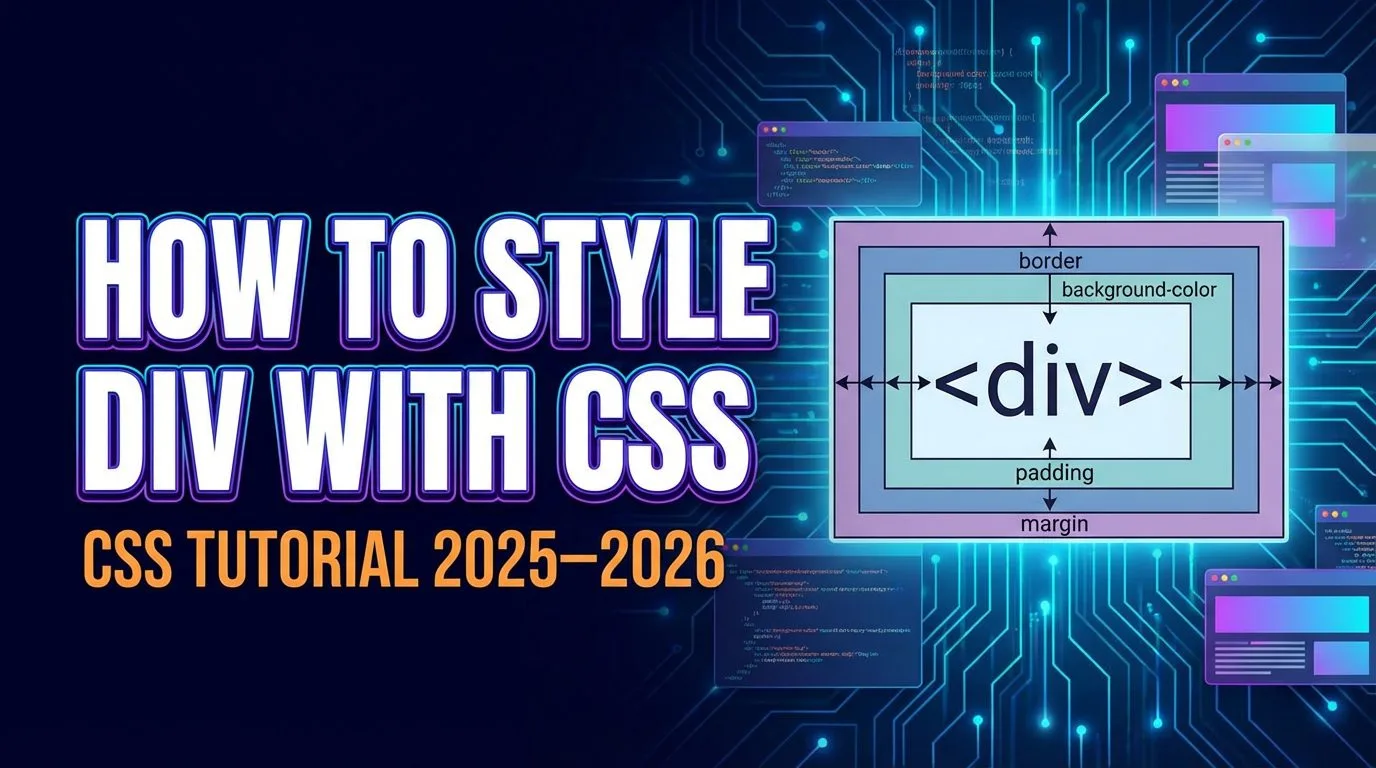
Learning how to style div with CSS is one of the most essential and frequently used skills in any CSS tutorial for beginners — the <div> element is the universal container for grouping and laying out content on the web. By knowing how to style div with CSS, you control background colors, dimensions, padding, margins, borders, text alignment, shadows, positioning, and more — turning plain boxes into cards, sections, navigation bars, footers, or entire page layouts. In this guide, you’ll create and style multiple <div> elements, add text and headings inside them, apply different styles using classes, and understand why <div> is the foundation of modern web design.
This CSS tutorial for beginners builds directly on your css-practice project — you’ll edit styles.css and index.html to see powerful layout results instantly.
Prerequisites
- Your css-practice project folder from previous lessons:
- index.html (linked to css/styles.css)
- css/styles.css
- images/ folder (optional for now)
- Visual Studio Code (or any editor) with Live Server recommended
- Browser for preview
1. Style a Basic div with CSS – Hands-On
Open css/styles.css and add this rule:
					div {
  background-color: green;
  height: 100px;
  width: 100px;
}
Save the file.
Open index.html and add a simple <div> inside <body>:
					<!DOCTYPE html>
<html lang="en">
<head>

    <meta name="viewport" content="width=device-width, initial-scale=1.0">
    <title>Styling div with CSS</title>
    <link rel="stylesheet" href="css/styles.css">
</head>
<body>
    <h2>How to Style div with CSS</h2>

    <div></div>

    <p>Above is a basic green div styled with CSS.</p>
<script>(()=>{class RocketElementorPreload{constructor(){this.deviceMode=document.createElement("span"),this.deviceMode.id="elementor-device-mode-wpr",this.deviceMode.setAttribute("class","elementor-screen-only"),document.body.appendChild(this.deviceMode)}t(){let t=getComputedStyle(this.deviceMode,":after").content.replace(/"/g,"");this.animationSettingKeys=this.i(t),document.querySelectorAll(".elementor-invisible[data-settings]").forEach((t=>{const e=t.getBoundingClientRect();if(e.bottom>=0&&e.top<=window.innerHeight)try{this.o(t)}catch(t){}}))}o(t){const e=JSON.parse(t.dataset.settings),i=e.m||e.animation_delay||0,n=e[this.animationSettingKeys.find((t=>e[t]))];if("none"===n)return void t.classList.remove("elementor-invisible");t.classList.remove(n),this.currentAnimation&&t.classList.remove(this.currentAnimation),this.currentAnimation=n;let o=setTimeout((()=>{t.classList.remove("elementor-invisible"),t.classList.add("animated",n),this.l(t,e)}),i);window.addEventListener("rocket-startLoading",(function(){clearTimeout(o)}))}i(t="mobile"){const e=[""];switch(t){case"mobile":e.unshift("_mobile");case"tablet":e.unshift("_tablet");case"desktop":e.unshift("_desktop")}const i=[];return["animation","_animation"].forEach((t=>{e.forEach((e=>{i.push(t+e)}))})),i}l(t,e){this.i().forEach((t=>delete e[t])),t.dataset.settings=JSON.stringify(e)}static run(){const t=new RocketElementorPreload;requestAnimationFrame(t.t.bind(t))}}document.addEventListener("DOMContentLoaded",RocketElementorPreload.run)})();</script></body>
</html>
Save and refresh — you should see a 100×100px green square. This is the simplest way to style div with CSS — every <div> on the page gets the same style.
2. Style Multiple divs Differently Using Classes
Replace the previous rule in styles.css with these class-based rules:
					.div-1 {
  background-color: blue;
  height: 50px;
  width: 50px;
}

.div-2 {
  background-color: red;
  height: 100px;
  width: 100px;
}

.div-3 {
  background-color: yellow;
  height: 200px;
  width: 200px;
}
Update index.html to use them:
					<div class="div-1"></div>
<div class="div-2"></div>
<div class="div-3"></div>
Refresh — you now have three differently sized and colored boxes. This shows how to style div with CSS using classes — one rule per visual style.
3. Add and Style Text Inside a div
Update styles.css to include text styling inside the divs:
					.div-1 {
  background-color: blue;
  height: 80px;
  width: 80px;
  color: white;
  font-size: 14px;
  display: flex;
  align-items: center;
  justify-content: center;
  font-weight: bold;
}

.div-2 {
  background-color: red;
  height: 120px;
  width: 120px;
  color: yellow;
  font-size: 20px;
  display: flex;
  align-items: center;
  justify-content: center;
}

.div-3 {
  background-color: yellow;
  height: 220px;
  width: 220px;
  color: blue;
  font-size: 30px;
  display: flex;
  align-items: center;
  justify-content: center;
  font-weight: bold;
}
Update index.html:
					<div class="div-1">Blue</div>
<div class="div-2">Red</div>
<div class="div-3">Yellow</div>
Refresh — the text inside each div is now centered, sized, and colored to contrast with the background. You just learned how to style div with CSS including internal text — using display: flex for perfect centering.
4. Why Use div Elements & How to Style div with CSS
- div is a generic container — no semantic meaning, perfect for layout
- Group content (text, images, buttons) → style as one unit
- Build cards, sections, grids, sidebars, footers
- Modern tip (2025–2026): use semantic tags (<section>, <article>, <header>) when possible, but <div> is still king for flexible wrappers
5. Best Practices & Modern Tips (2025–2026)
- Name classes semantically: .card, .hero-section, .feature-box
- Use display: flex or grid inside divs for modern centering & layout
- Avoid fixed height when possible — let content determine size
- Add min-height instead for consistent cards:
					.card {
  min-height: 300px;
}
- Use comments:
					/* Blue feature card – used on homepage */
.div-1 { ... }
- Test responsiveness early — add max-width: 100%; when needed
How to Style div with CSS – FAQ (2025–2026)
- How do I style div with CSS?
div { background: green; width: 100px; height: 100px; } or use classes. - How do I center text inside a div with CSS?
display: flex; align-items: center; justify-content: center; - Should I use class or ID to style div with CSS?
Class (.card) for reusable; ID (#hero) for unique one-time elements. - Why do divs stack vertically?
<div> is a block-level element by default (display: block). - How do I make divs side-by-side?
Use display: flex on parent or float (older method) — Flexbox/Grid is modern standard.
Summary
You now know exactly how to style div with CSS: basic box styling, sizing, background colors, adding and centering text inside divs, using classes for different looks, and Progressive Robot best practices.
Mastering how to style div with CSS unlocks layout building — cards, sections, containers, and full page structures start here.
Keep your css-practice folder open — in the next lessons you’ll dive into the box model (margin, padding, border), Flexbox/Grid, and responsive design.










