
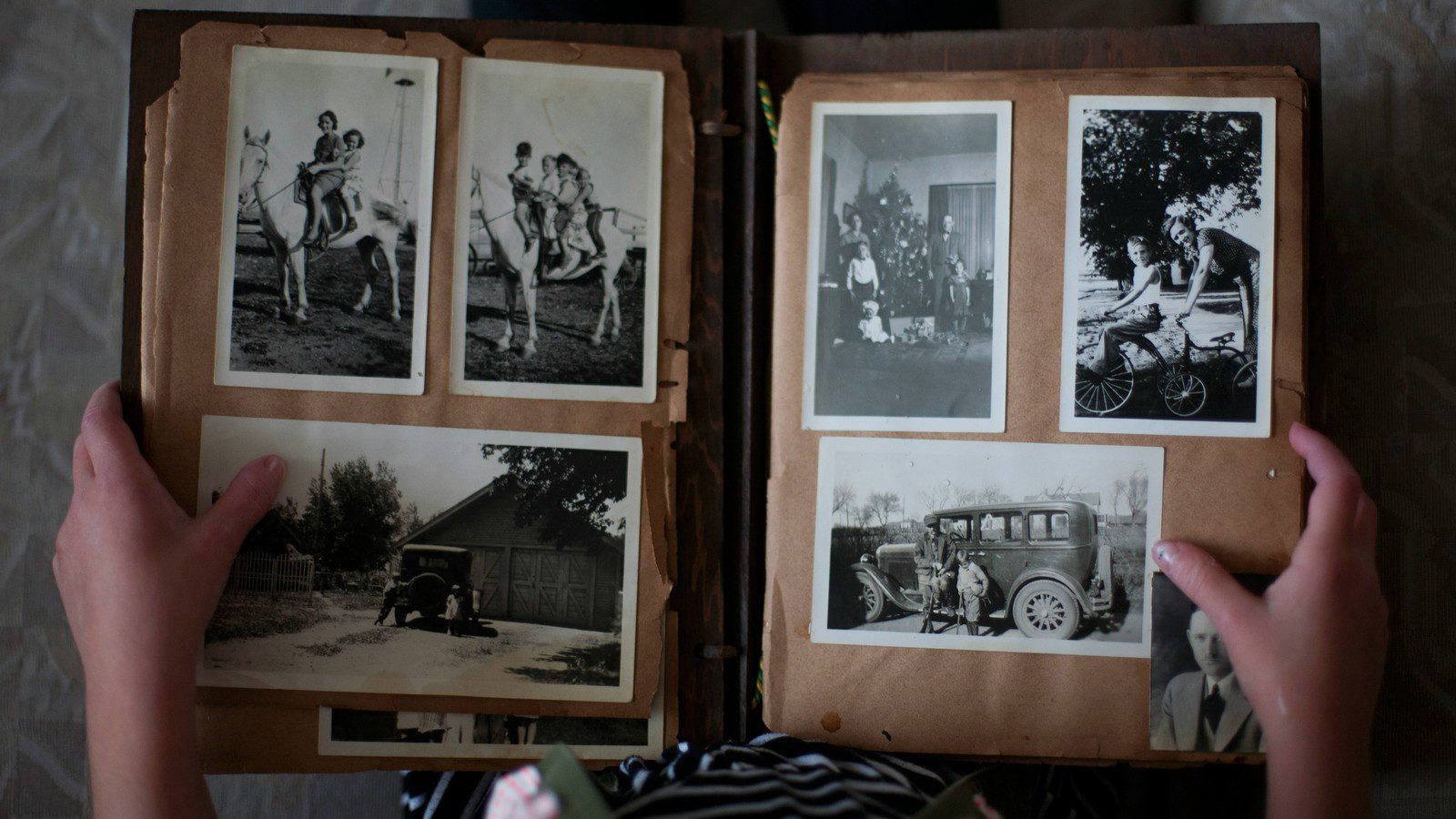
HitPaw Photo Restoration is an AI-assisted way to repair, sharpen, colorize, and upscale old or damaged photos without building a full manual retouching workflow. It is part of HitPaw’s wider photo toolset, with a desktop route through HitPaw FotorPea and an online route for browser-based old-photo repair.
The appeal is obvious. Many people have family albums, scanned portraits, faded prints, damaged school photos, archive images, or older product and event photos that are too important to throw away but too time-consuming to retouch by hand. AI restoration tools promise a middle path: upload the image, choose a restoration model, preview the result, and export a cleaner version.
The official HitPaw old photo restoration page positions the workflow around scratch repair, color restoration, portrait recovery, sharpened detail, and batch-friendly desktop use. HitPaw’s online old photo restoration page presents a browser-based version with old photo restoration, face enhancement, image upscaling, photo colorization, and scratch removal. Directory coverage from AIxploria describes the tool as a browser option for removing scratches, noise, and blur, restoring damaged faces, colorizing black-and-white photos, and converting outputs toward 4K quality.
This guide explains what HitPaw Photo Restoration does, where it fits beside HitPaw FotorPea, how the online and desktop options differ, what to expect from pricing and credits, and how businesses, families, creators, and archive teams should review AI-restored images before publishing or printing them.
HitPaw Photo Restoration at a glance
HitPaw Photo Restoration is not just a single filter. It is a set of AI photo repair workflows aimed at common old-photo problems.
| Area | What it means |
|---|---|
| Main job | HitPaw Photo Restoration repairs and enhances old, faded, damaged, blurry, or black-and-white photos. |
| Product routes | Desktop restoration through HitPaw FotorPea and online restoration through HitPaw Online. |
| Key features | Scratch removal, face enhancement, sharpening, upscaling, colorization, color grading, and clarity recovery. |
| Best inputs | Scanned family photos, portraits, old prints, faded images, low-resolution photos, and lightly to moderately damaged archives. |
| Desktop strengths | Batch processing, broader model choices, local app workflow, higher-volume restoration sessions. |
| Online strengths | Browser access, no installation, quick one-off repair, simple upload-preview-download workflow. |
| Important limits | AI can invent detail, color guesses can be wrong, severe damage may still need human retouching, and privacy/licensing terms should be reviewed before uploading sensitive images. |
The short version: HitPaw Photo Restoration is useful when a photo is important enough to improve, but not important enough to justify a full professional restoration project.
Why this tool deserves a separate article
Progressive Robot already has a broader explainer on HitPaw’s AI photo enhancer. This article is narrower. It is about restoration, not generic enhancement.
That distinction matters for search intent and for real users. Someone searching for an AI image enhancer may want sharper product photos or cleaner social images. Someone searching for HitPaw Photo Restoration usually has a more emotional or archival job: restore old family pictures, repair scratches, recover faces, colorize black-and-white photos, improve scans, or prepare a print.
The work is more sensitive. A restored family portrait is not just an asset. It is a memory. A historical archive image is not just a file. It is a record. A business restoring old event photos, founder photos, or legacy product images needs accuracy as well as polish. That means the right workflow includes scanning, version control, human review, and careful export decisions, not only the AI model.
For companies building repeatable AI-assisted creative processes, this is a classic AI process redesign problem. The tool matters, but the process around the tool decides whether the result is trustworthy.
1. Old photo repair for scratches, spots, and tears
The most visible restoration use case is damage removal. HitPaw’s official desktop restoration page says the tool can erase scratches, tears, stains, and photo damage with AI Replace while retaining original details. The online page lists a Scratch Photo Eraser that removes scratches, spots, and tears automatically with AI.
This is the feature most users will test first. A scanned photograph may have white crease marks, dust, ink spots, folding damage, water stains, or surface scratches. Traditional editing can fix these with clone stamps, healing tools, masks, and careful reconstruction. HitPaw Photo Restoration aims to automate much of that repair.
The practical expectation should be moderate. Light and repeated defects are often easier for AI to remove. Heavy tears across faces, missing eyes, missing mouths, damaged uniforms, unreadable documents, or historically important details still need human review. The model may fill gaps with plausible texture, but plausible is not the same as true.
For family photos, that may be acceptable. For legal, archival, museum, or journalistic use, HitPaw Photo Restoration outputs should be documented as AI-restored and kept separate from the original scan.
2. Face recovery for old portraits
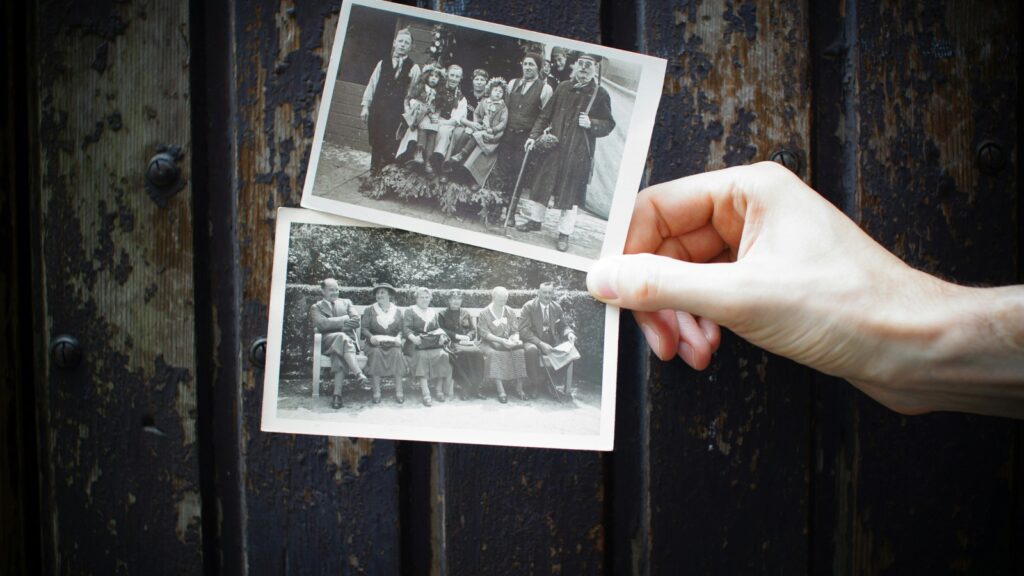
Portraits are a major reason people use HitPaw Photo Restoration. Old family images often have the same failure pattern: the clothing, background, and body shape are visible, but the face is soft, faded, scratched, or too small to print well.
HitPaw’s old-photo page highlights AI portrait restoration for damaged portraits with facial modeling. The wider HitPaw FotorPea photo enhancer page also describes a Face Model that sharpens facial features and recovers detail in low-quality portraits.
This can be powerful, but it is also where accuracy matters most. Face restoration models do not truly know what the person looked like. They infer likely details from the image and from model training. That means restored eyes, hairlines, skin texture, teeth, wrinkles, and facial contours may look convincing while drifting from the original person.
The best review method is side-by-side comparison. Keep the original scan, the restored version, and a note about what changed. If the photo is for family sharing, ask relatives whether the result feels right. If it is for business or historical publishing, do not use HitPaw Photo Restoration face recovery as evidence of exact appearance.
3. Colorizing black-and-white photos
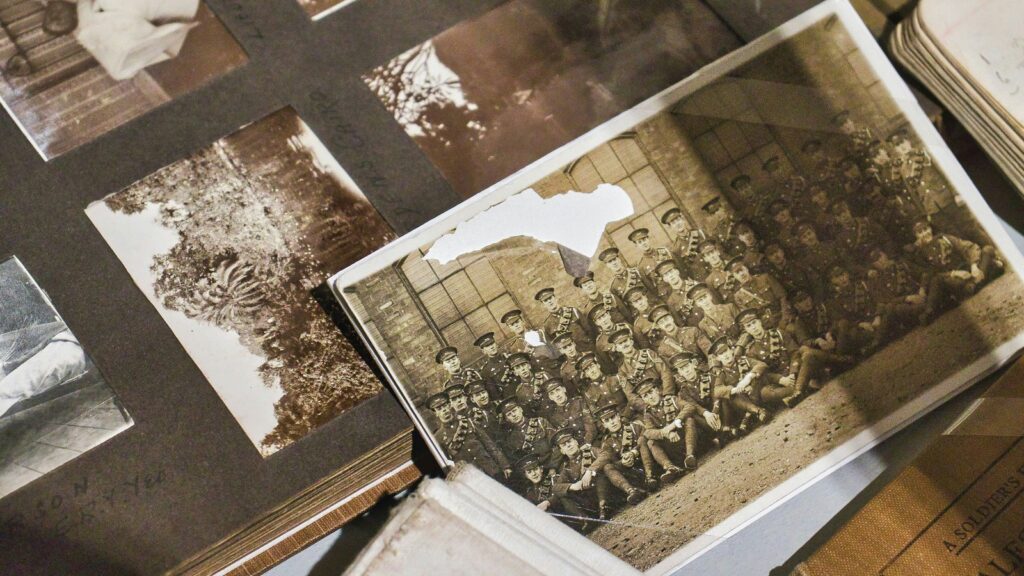
HitPaw Photo Restoration includes colorization as a headline feature. The desktop restoration page says it can automatically add realistic color to old black-and-white photos. The online page lists AI Colorize Photos, describing it as a way to bring old family photos and historic images alive.
Colorization is emotionally satisfying because it makes old images feel closer. A black-and-white portrait can suddenly look present. A street scene can gain sky, skin, brick, fabric, and landscape tones. For social sharing, family albums, memorial slideshows, and personal projects, that can be valuable.
But colorization is interpretive. The model may guess a blue dress, brown jacket, red car, green grass, or skin tone based on patterns rather than evidence. It may miss period-accurate clothing colors or regional details. It may make an old image more engaging while making it less historically reliable.
Use HitPaw Photo Restoration colorized outputs as creative restorations unless you have external evidence for the colors. For serious archives, keep black-and-white originals as the record and label colorized versions clearly.
4. Sharpening blurry photos and improving clarity
Old photographs become blurry for many reasons. Some were shot out of focus. Some were printed small and later scanned poorly. Some were compressed into tiny digital files. Some have motion blur or camera shake. HitPaw’s product pages position sharpening and clarity recovery as part of the restoration workflow.
The desktop page mentions sharpening blurry photos, enhancing detail, boosting sharpness, and restoring original photo quality with AI-powered clarity. The FotorPea enhancer page also discusses blur repair, motion blur, misfocused lenses, denoise, low-light recovery, and upscaling.
This is where HitPaw Photo Restoration overlaps with general enhancement. A restored image may need multiple passes: repair damage, recover face detail, reduce noise, sharpen edges, and upscale. The best sequence depends on the source. For a fragile scan, you may want to repair scratches before upscaling. For a tiny digital image, you may need upscaling before judging fine detail.
The risk is over-sharpening. AI can create crisp edges that look artificial, especially on skin, fabric, hair, and old paper grain. A good HitPaw Photo Restoration result preserves the character of the old photo instead of turning every face into a glossy modern portrait.
5. Upscaling for print and display
The online page says the tool can upscale image resolution up to 8X online without losing quality. The FotorPea enhancer page advertises 4K, 8K, and even 32K enhancement language in its product copy, while the old-photo page also highlights AI upscale and batch processing.
Upscaling is useful because restoration often starts from a small file. A family member may have scanned a print at low resolution years ago. A business may only have a thumbnail of an old event photo. A community group may have a low-resolution archive image that needs to appear in a newsletter, poster, or social post.
HitPaw Photo Restoration can help create larger exports that look better on modern screens. For print, still check the final pixel dimensions, print size, and viewing distance. A photo that looks good on a phone may still look soft on a large canvas.
For business use, treat HitPaw Photo Restoration upscaling as a production step. Save the original, the restored file, and the final print/export file separately. That avoids confusion when a designer, printer, or stakeholder needs to inspect the chain of edits.
6. Desktop FotorPea vs online restoration
HitPaw gives users two main paths.
For HitPaw Photo Restoration, the browser path is best for quick one-off jobs. The online restoration page says there is no installation required and describes a simple three-step flow: upload an old photo, select an AI model from preset options, then download the result if satisfied. It is convenient when you only need to restore a few images.
The desktop route through FotorPea is better for repeated work. The old-photo page emphasizes batch processing, 30+ format support, auto enhancement, AI upscale, and a local app workflow. The FotorPea technical specs page linked from the enhancer page lists Windows 11/10 64-bit support and macOS 10.15 or later, plus input/output formats including PNG, JPG, JPEG, WEBP, TIF, TGA, BMP, JFIF, and RAW.
For a family album, the online tool may be enough. For a business archive, school alumni project, photographer backlog, church archive, nonprofit anniversary campaign, or local history project, the desktop route is more practical because you can organize folders, process batches, and review at scale.
7. Pricing, credits, and refund expectations
HitPaw pricing is split across product and online plans, so users should check the current checkout page before buying.
The FotorPea purchase page shows individual plans, a multi-platform enhancement plan, monthly/yearly/perpetual options, and credits for cloud rendering, AI generation, AI swap, ID photo, background removal, AI Replace, and image restoration. In the fetched page, a one-month individual plan included 100 credits, the one-year plan included 500 credits, and the perpetual plan included 800 credits, with image restoration examples listed under the credit allowances. Prices can appear in different currencies or promotions depending on location and campaign.
The HitPaw Online pricing page shows HitPaw Ultra plans with AI credits. The fetched page listed weekly, monthly, and yearly plans, including a monthly plan at $24.99 with 1200 AI credits/month and a yearly plan at $79.99 with 3000 AI credits/year. It also listed photo enhancer allowances such as up to 1200 images/month and 3000 images/year on those plans.
The important HitPaw Photo Restoration calculation is not the sticker price. It is the number of accepted restorations. If 100 credits produce 50 acceptable restored photos for a family project, the tool may be a bargain. If a business needs heavy manual review after every output, the real cost is higher.
HitPaw’s refund policy says services are offered with a 30-day money-back guarantee under accepted circumstances, but it also lists several no-refund situations, including requests after the 30-day window, wrong operation, buyer’s remorse, not reading product details, and certain credit-use thresholds. Test with non-sensitive sample images before committing to a large restoration project.
8. Privacy, face data, and sensitive family images
Restoring old photos often involves faces, children, ancestors, private homes, uniforms, medical situations, religious events, or other sensitive personal context. Privacy deserves real attention.
HitPaw’s privacy policy says AI-based image processing may include enhancement, restoration, optimization, denoising, and related services. It says uploaded content is processed to deliver the requested effect and is not used for model training or unrelated purposes. It also says features such as Face Repair, Restoration of old photos, and High fidelity may analyze facial information, but HitPaw says it will not use uploaded images for identity recognition, identity verification, or facial recognition templates.
The same policy says User Content and generated results are retained only as necessary for service generation and short-term traceability, with automatic deletion within seven days after processing unless users save the data separately or a longer period is legally required. A separate HitPaw Online Photo Enhancer section says accessed images are automatically deleted from servers on the same day and are not used for generalized AI or ML model training.
Those statements are useful, but HitPaw Photo Restoration users should still be cautious. Do not upload images you are not authorized to process. Do not upload confidential client files, protected archive material, or images of living people without consent. For business workflows, privacy review belongs before upload, not after export.
9. Terms, commercial use, and AI accuracy
The HitPaw terms matter because restoration can sit between personal memory work and commercial publishing.
The general terms grant a personal, non-transferable, non-exclusive, revocable license and say access/use is for non-commercial purposes. They also say users must not infringe privacy, portrait, intellectual property, or other legal rights. The generative AI additional terms say users are responsible for input content and must ensure they have sufficient rights. They also warn that AI outputs may be incorrect, biased, or inaccurate and should be evaluated for critical applications through human review.
For personal HitPaw Photo Restoration projects, the path is straightforward: use photos you own or have permission to use, keep originals, and review outputs. For business use, do not assume a restored image is cleared for marketing just because the tool produced it. Check plan terms, rights in the original photo, likeness consent, and any third-party rights.
This is especially important for schools, employers, agencies, museums, family-history services, local publications, and nonprofits. A restored image can look public-ready while still carrying copyright, privacy, likeness, or historical accuracy issues.
Best use cases for HitPaw Photo Restoration
HitPaw Photo Restoration is strongest when the goal is practical improvement, not forensic recovery.
- Restoring family portraits for albums, slideshows, memorials, and gifts.
- Repairing faded or scratched photos before printing.
- Colorizing black-and-white photos for personal storytelling.
- Improving old event photos for newsletters and social posts.
- Preparing legacy founder or company photos for anniversary campaigns.
- Enhancing local history images for community projects.
- Cleaning up scanned school, club, or sports photos.
- Upscaling low-resolution archive photos for digital displays.
- Testing HitPaw Photo Restoration quality before paying for professional retouching.
The tool is less suitable when the source image is extremely damaged, when accuracy is legally important, when the image contains sensitive people or private records, or when a professional restorer needs full manual control.
A practical restoration workflow
If you use HitPaw Photo Restoration for a serious project, do not start by dragging every image into the tool. Start with a workflow.
Step 1: scan or collect the best source
Use the highest-quality source available for HitPaw Photo Restoration. A clean scan of the original print is better than a screenshot of a social-media upload. If scanning, use a clean scanner bed, align the photo, avoid auto-cropping important edges, and save a lossless or high-quality file.
Step 2: make a working copy
Never overwrite the original. Keep a folder for originals, a folder for AI-restored outputs, and a folder for final approved exports. That simple structure prevents accidental loss.
Step 3: choose the restoration goal
Decide whether the image needs scratch removal, face recovery, colorization, upscaling, denoise, or a combination. The online tool presents preset model choices; the desktop app gives a broader restoration workflow.
Step 4: preview at normal size and full size
A result can look excellent in a small preview and strange at 100% zoom. Inspect faces, hands, uniforms, background details, text, edges, and repeated textures before approving.
Step 5: compare against the original
Use side-by-side review. Ask: did the tool remove damage, or did it remove real detail? Did it restore a face, or change identity? Did colorization improve storytelling, or add misleading color?
Step 6: export for the real destination
Choose export settings based on the final use. A web image, framed print, archive copy, social post, and large display all have different requirements.
Step 7: document what changed
For personal use, a filename may be enough. For business or archive use, keep a short note: original source, restoration tool, date, model/workflow used, and reviewer.
This workflow is simple, but it changes the outcome. It turns AI restoration from a novelty into a repeatable content process, which is where workflow automation becomes useful.
HitPaw Photo Restoration vs a professional retoucher
AI restoration tools and human retouchers solve different problems.
| Choice | Best for | Trade-off |
|---|---|---|
| HitPaw Photo Restoration online | Quick one-off repairs, family photos, browser-based tests | Less control over detailed reconstruction |
| HitPaw FotorPea desktop | Batch projects, repeated restoration, higher-volume cleanup | Requires installation and plan/credit management |
| Professional retoucher | Heavily damaged images, sensitive portraits, exact control | Higher cost and slower turnaround |
| Photoshop/manual workflow | Maximum edit control and layered restoration | Requires skill and time |
For many users, the best path is hybrid. Use AI to produce quick candidates. Send the most important or most difficult images to a human retoucher. This keeps costs down without pretending AI is perfect.
Governance checklist for businesses and archives
Before a restored image goes public, run a short review.
| Check | Question |
|---|---|
| Rights | Do we own the photo or have permission to restore and publish it? |
| Likeness | Are living people identifiable, and do we need consent? |
| Accuracy | Did restoration change faces, uniforms, products, documents, or context? |
| Disclosure | Should we label the image as AI-restored or colorized? |
| Privacy | Does the photo reveal addresses, children, medical information, private spaces, or sensitive events? |
| Versioning | Can we trace the output back to the original scan? |
| Quality | Does it still look good at intended print or screen size? |
| Commercial terms | Does our use fit the current product plan and terms? |
| Storage | Are originals and exports stored in the right archive folder? |
A HitPaw Photo Restoration approval checklist may feel formal for a photo tool, but the same logic applies to any AI-assisted media workflow. The more public the output, the more review it deserves.
HitPaw Photo Restoration FAQ
What is HitPaw Photo Restoration?
HitPaw Photo Restoration is an AI-assisted old-photo repair workflow from HitPaw. It helps restore damaged, faded, blurry, scratched, or black-and-white photos using tools for scratch removal, face enhancement, colorization, sharpening, and upscaling.
Is HitPaw Photo Restoration online or desktop?
Both. HitPaw Photo Restoration is available through an online old-photo restoration page for browser-based repair and a desktop route through HitPaw FotorPea for larger or repeated restoration workflows.
Can HitPaw Photo Restoration fix scratched photos?
Yes, HitPaw’s online page lists a Scratch Photo Eraser, and the desktop restoration page describes removing scratches, tears, stains, and photo damage with AI tools. Severe damage may still need manual retouching.
Can HitPaw Photo Restoration colorize black-and-white photos?
Yes. The official pages describe AI colorization for black-and-white photos, but users should remember that colorization is a model-based interpretation unless verified by external evidence.
Can businesses use restored photos in marketing?
Businesses should review the current HitPaw terms, plan rules, original photo rights, likeness consent, and privacy obligations before using restored photos in commercial or public campaigns.
Is AI photo restoration accurate?
AI restoration can improve clarity, remove visible defects, and make old photos easier to view. It can also infer or invent details. Human review is important, especially for faces and historical records.
What is the best way to test HitPaw Photo Restoration?
Start with a small batch of non-sensitive images. Compare the original and restored files at full size, check faces and details, and calculate how many outputs are good enough before buying a larger plan.
Bottom line
HitPaw Photo Restoration is a practical tool for bringing old photos back into usable condition. It can remove scratches, improve faces, sharpen soft details, colorize black-and-white images, and upscale low-resolution files with far less manual work than a traditional editor.
The strongest use case is not replacing professional restoration. It is making restoration accessible for everyday people and faster for teams with many old images to review. Families can recover memories. Creators can prepare nostalgic visuals. Businesses can refresh legacy images. Community groups can revive archive material.
The smart approach is simple: keep originals, use the best source scans, test on a small batch, review outputs carefully, document AI changes, and check privacy and rights before publishing. Used that way, HitPaw Photo Restoration can be more than a nice photo trick. It can become a reliable step in a modern digital-archive workflow.










