
The Gemini desktop app is picking up two features that change what it is for: the ability to connect custom MCP servers, and dedicated tabs for image and video generation. Both surfaced in trusted-tester builds spotted at the start of August 2026, and together they push Google’s native client past the point where it is simply a browser window with the tab bar removed.
That distinction matters more than it sounds. Until now the Gemini desktop app has been a convenience — faster to reach, easier to keep open, but functionally behind gemini.google.com. Adding open protocol support and first-class media surfaces turns it into the place where work actually happens. This guide covers exactly what is being added, why MCP support is the more consequential of the two changes, how the media generation tabs alter day-to-day use, and what businesses should do about it before the features reach general availability.
Table of contents
- What the Gemini Desktop App Is Actually Adding
- Why MCP Support Is the More Important Half
- The Media Generation Tabs, Explained
- How the Gemini Desktop App Fits Google’s Wider Push
- What MCP Support Changes for Real Workflows
- Security Questions to Settle Before You Enable It
- What Businesses Should Do Now
- The Competitive Picture Behind the Update
- Frequently Asked Questions
- The Bottom Line
What the Gemini Desktop App Is Actually Adding
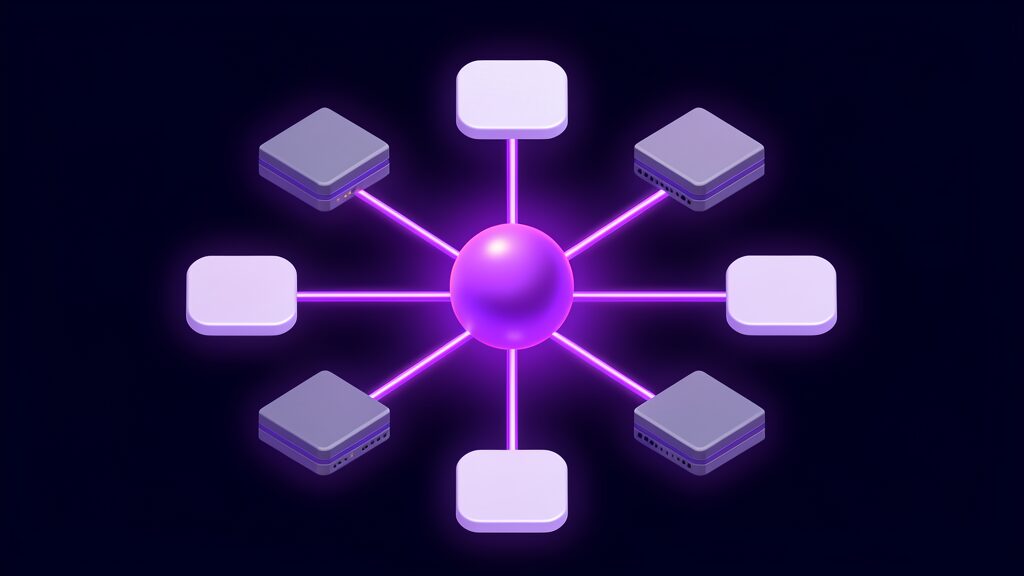
Two feature families are in testing at once, and they solve very different problems. One opens the assistant to outside tools. The other closes a gap that has quietly pushed people back to the browser for months.
Custom MCP servers inside the connectors menu
The connectors menu in the Gemini desktop app is gaining an option to add custom MCP servers. Configuration that previously lived in internal settings is being promoted into the visible agent settings panel, where a user can paste a server URL and connect it. It is a small interface change carrying a large capability shift.
Promoting a setting from internal to visible is how a platform signals that a feature has stopped being an experiment. Once the option is in the Gemini desktop app settings panel, ordinary users can reach it without a flag, and Google has to support whatever they connect.
Dedicated image and video generation tabs
Separate navigation entries for image generation and video generation are being added to the app’s sidebar. Rather than typing a request into a general chat box and hoping the model routes it to the right generator, users get purpose-built surfaces for each medium — the same pattern Google already uses on the web.
For anyone who generates visual assets regularly, this is the more immediately noticeable of the two changes. It converts the Gemini desktop app from somewhere you ask for an image into somewhere you produce a set of them.
Camera capture as an attachment option
A third addition lets users attach a photo taken on the spot. Selecting the camera option opens a capture screen, takes a picture, and inserts it into the prompt. It is deliberately not a live video stream — that remains the territory of Gemini Live — but it removes an awkward detour through the file system.
Where these features stand right now
All three are in trusted-tester builds with no confirmed public rollout date, and the sightings were on macOS. Features at this stage sometimes ship in weeks and sometimes get pulled entirely. Treat this as a strong signal of direction for the Gemini desktop app rather than a release announcement, and plan accordingly.
Why MCP Support Is the More Important Half
If you only track one of these changes, track this one. Media tabs are a usability improvement. MCP support in the Gemini desktop app is an architectural decision that determines how much of your stack the assistant can reach.
What the Model Context Protocol actually does
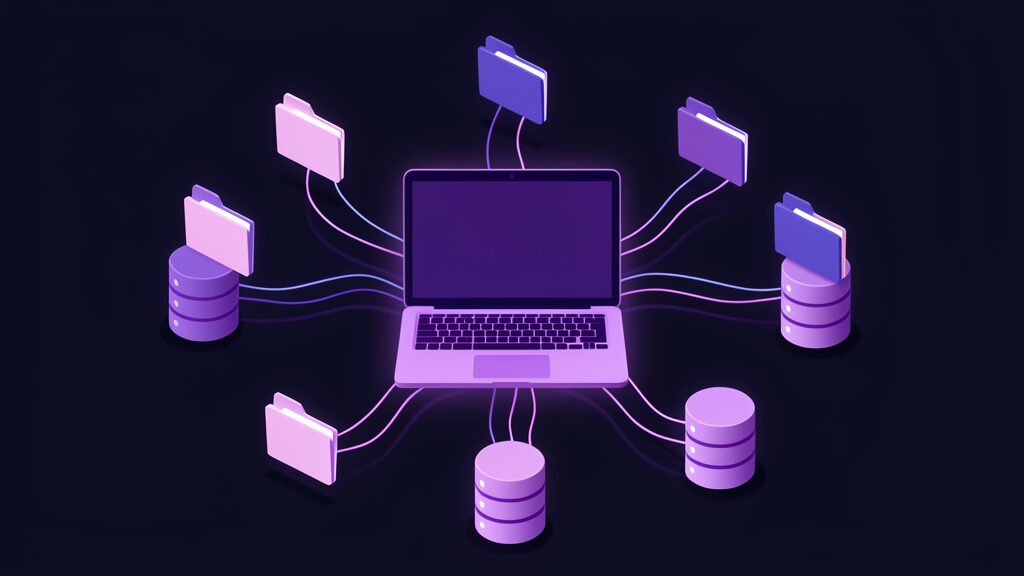
The Model Context Protocol is an open standard for connecting AI assistants to external tools and data sources. Instead of every vendor building a bespoke integration for every service, a service exposes one MCP server and any compliant client can use it. It is the USB-C moment for AI tooling — one connector shape, many devices.
Because the standard is open, a server written for one assistant works with the next. The Gemini desktop app supporting it means an integration built today is not a bet on Google specifically, which is a materially better position than any proprietary connector offers.
From a fixed list to an open one
Google has shipped a growing set of named integrations: Canva, Dropbox, Instacart, OpenTable and Zillow Rentals among them, several delivered as MCP connections. Those are useful, but they are Google’s choices, not yours. Custom MCP server support in the Gemini desktop app means your internal ticketing system, your CRM, or your bespoke inventory database becomes reachable without waiting for a partnership announcement.
The desktop is where your tools already are
There is a reason this lands harder on desktop than on the web. Your local files, your VPN, your development environment and your line-of-business software all live on the machine. A browser tab is sandboxed away from most of it. The Gemini desktop app sits inside that environment, so an MCP connection from it can reach things a web session structurally cannot.
Catching up with the web app, then passing it
Custom app connections have been available in the Gemini web app for a while — you connect a custom app by entering its MCP server URL in the Connected Apps settings, and once connected it becomes available on mobile too. Bringing that into the Gemini desktop app is parity on paper. In practice, combined with local file access, it is more capability than the browser version can offer.
The Media Generation Tabs, Explained
The second change is easier to describe and will be noticed by more people on day one. Dedicated tabs sound cosmetic. They are not.
Image generation gets its own surface
Google’s image model line — Nano Banana 2, built on Gemini Flash Image — handles infographics, diagrams from notes, data visualisations and production-ready output with control over aspect ratio and resolution. Those controls need somewhere to live. A dedicated tab in the Gemini desktop app gives them a home instead of burying them in chat syntax nobody remembers.
Video generation follows the same pattern
Video sits alongside it, drawing on Google’s Veo lineage and the conversational video editing approach the company has been pushing. Blending text, photos and existing footage into a finished clip involves iteration, and iteration in a linear chat log is miserable. A workspace inside the Gemini desktop app that holds your generations, settings and revisions is the right shape for the job.
Why a tab beats a prompt box
A chat interface is optimised for turns of conversation. Creative work is not conversational — it is comparative. You want to see four variations side by side, keep two, change one parameter and run again. The Gemini desktop app tabs acknowledge that generation is a different mode of work rather than another kind of question.
Files that land where you can use them
The desktop context brings a practical advantage the web cannot match: generated assets save straight into local folders rather than routing through cloud storage first. If your next step is dropping an image into a deck or a video into an editing timeline, the Gemini desktop app removing that download round-trip removes real friction from a task most teams repeat daily.
How the Gemini Desktop App Fits Google's Wider Push
None of this happened in isolation. The Gemini desktop app has been on a steady release cadence through 2026, and these features are the next entries in a visible pattern.
The Spark integration set the direction
Gemini Spark reached macOS on 1 July 2026, adding a dedicated Spark tab to the sidebar and — for the first time — direct read-write access to the local file system. That same update brought MCP support and integrations with Google Tasks and Keep. The pattern was set then: take what the agent can do, and give it the machine to do it on.
Dictation and screen awareness arrived in July
Intelligent dictation and screen-aware reasoning began rolling out on 29 July 2026, letting the assistant work from what is on screen rather than only what is typed. Read next to the MCP and media changes, the trajectory is obvious — the Gemini desktop app is being built into an operator, not a chat window.
Availability is still narrow
Realism matters here. Gemini Spark on Mac launched in beta for Google AI Ultra subscribers in the United States aged 18 or over, and AI Ultra runs $99 per month. Advanced Gemini desktop app capabilities are premium-tier features in a single market until Google says otherwise, which shapes any rollout plan you build around them.
Windows users are still waiting for detail
Public reporting on these changes has centred on macOS. Google has not laid out a matching Windows timeline for the newest capabilities, so organisations running mixed fleets should assume uneven availability. Plan a pilot on the platform where the features exist, not the one where most of your users are.
What MCP Support Changes for Real Workflows
Abstract capability descriptions rarely survive contact with a Monday morning. Here is what custom MCP servers in the Gemini desktop app look like in ordinary use.
The internal system that finally becomes reachable
Most companies run at least one system with no public API story and no vendor integration — a legacy ERP, a homegrown scheduling tool, a warehouse database. Wrapping it in a small MCP server makes it queryable in plain language from the Gemini desktop app. That is often the single highest-value integration a team can build, and it is usually the least glamorous.
The economics are favourable too. A minimal MCP server exposing three or four well-described read operations is a few days of work, not a quarter. That is a genuinely low bar for making an opaque system conversational.
Reading and writing, not just reading
Local file access plus tool connections means the assistant can complete loops rather than just answer questions. Pull last month’s figures from the internal system, generate the chart, save it to the project folder, draft the summary. Each step existed before. Chaining them without a human moving files between windows is the change.
Fewer copy-paste bridges
A surprising share of knowledge work is transporting data between systems that will not speak to each other. Every one of those hops is a chance to paste the wrong thing. Connecting the endpoints properly is a direct reliability improvement, which is why workflow automation projects almost always pay back faster than the headline feature work sitting next to them.
Where it will disappoint you
Set expectations honestly. MCP gives the model a reliable way to call your tools; it does not give it judgement about when to call them. Early integrations in the Gemini desktop app will tend to be over-eager or oddly reluctant, and the fix is usually clearer tool descriptions rather than a better model. Budget iteration time.
Security Questions to Settle Before You Enable It
A feature that lets any user attach arbitrary external tools to a corporate assistant deserves a policy before it deserves enthusiasm. These are the questions worth answering first.
A custom MCP server is code you are trusting
Adding a server URL in the Gemini desktop app grants a third party a channel into your assistant’s context. If that server is compromised or simply badly built, it can return content designed to influence what the model does next. Vet MCP servers the way you would vet a browser extension with access to internal systems — because functionally, that is the comparison.
Prompt injection travels through tool output
The realistic attack is not someone breaking the model. It is malicious instructions hidden in data the model reads through a legitimate connector — a calendar invite, a support ticket, a shared document. The Gemini desktop app makes more such surfaces reachable, which makes the question of what the assistant is permitted to do afterwards considerably more important.
Decide who can add servers
The most useful control is also the simplest: decide whether adding a custom MCP server is a self-service action or an approved one. Consumer-tier apps generally leave this to the individual user. If your staff are running the Gemini desktop app against company data, that default deserves a deliberate decision rather than silent acceptance.
Transport and authentication details matter
On the enterprise side Google’s custom MCP connector supports the StreamableHTTP transport only — the older SSE transport is not supported — and as of mid-June 2026 it can authenticate with a Google Cloud service account. Anyone building an internal server should read the current specification rather than an older tutorial. Our AI models and tools hub tracks these platform shifts as they land.
What Businesses Should Do Now
Neither feature has shipped broadly, which makes this the useful window — the point where you can prepare cheaply instead of reacting expensively.
Run a narrow, boring pilot
Pick one read-only integration against a system nobody will miss for an afternoon. Documentation search is ideal. The goal is not impact; it is learning how your team actually uses the Gemini desktop app when it can reach something real, and how often it gets the call wrong.
Write the media policy before the tab appears
Dedicated generation tabs will produce a great deal more imagery, and volume is where governance problems start. Decide now what is acceptable for client-facing material, how generated assets are labelled, and where they are stored. A one-page rule written before the flood is worth more than a review process written after it.
Look at the whole task, not the tool
The temptation with any new assistant capability is to bolt it onto the existing process and declare victory. The larger returns come from asking which steps stop being necessary. That framing — redesigning the task rather than accelerating it — is the same thinking behind autonomous AI agents and it applies squarely here.
Do not standardise on one vendor’s client yet
MCP is an open protocol, which is precisely why an MCP server you build for the Gemini desktop app also works with other compliant clients. Build the server as a durable asset. Treat the client as replaceable, because at the current pace of desktop assistant releases, it is.
The Competitive Picture Behind the Update
These changes are not happening because Google woke up with a new idea. They are happening because the entire category is converging on the same shape at the same time.
Everyone is building the same product
Native desktop client, local file access, open tool protocol, media generation, screen awareness. Every major assistant vendor is checking the same boxes on a similar timeline. The Gemini desktop app adopting MCP is the clearest possible signal that a protocol launched by a competitor has become table stakes rather than a differentiator.
The moat moved to distribution
When capability converges, advantage shifts to reach. Google’s leverage is Workspace, Android, Chrome and Search — hundreds of millions of people already inside the ecosystem. Making the Gemini desktop app good enough to keep them there is worth more strategically than any single feature it ships.
Feature gaps are the actual roadmap
The plainest reading of this update is that Google is systematically eliminating reasons to open a browser. Camera capture, media tabs, custom connectors — each removes one specific workflow that still required the web app. Expect that pattern to continue until the gap closes entirely, and read future Gemini desktop app releases through that lens.
What to watch next
Three signals are worth tracking: whether these features graduate from trusted-tester builds to general availability, whether Windows reaches parity with macOS, and whether enterprise administrators get controls over custom MCP servers before the capability reaches business tiers. The third is the one IT leaders should press their account teams on. TestingCatalog’s report remains the most detailed public account of what is in the builds, and Google’s own Gemini Spark update notes cover the connector work already shipped.
Frequently Asked Questions
Short answers to the questions that come up most often about this update.
When will these features actually ship?
There is no confirmed public rollout date. Both the MCP option and the media generation tabs were found in trusted-tester builds, which is a pre-release channel. Some features in that channel ship within weeks; others are revised or dropped.
Do I need a paid plan?
Almost certainly. The advanced agent capabilities in the Gemini desktop app have launched on premium tiers — Gemini Spark on Mac arrived in beta for Google AI Ultra subscribers at $99 per month. Assume premium gating until Google states otherwise.
Can I use MCP with Gemini today?
Yes, through the web app. Custom apps can be connected there by entering an MCP server URL in Connected Apps settings, and the connection then carries across to mobile. Google’s support documentation covers the current process.
Is this the same as Gemini in Chrome?
No. Gemini in Chrome operates inside the browser and reasons about web pages. The Gemini desktop app is a native application with access to local files and, with these updates, to arbitrary MCP-connected tools. Different surfaces, different reach.
Should we wait for the Windows version?
If your fleet is Windows-heavy, you can still prepare. Build and test the MCP server now — it is client-agnostic by design — so that whenever the Gemini desktop app reaches Windows parity, the integration work is already done rather than starting from zero.
The Bottom Line
The media generation tabs will get the attention because they are visible and immediately useful. MCP support is the change that will still matter in a year, because it determines whether the Gemini desktop app can reach the systems your business actually runs on or stays a well-designed box for conversation.
Neither has shipped broadly, and the current sightings are macOS-only in a premium tier. But the direction is unambiguous, and the preparation is cheap: understand the protocol, decide who may connect what, and build integrations against the open standard rather than the client. Do that, and whichever desktop assistant wins, your work carries over.