
Outlook Google Calendar Sync has become increasingly important as professionals, businesses, students, and remote workers rely on multiple calendar platforms to organize their schedules. Many individuals use Microsoft Outlook for corporate email and meetings while maintaining personal events in Google Calendar. Others collaborate with organizations that operate entirely within Google’s ecosystem while still depending on Outlook through Microsoft 365 or Exchange. Managing appointments across separate calendars can quickly become confusing without a reliable synchronization strategy.
Modern workplaces frequently combine several productivity platforms. Employees may receive meeting invitations through Outlook, schedule family activities in Google Calendar, coordinate project deadlines using collaboration software, and manage client appointments through third-party scheduling applications. Without Outlook Google Calendar Sync, important meetings may be overlooked, duplicated, or scheduled at conflicting times.
Calendar synchronization helps eliminate these challenges by ensuring important events remain consistent across multiple devices and platforms. Instead of manually creating identical appointments in different calendars, synchronization automatically transfers updates, modifications, cancellations, and new events whenever supported by the selected synchronization method.
The growing adoption of hybrid work has further increased the importance of Outlook Google Calendar Sync. Employees now switch regularly between desktop computers, laptops, smartphones, tablets, and web applications while collaborating across multiple organizations. Maintaining accurate schedules across every device improves productivity, reduces scheduling conflicts, and supports more effective collaboration.
Fortunately, numerous synchronization approaches are available. Some users prefer simple one-way synchronization that publishes Outlook events to Google Calendar. Others require full two-way synchronization where changes made in either platform automatically appear in the other. Organizations may also integrate enterprise scheduling platforms that synchronize calendars while enforcing security, compliance, and organizational governance.
Selecting the correct synchronization approach depends on several factors including personal versus business use, Microsoft Exchange configuration, Google Workspace deployment, privacy requirements, synchronization frequency, automation capabilities, and supported devices.
This comprehensive guide explains Outlook Google Calendar Sync, examines available synchronization methods, discusses security considerations, compares one-way and two-way synchronization, explores enterprise deployment strategies, and provides best practices for maintaining accurate calendars across multiple platforms.
Key Takeaways
- Outlook Google Calendar Sync keeps schedules consistent across Microsoft Outlook and Google Calendar.
- Synchronization reduces duplicate work and scheduling conflicts.
- Multiple synchronization methods support personal and enterprise users.
- Two-way synchronization provides greater flexibility than manual updates.
- Security, privacy, and organizational policies should always be considered.
What Is Outlook Google Calendar Sync?
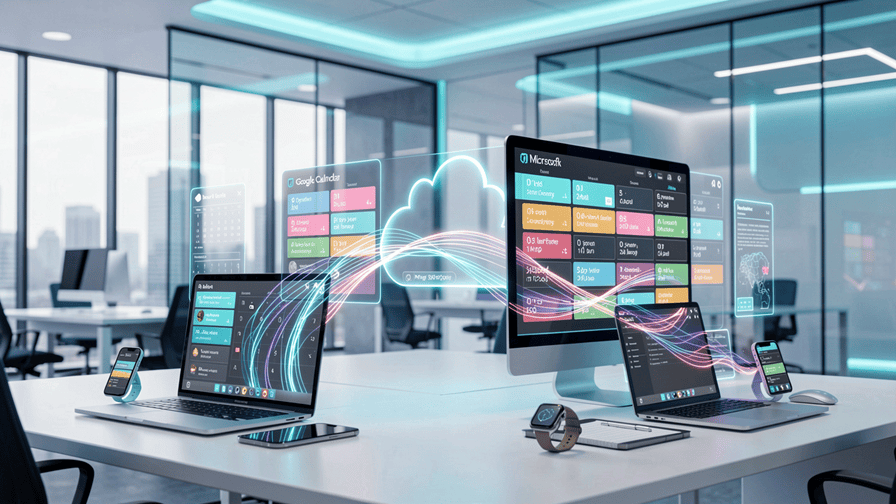
Outlook Google Calendar Sync is the process of synchronizing calendar events between Microsoft Outlook and Google Calendar so that appointments remain consistent across both platforms.
Depending on the synchronization solution, Outlook Google Calendar Sync may support:
- One-way synchronization.
- Two-way synchronization.
- Automatic updates.
- Manual synchronization.
- Shared calendars.
- Cross-device synchronization.
- Enterprise scheduling.
- Mobile calendar integration.
The goal is to minimize manual calendar management while ensuring accurate scheduling information across all supported devices.
Why Outlook Google Calendar Sync Matters
Many professionals work within multiple productivity ecosystems every day.
Without Outlook Google Calendar Sync, users often experience:
- Duplicate calendar entries.
- Missed meetings.
- Scheduling conflicts.
- Manual data entry.
- Outdated appointments.
- Inconsistent reminders.
- Collaboration challenges.
- Reduced productivity.
Synchronization improves scheduling accuracy while simplifying calendar management across business and personal environments.
Common Outlook and Google Calendar Scenarios
Outlook Google Calendar Sync supports numerous real-world situations.
Common examples include:
- Business Outlook with personal Google Calendar.
- Microsoft 365 and Google Workspace collaboration.
- Remote work scheduling.
- Cross-company meetings.
- Mobile device synchronization.
- Shared family calendars.
- Project coordination.
- Consultant scheduling.
Each scenario may require different synchronization approaches depending on organizational requirements.
How Outlook Google Calendar Sync Works

Outlook Google Calendar Sync works by transferring calendar information between Microsoft Outlook and Google Calendar using supported synchronization technologies. Depending on the solution you choose, synchronization may occur automatically in the background, at scheduled intervals, or manually whenever you request an update. The primary objective is to ensure that appointments, meetings, reminders, and schedule changes remain consistent across both calendar platforms.
Not every synchronization method functions the same way. Some solutions simply publish one calendar so it can be viewed in another application, while others actively exchange updates in both directions. Understanding these differences is essential before implementing Outlook Google Calendar Sync, particularly within business environments where meeting accuracy is critical.
One-Way Synchronization
One-way Outlook Google Calendar Sync transfers events from one calendar to another without sending updates back.
For example:
- Outlook → Google Calendar.
- Google Calendar → Outlook.
This approach is commonly used when one calendar serves as the primary scheduling system while the second calendar is used only for viewing availability.
One-way synchronization offers several advantages:
- Simple configuration.
- Lower administrative complexity.
- Reduced synchronization conflicts.
- Better control over the master calendar.
- Suitable for public or shared schedules.
- Lower maintenance requirements.
- Broad compatibility.
- Reliable viewing experience.
However, edits made in the secondary calendar do not automatically update the original calendar.
Two-Way Synchronization
Two-way Outlook Google Calendar Sync allows changes made in either calendar to automatically update the other.
Supported updates typically include:
- New appointments.
- Meeting changes.
- Event deletions.
- Time adjustments.
- Location updates.
- Reminder modifications.
- Calendar edits.
- Recurring event changes.
Two-way synchronization provides the greatest convenience for users who actively manage schedules across both Outlook and Google Calendar.
Synchronization Technologies
Several technologies support Outlook Google Calendar Sync depending on the environment.
Common synchronization methods include:
- Microsoft Exchange.
- Microsoft 365 services.
- Google Workspace.
- iCalendar (ICS) feeds.
- CalDAV-compatible services.
- Third-party synchronization software.
- Cloud integration platforms.
- API-based synchronization.
The available options depend on organizational infrastructure and account configuration.
Microsoft 365 Integration
Organizations using Microsoft 365 frequently rely on Outlook as their primary scheduling platform.
Within these environments, Outlook Google Calendar Sync may involve:
- Microsoft Exchange Online.
- Outlook desktop.
- Outlook on the web.
- Microsoft Graph API.
- Shared mailboxes.
- Organization calendars.
- Room scheduling.
- Teams meeting integration.
Enterprise deployments often require administrator approval before enabling synchronization with external platforms.
Google Workspace Compatibility
Businesses using Google Workspace frequently maintain calendars through Google Calendar.
Google Workspace environments commonly include:
- Employee calendars.
- Shared team calendars.
- Meeting room scheduling.
- Resource calendars.
- Department calendars.
- Group scheduling.
- Mobile synchronization.
- Administrative controls.
Outlook Google Calendar Sync enables organizations collaborating across Microsoft and Google ecosystems to maintain consistent scheduling information.
Mobile Device Synchronization
Many users access calendars primarily through smartphones and tablets.
Modern Outlook Google Calendar Sync solutions typically support:
- Android devices.
- iPhone.
- iPad.
- Windows laptops.
- macOS computers.
- Web browsers.
- Smart watches.
- Multiple user devices.
Cross-device synchronization ensures appointments remain current regardless of which device is being used.
Automation
Automation significantly improves Outlook Google Calendar Sync by reducing manual maintenance.
Automated synchronization may include:
- Scheduled synchronization intervals.
- Instant event updates.
- Automatic conflict detection.
- Reminder synchronization.
- Recurring meeting updates.
- Calendar publishing.
- Background synchronization.
- Error notifications.
Automation improves scheduling accuracy while reducing repetitive administrative work.
Calendar Conflict Handling
Synchronization occasionally encounters conflicting updates.
For example:
- The same event is modified in both calendars.
- Duplicate appointments exist.
- Time zones differ.
- Recurring meetings change differently.
- One calendar deletes an event while another edits it.
- Different reminder settings exist.
- Permission restrictions prevent updates.
- Network interruptions delay synchronization.
Well-designed Outlook Google Calendar Sync solutions provide conflict resolution rules that determine which version should remain authoritative.
Time Zone Management
One of the most important aspects of Outlook Google Calendar Sync is accurate time zone handling.
Synchronization systems should correctly manage:
- Local time zones.
- International travel.
- Daylight saving time.
- Regional calendar settings.
- UTC conversion.
- Cross-country meetings.
- Remote collaboration.
- Automatic time adjustments.
Proper time synchronization prevents scheduling errors across geographically distributed teams.
Benefits of Outlook Google Calendar Sync

Implementing Outlook Google Calendar Sync provides significant advantages for both individual users and organizations. Whether managing personal appointments, coordinating enterprise meetings, or collaborating across multiple companies, synchronization reduces administrative effort while improving scheduling accuracy. Instead of maintaining separate calendars manually, users can rely on synchronized updates that keep important events consistent across platforms.
As organizations adopt hybrid work, remote collaboration, and multi-platform productivity environments, Outlook Google Calendar Sync has become an important component of efficient time management.
Improved Productivity
One of the greatest benefits of Outlook Google Calendar Sync is improved productivity.
Without synchronization, users often spend valuable time:
- Recreating appointments.
- Updating multiple calendars.
- Correcting scheduling conflicts.
- Checking availability.
- Managing duplicate entries.
- Confirming meeting times.
- Switching between applications.
- Verifying reminders.
Synchronization automates these repetitive tasks, allowing users to focus on more valuable work.
Reduced Scheduling Conflicts
Maintaining separate calendars frequently leads to overlapping appointments.
Outlook Google Calendar Sync reduces conflicts by ensuring schedules remain synchronized across platforms.
Benefits include:
- Better availability visibility.
- Fewer double bookings.
- Improved meeting planning.
- Accurate appointment tracking.
- Consistent reminders.
- Simplified scheduling.
- Faster decision making.
- Improved collaboration.
Accurate synchronization minimizes missed meetings while improving overall calendar reliability.
Better Personal and Business Separation
Many professionals maintain separate calendars for business and personal activities.
Outlook Google Calendar Sync enables users to:
- Keep work appointments in Outlook.
- Maintain personal schedules in Google Calendar.
- View combined availability.
- Protect sensitive business information.
- Organize personal commitments.
- Reduce manual duplication.
- Improve work-life balance.
- Simplify daily planning.
This approach allows users to remain organized without combining unrelated accounts.
Cross-Platform Accessibility
Users increasingly access calendars from multiple devices.
Outlook Google Calendar Sync supports consistent scheduling across:
- Desktop computers.
- Laptops.
- Smartphones.
- Tablets.
- Web browsers.
- Corporate devices.
- Personal devices.
- Mobile applications.
This flexibility ensures appointments remain available regardless of location or device.
Improved Collaboration
Organizations frequently collaborate with customers, vendors, consultants, and external partners using different productivity ecosystems.
Outlook Google Calendar Sync improves collaboration by:
- Sharing accurate availability.
- Supporting cross-platform scheduling.
- Simplifying meeting coordination.
- Reducing communication delays.
- Improving project planning.
- Synchronizing updates.
- Supporting hybrid work.
- Enhancing customer interactions.
These improvements reduce scheduling friction across organizational boundaries.
Enterprise Use Cases
Many organizations deploy Outlook Google Calendar Sync for specialized business scenarios.
Common enterprise applications include:
- Executive scheduling.
- Sales appointments.
- Customer meetings.
- Project coordination.
- Training schedules.
- Department calendars.
- Resource booking.
- Global team collaboration.
Enterprise synchronization improves operational efficiency while supporting distributed workforces.
Challenges and Limitations of Outlook Google Calendar Sync
Although Outlook Google Calendar Sync provides numerous benefits, users should understand its practical limitations before selecting a synchronization solution.
Not every synchronization method offers identical capabilities.
Differences may include:
- One-way synchronization only.
- Limited update frequency.
- Unsupported recurring events.
- Attachment limitations.
- Permission restrictions.
- Enterprise security policies.
- API limitations.
- Third-party software requirements.
Understanding these limitations helps organizations choose the most appropriate synchronization strategy.
Synchronization Delays
Some synchronization methods update immediately, while others synchronize only at scheduled intervals.
Potential causes of delays include:
- Network connectivity.
- Cloud service latency.
- API rate limits.
- Scheduled synchronization intervals.
- Authentication expiration.
- Server maintenance.
- Device connectivity.
- Software configuration.
Users should verify synchronization frequency before relying on automated updates.
Security Considerations
Security remains an important consideration for Outlook Google Calendar Sync.
Organizations should evaluate:
- Authentication methods.
- Account permissions.
- Third-party applications.
- Data encryption.
- Privacy controls.
- Enterprise compliance.
- Administrator policies.
- Access management.
Using trusted synchronization solutions significantly reduces unnecessary security risks.
Privacy
Calendars often contain sensitive information.
Outlook Google Calendar Sync should protect:
- Meeting details.
- Customer appointments.
- Internal projects.
- Executive schedules.
- Contact information.
- Locations.
- Business travel.
- Personal events.
Organizations should carefully review privacy settings before sharing synchronized calendars.
Troubleshooting Common Issues
Users occasionally experience synchronization problems.
Common issues include:
- Missing appointments.
- Duplicate events.
- Authentication failures.
- Incorrect time zones.
- Delayed updates.
- Recurring meeting errors.
- Permission conflicts.
- Device synchronization failures.
Most synchronization problems can be resolved through configuration review, authentication updates, or synchronization reset procedures.
Best Practices for Outlook Google Calendar Sync
Organizations and individual users can maximize Outlook Google Calendar Sync by following several practical recommendations.
Select the Appropriate Synchronization Method
Choose one-way or two-way synchronization based on your scheduling requirements and organizational policies.
Verify Time Zone Settings
Ensure both Outlook and Google Calendar use consistent regional and daylight saving configurations.
Review Permissions Carefully
Grant synchronization software only the permissions required to perform approved calendar operations.
Monitor Synchronization Regularly
Periodically verify that appointments remain consistent across both platforms, particularly after software updates.
Protect Business Information
Avoid exposing confidential organizational information through publicly shared calendars or improperly configured synchronization settings.
The Future of Outlook Google Calendar Sync

The future of Outlook Google Calendar Sync will be driven by deeper cloud integration, artificial intelligence, cross-platform collaboration, and increasingly intelligent scheduling assistants. As organizations continue adopting hybrid work, remote teams, and multiple productivity ecosystems, users will expect their calendars to remain synchronized automatically across Microsoft Outlook, Google Calendar, mobile devices, collaboration platforms, and enterprise scheduling applications without requiring manual configuration.
Artificial intelligence is expected to play a major role in the evolution of Outlook Google Calendar Sync. Instead of simply copying appointments between calendars, future synchronization platforms may intelligently detect scheduling conflicts, recommend better meeting times, identify duplicate appointments, prioritize important events, and automatically categorize meetings based on participants, projects, departments, or business objectives.
Cloud-native productivity platforms will continue simplifying Outlook Google Calendar Sync by providing faster synchronization, improved reliability, and stronger enterprise security. Organizations increasingly operate within Microsoft 365, Google Workspace, and cloud collaboration environments where calendar information moves continuously across applications, devices, and business services. Native cloud synchronization will likely reduce dependence on standalone synchronization utilities while improving compatibility and user experience.
Several technologies are expected to shape the future of Outlook Google Calendar Sync:
- Artificial intelligence scheduling assistants.
- Cloud-native synchronization.
- Real-time calendar updates.
- Intelligent conflict resolution.
- Cross-platform collaboration.
- Automated meeting optimization.
- Enterprise workflow integration.
- Predictive scheduling.
These innovations will make Outlook Google Calendar Sync more intelligent, secure, and seamless for both individual users and enterprise organizations.
Artificial Intelligence Will Improve Scheduling
Artificial intelligence is transforming calendar management.
Future Outlook Google Calendar Sync solutions may automatically:
- Detect scheduling conflicts.
- Suggest alternative meeting times.
- Prioritize important appointments.
- Categorize calendar events.
- Predict travel requirements.
- Recommend available meeting slots.
- Optimize recurring meetings.
- Reduce scheduling errors.
These capabilities will improve productivity while minimizing manual calendar administration.
Real-Time Synchronization
Synchronization delays will continue decreasing as cloud infrastructure improves.
Future Outlook Google Calendar Sync platforms are expected to provide:
- Near real-time updates.
- Faster conflict detection.
- Immediate reminder synchronization.
- Continuous mobile updates.
- Improved recurring event handling.
- Reliable offline recovery.
- Better synchronization accuracy.
- Enhanced enterprise scalability.
Faster synchronization improves confidence that calendars remain accurate across every connected device.
Enterprise Integration
Calendar synchronization increasingly forms part of larger enterprise productivity ecosystems.
Future Outlook Google Calendar Sync platforms may integrate more deeply with:
- Microsoft Teams.
- Google Meet.
- Customer relationship management systems.
- Project management platforms.
- Human resources software.
- Booking systems.
- Workflow automation tools.
- Enterprise AI assistants.
These integrations allow organizations to automate scheduling while reducing administrative workload.
Strategic Takeaways
Organizations implementing Outlook Google Calendar Sync should focus on reliability, security, and long-term maintainability rather than selecting synchronization solutions based solely on convenience.
Several important lessons emerge throughout this guide.
First, Outlook Google Calendar Sync significantly improves productivity by eliminating duplicate calendar management and reducing scheduling conflicts.
Second, selecting the appropriate synchronization method—whether one-way or two-way—depends on individual workflows, organizational policies, and collaboration requirements.
Third, enterprise deployments should prioritize security, identity management, administrator controls, and compliance alongside synchronization functionality.
Finally, artificial intelligence and cloud-native productivity platforms will continue making Outlook Google Calendar Sync more intelligent and increasingly automated.
Conclusion
Outlook Google Calendar Sync has become an essential productivity capability for professionals, businesses, consultants, students, and remote teams operating across multiple scheduling platforms. Maintaining separate calendars manually often results in duplicate work, inconsistent schedules, missed appointments, and unnecessary administrative effort. Reliable synchronization helps eliminate these challenges by ensuring important meetings remain accurate across Microsoft Outlook, Google Calendar, and connected devices.
Modern Outlook Google Calendar Sync solutions support a variety of synchronization strategies ranging from simple calendar publishing to advanced two-way synchronization with automated updates, mobile compatibility, cloud integration, and enterprise governance. Selecting the appropriate approach depends on organizational infrastructure, collaboration requirements, security expectations, and preferred workflows.
As cloud productivity platforms and artificial intelligence continue advancing, Outlook Google Calendar Sync will become increasingly intelligent, automated, and deeply integrated with enterprise collaboration environments. Organizations that implement secure, well-managed synchronization solutions today will be better positioned to improve scheduling efficiency, support hybrid workforces, and maximize productivity across increasingly complex digital workplaces.
Ultimately, Outlook Google Calendar Sync is no longer simply about keeping two calendars identical. It has become an important component of modern digital productivity that enables users to collaborate more effectively while maintaining accurate schedules across every platform they depend upon.
Frequently Asked Questions (FAQs)
What is Outlook Google Calendar Sync?
Outlook Google Calendar Sync is the process of synchronizing appointments, meetings, reminders, and calendar updates between Microsoft Outlook and Google Calendar to maintain consistent schedules across both platforms.
Is Outlook Google Calendar Sync available by default?
Some synchronization capabilities are available through Microsoft 365, Google Workspace, and published calendars, while advanced two-way synchronization may require supported third-party solutions or enterprise integrations.
What is the difference between one-way and two-way synchronization?
One-way Outlook Google Calendar Sync transfers events in only one direction, whereas two-way synchronization updates both Outlook and Google Calendar whenever changes occur in either platform.
Is Outlook Google Calendar Sync secure?
When implemented using trusted synchronization solutions, strong authentication, encrypted communications, and appropriate permissions, Outlook Google Calendar Sync can be deployed securely for both personal and enterprise environments.
Can businesses use Outlook Google Calendar Sync?
Yes. Many organizations use Outlook Google Calendar Sync to improve collaboration between Microsoft 365 and Google Workspace users while supporting hybrid work and cross-platform scheduling.
Simplify Your Calendar Management
Whether you’re synchronizing personal schedules, integrating Microsoft 365 with Google Workspace, or deploying enterprise calendar solutions, our specialists can help you implement secure, reliable, and scalable Outlook Google Calendar Sync solutions that improve collaboration and productivity.
Contact Us Today to Optimize Your Outlook Google Calendar Sync