
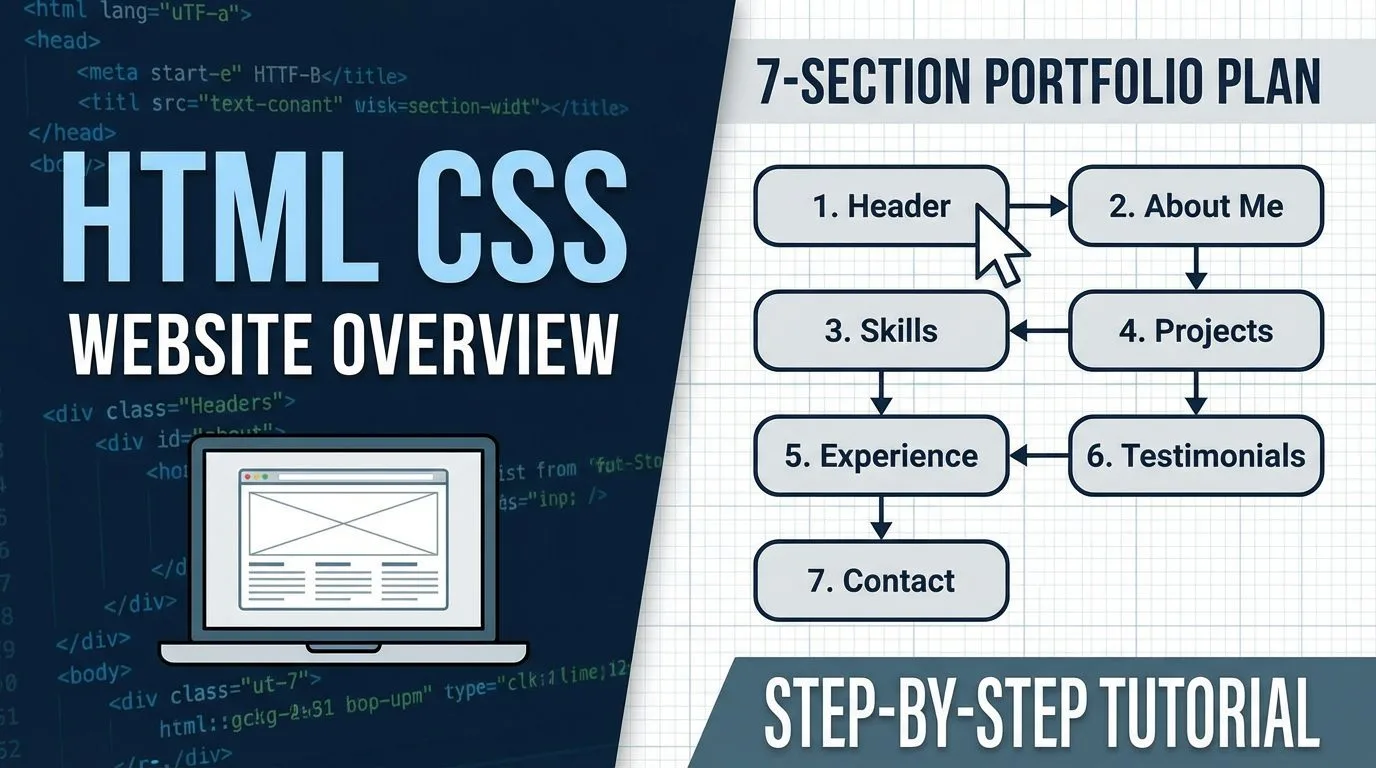
Learning the structure of a full HTML CSS website is the key moment that turns beginner tutorials into a real, publishable project — in this overview guide, you’ll get a complete breakdown of the demonstration single-page portfolio/resume website we’re going to build from scratch using only HTML and CSS. The site is organised into 7 clear horizontal sections, uses modern layout techniques (Flexbox, Grid, sticky footer), is fully responsive, and looks professional — ideal for personal portfolios, resumes, freelancers, designers, developers, or small business landing pages in 2025–2026.
This HTML CSS website overview gives you the big-picture plan so you know exactly what we’re building and why each section matters.
Prerequisites
- Your css-practice project folder (or rename it to your real project name, e.g., my-portfolio)
- index.html (with HTML5 boilerplate + <link> to styles.css)
- css/styles.css (main stylesheet)
- images/ folder (profile photo, project screenshots, icons, etc.)
- Visual Studio Code with Live Server extension (highly recommended)
- Modern browser (Chrome/Edge/Firefox)
Structure of the Demonstration HTML CSS Website
The finished site is a single-page, vertical-scroll portfolio divided into 7 distinct horizontal sections:
- Header / Hero Section
- Sticky/fixed navigation bar
- Large headline + subheadline
- Call-to-action button
- Optional background image or gradient
- About Me Section
- Profile photo (left) + short bio paragraph (right)
- Optional skills highlights or icons
- Two-column Flexbox layout
- Projects Section
- Responsive grid of project cards
- Each card: thumbnail image + title + description + link
- CSS Grid + hover effects
- Experience Section
- Work history / resume entries
- Job title, company, dates, bullet points
- Card or timeline layout
- Education & Skills Section
- Degrees, institutions, dates
- Visual skills bars, icons, or progress indicators
- Grid or column layout
- Featured Quote Section
- Large, centered inspirational/testimonial quote
- Author attribution
- Styled blockquote with background or decorative elements
- Footer Section
- Static/sticky bottom bar
- Copyright notice, social links, contact info
- Stays at viewport bottom even on short pages
Why This HTML CSS Website Structure Is Ideal
- Single-page flow — fast loading, easy navigation, great user experience
- Clear sectioning — each part has a unique purpose and visual identity
- Responsive-ready — mobile-first design with Flexbox/Grid + media queries
- Pure HTML + CSS — no frameworks, no JavaScript needed
- Customizable & extensible — easy to change colors, fonts, images, add pages later
Step-by-Step Build Plan for Your HTML CSS Website
Here’s the exact sequence of tutorials coming up:
- Global Styles & Body Reset
- Header / Hero Section
- About Me Section
- Projects Section (Grid Layout)
- Experience Section
- Education & Skills Section
- Featured Quote Section
- Sticky Footer
- Responsive Design & Mobile Menu
- Final Polish, Accessibility & Deployment (GitHub Pages/Netlify)
Quick Tips Before You Start
- Use semantic HTML: <header>, <main>, <section>, <footer>
- Name classes clearly: .hero, .about, .projects-grid, .skill-bar
- Test on mobile early — use browser DevTools device toolbar
- Use relative paths: css/styles.css, images/profile.jpg
- Save frequently — Live Server auto-refreshes on save
Next Step in Your HTML CSS Website Project
In the very next tutorial, you’ll add global styles to <body> — font family, colors, resets, line-height, background — the foundation every real website needs.
Your css-practice folder is now your real HTML CSS website project — rename it if you want (e.g., zain-portfolio, my-resume) and make it yours.










