
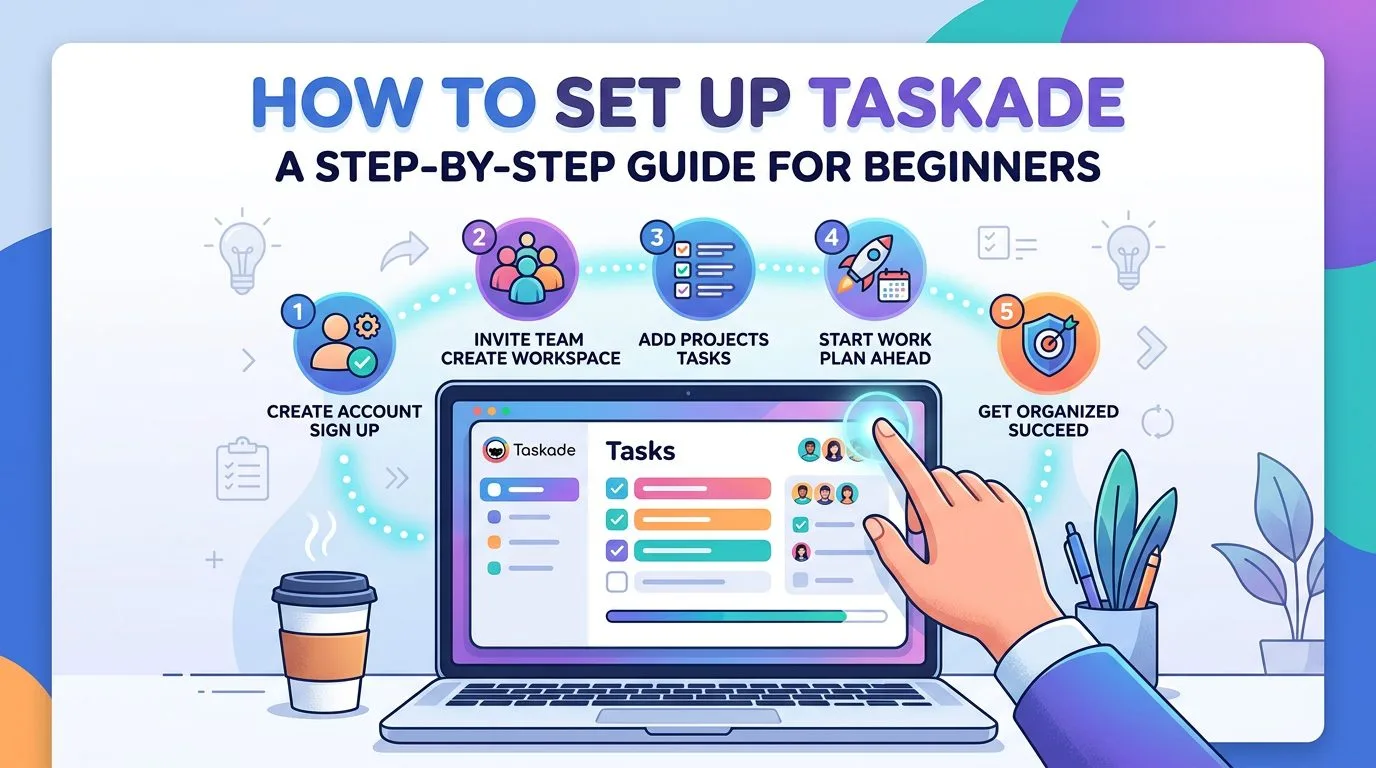
If you are searching for how to set up Taskade without wasting hours on trial and error, this guide gives you a clean, practical starting point. Taskade can be used for personal planning, team collaboration, project tracking, meeting notes, and AI-assisted workflows, but the key is to start with a structure simple enough to use every day.
Below, you will learn how to create your first workspace, organise projects, choose the right views, invite collaborators, and avoid the setup mistakes that make productivity tools feel messy. If you want a setup you can actually stick with, follow the steps in order and keep your first version lean.
Why a proper Taskade setup matters

Many people sign up for Taskade, create a few projects, test a couple of views, and then stop using it because everything starts to feel scattered. That usually is not a tool problem. It is a structure problem. A proper setup gives every task, note, and discussion a clear place to live.
When you set up Taskade well, you get three immediate benefits: faster daily planning, clearer team visibility, and less time spent searching for information. That matters whether you are a freelancer managing client work, a startup team coordinating launches, or an operations manager building repeatable workflows.
What to prepare before you begin
Before you set up your account, decide what you want Taskade to do first. Do not try to make it your entire business operating system on day one. Pick one main use case and build around it.
- Choose your primary use case: daily planning, team task management, content planning, meeting notes, or workflow tracking.
- Decide whether the workspace is for yourself or for a team.
- List the 3 to 5 recurring workflows you manage every week.
- Pick one device you will use most often so your first setup stays consistent.
- Keep your naming simple so projects are easy to scan later.
How to set up Taskade step by step

1. Create your account and start with one workspace
The first step in how to set up Taskade is simple: create your account and resist the urge to build multiple workspaces immediately. One workspace is enough for most beginners. Inside that workspace, you can keep personal projects, team projects, documents, and recurring processes organised without fragmenting everything across separate environments.
If you are evaluating the platform and want official onboarding material, review the Taskade getting started guide. It is a useful reference for the latest platform changes, but the structure in this article is designed to be simpler for day-to-day use.
2. Organise your workspace around outcomes, not random categories
One of the best ways to set up Taskade is to group projects by outcome. Instead of vague labels like “Stuff,” “Notes,” or “Ideas,” use clear buckets such as Client Delivery, Marketing, Operations, Personal Admin, or Weekly Planning. This makes navigation easier and keeps your workspace aligned with real work.
A good beginner rule is to create only 3 to 5 top-level areas. If you create too many buckets too early, you will spend more time organising than executing.
3. Build one core project before creating anything else
Your first core project should match the work you do most often. For many people, that is a weekly planning board or a master task list. Start with one project that answers these questions:
- What needs to be done this week?
- Who owns each item?
- What is the due date?
- What is blocked, in progress, or complete?
If you are setting up Taskade for a small team, begin with a shared operational board. If you are using it solo, start with a personal command center that combines tasks, priorities, and notes in one place.
4. Choose the right view for the type of work
A major part of learning how to set up Taskade is knowing that not every view should be used for every job. Pick the view that matches how the work needs to be seen.
- Use a list view for simple task tracking and checklists.
- Use a board view when you want clear stages such as To Do, Doing, Review, and Done.
- Use a calendar view for deadlines, content schedules, and recurring events.
- Use a mind map or structured outline when you are planning ideas, content, or early-stage projects.
For beginners, the safest combination is one list view for planning and one board view for execution. That gives you clarity without overwhelming your team.
5. Use templates, but customise them quickly
Templates can save time, but only if you adapt them to your actual process. Do not import a large template and leave every section untouched. Remove anything you will not use in the next 30 days. Rename sections so they reflect your language, your workflow, and your priorities.
A strong template-based setup usually includes a weekly planner, a meeting agenda, a project tracker, and a lightweight content calendar. That is enough for most teams to begin working productively without turning the workspace into a maze.
6. Invite collaborators and define simple rules
If your workspace is shared, bring people in early and make the rules obvious. A clean Taskade setup is not just about folders and views. It is also about how people use them together.
- Decide who can create new projects.
- Agree on task naming conventions.
- Use clear owners for every important task.
- Set expectations for due dates and status updates.
- Keep discussions attached to the relevant project instead of scattering them across chat tools.
This is where many teams fail after they set up Taskade. The structure looks fine, but no one follows shared rules, so the workspace slowly becomes inconsistent.
7. Add due dates, recurring tasks, and priorities
Once your first project is live, add enough operational detail to make it useful. Assign due dates to time-sensitive work. Convert repeated activities into recurring tasks. Mark the items that truly matter instead of treating every task as equally urgent.
This is also the point where Taskade starts becoming more than a notes app. It becomes a working system. Even a simple weekly review task, repeated every Friday, can make a big difference to how clean your workspace stays over time.
8. Layer in automation only after the basics are working
Automation is powerful, but it should come after the manual process is clear. If you automate a messy system, you only make the mess faster. Once your core projects are stable, you can look at reminders, recurring workflows, AI-assisted drafting, or status updates.
If you are thinking beyond basic task tracking and want to connect tools, approvals, and repeatable processes, explore our guide to workflow automation. It is a useful next step once your Taskade foundation is already organised.
A practical beginner setup you can copy

If you want a simple structure that works for most people, use this model:
- Workspace: Your business name or personal operating system
- Project 1: Weekly Planner
- Project 2: Active Projects
- Project 3: Meeting Notes and Decisions
- Project 4: Standard Operating Procedures
- Project 5: Content or Marketing Calendar
This setup is flexible enough for freelancers, founders, content teams, and operations staff. More importantly, it is easy to maintain. That matters much more than building a perfect system on day one.
Common mistakes to avoid when you set up Taskade

Most setup problems come from overbuilding too early. If you want long-term adoption, avoid these common mistakes:
- Creating multiple workspaces before you understand your real workflow.
- Adding too many templates and never cleaning them up.
- Using every available view instead of choosing one or two that support execution.
- Leaving projects unnamed or using vague labels that do not reflect actual outcomes.
- Failing to assign owners and deadlines for team tasks.
- Automating steps before the underlying process is stable.
- Treating Taskade as a storage dump instead of an active working system.
The easiest way to avoid these mistakes is to review your setup after the first two weeks. Archive what you are not using, simplify what feels heavy, and keep the structure focused on work that repeats.
How to keep Taskade organised after the initial setup

Knowing how to set up Taskade is only the beginning. The real value comes from maintaining the workspace so it stays useful.
- Run a short weekly review to clear old tasks and update priorities.
- Archive inactive projects instead of letting them pile up.
- Keep project names clear and action-oriented.
- Use recurring templates for repeatable processes.
- Review permissions and ownership when team roles change.
- Document your preferred structure so new team members can follow it.
If you do those six things consistently, your Taskade workspace will stay fast to navigate and easy to trust.
Frequently asked questions
Is Taskade good for beginners?
Yes. Taskade is beginner-friendly because it combines task management, collaboration, notes, and AI features in one place. The easiest path is to start with one workspace and one core project instead of trying every feature at once.
Can I use Taskade for personal and team work?
Yes. Many people start with personal planning and then expand into team collaboration. If both use cases matter to you, keep them in the same workspace at first but separate them into clearly named projects.
Should I use AI and automations from day one?
Only if your base workflow is already clear. For most new users, the best sequence is workspace first, projects second, views third, automation later. That keeps the learning curve manageable.
What is the fastest way to set up Taskade for a small team?
Create one shared workspace, one weekly operations board, one meeting notes project, and one procedures project. Then define ownership, due dates, and a short review routine. That is usually enough to get a small team moving without unnecessary complexity.
Final thoughts
If your goal is to learn how to set up Taskade in a way that actually improves productivity, keep the first version simple. Start with one workspace, create a small number of clear projects, use the views that match your work, and only add automation once the fundamentals are stable.
A clean setup beats a complicated setup every time. When Taskade reflects how you already work, it becomes easier to plan, collaborate, and follow through consistently.
More AI coverage: explore Progressive Robot's AI Models, Tools & Releases hub — hands-on reviews, setup guides and benchmarks in one place.