

Remote worker laptops are now part of the everyday office. They sit on kitchen tables, hotel desks, coworking benches, airport counters, customer sites, and home networks that the business does not fully control. That flexibility helps employees stay productive, but it also turns each laptop into a small branch office that carries company data, passwords, apps, and access to internal systems.
Securing remote worker laptops does not have to mean slowing everyone down. The best controls are simple, visible, and repeatable: strong sign-in, device encryption, automatic updates, endpoint protection, safe Wi-Fi habits, clean separation between personal and work data, reliable backups, phishing training, and a clear lost-device response. When these basics are in place, remote work becomes easier to manage and safer to scale.
Many businesses wait until a laptop is lost, a password is stolen, or a phishing email succeeds before tightening controls. That is expensive. A better approach is to define a practical standard for every remote laptop and then verify it regularly. Remote worker laptops should not depend on employee memory alone. Remote worker laptops need settings, policies, alerts, and support processes that make the secure choice the normal choice.
This guide is written for owners, operations leaders, office managers, and small IT teams that need action now. If your organization is also planning cyber security services, IT consulting, cloud computing services, or broader IT solutions and services, these laptop controls create a strong foundation for remote work security.
| Risk on remote laptops | Easy security control | Business result |
|---|---|---|
| stolen passwords | MFA and password manager | fewer account takeovers |
| lost devices | encryption and screen locks | protected data if hardware disappears |
| outdated software | automatic updates | fewer known vulnerabilities |
| malware | endpoint protection and firewall | faster detection and blocking |
| unsafe networks | VPN and Wi-Fi rules | safer access outside the office |
| mixed personal use | work profiles and app rules | less data leakage |
| deleted or locked files | backups and remote wipe | faster recovery |
| phishing | short training and reporting | fewer successful scams |
| weak follow-through | compliance checks | consistent protection |
Remote worker laptops at a glance

Remote worker laptops need layered protection because no single tool can handle every risk. A password manager will not help if the device is unencrypted and left in a taxi. Antivirus alone will not stop a user from approving a fake sign-in prompt. A VPN does not fix a laptop that has missed security patches for six months. The safest approach combines identity, device, network, data, and behavior controls.
Start with a written baseline. Define what every remote laptop must have before it can access company systems. The baseline should include MFA, encrypted storage, automatic updates, supported operating systems, endpoint protection, a local firewall, approved apps, screen lock timing, backup coverage, and the process for reporting a lost or suspicious device. Keep the language clear enough for nontechnical staff to understand.
The baseline matters because remote worker laptops often live outside normal office routines. Employees may connect from personal Wi-Fi, use shared family spaces, install convenience apps, delay updates, or store files locally for speed. Most of these behaviors are not malicious. They happen because people are trying to get work done. Security must be designed around real habits, not perfect behavior.
For additional guidance, the NIST guide to telework remote access and BYOD security is a useful reference for remote access planning. The CISA Secure Our World program also explains everyday cybersecurity practices that apply well to remote teams. Use those resources to strengthen policy, but keep your first rollout practical.
A good quick audit is simple. Pick five remote worker laptops and ask whether each one has MFA, encryption, updates, endpoint protection, managed backups, and a known owner. If the answer is unclear, the organization does not yet have a reliable remote laptop security program. The steps below turn that uncertainty into a manageable checklist.
Step 1: turn on MFA and strong sign-in
The fastest win for remote worker laptops is stronger sign-in. Stolen passwords are common because employees reuse passwords, type them into fake pages, save them in browsers, or enter them on unmanaged devices. MFA reduces the damage when a password is guessed, phished, or leaked. It should be required for email, cloud apps, remote access tools, administrative portals, payroll, accounting, file storage, and any system that stores customer or employee data.
Choose MFA methods carefully. App-based push approvals are better than no MFA, but number matching, passkeys, hardware security keys, or authenticator codes are usually stronger than simple yes-or-no prompts. SMS codes are useful as a fallback, but they should not be the preferred method for high-risk accounts. Remote worker laptops used by administrators should have the strongest MFA because one compromised admin account can affect every laptop.
Remote worker laptops also need clean password habits. Provide an approved password manager so employees do not store credentials in spreadsheets, notes apps, email drafts, or sticky notes. Require unique passwords for work accounts. Set rules for shared accounts, vendor accounts, emergency accounts, and offboarding. If a password must be shared temporarily, the password manager should manage access and logs.
Sign-in policies should be risk-based. If an employee signs in from a new country, an impossible travel pattern, a fresh device, or an unusual browser, the system should challenge the session or block it until reviewed. Conditional access rules can also require managed devices for sensitive apps. That means remote worker laptops must meet security standards before they can open important data.
Do not forget local sign-in. Every laptop should require a password, PIN, biometric check, or security key at startup and wake-up. Disable automatic login. Set a short screen lock timeout. Make sure local administrator rights are limited. If users run as admins every day, malware and accidental changes can do more damage.
The goal is not to frustrate employees. The goal is to make sign-in trustworthy. Explain why MFA protects payroll, customer files, email reputation, and the business itself. Provide setup support, backup codes, and a clear recovery process so employees are not locked out when a phone is replaced.
Step 2: encrypt devices and require screen locks
Encryption protects data when remote worker laptops are lost, stolen, repaired, recycled, or left unattended. Without encryption, a thief may remove the drive and read files even if the Windows or macOS password is unknown. With properly configured encryption, the data is much harder to access without the recovery key and valid credentials.
Turn on full-disk encryption for every business laptop. On Windows, that usually means BitLocker. On macOS, that means FileVault. Store recovery keys in a secure business-controlled location, not only with the employee. If recovery keys are scattered across emails or personal notes, the organization may not be able to recover a device during an emergency.
Screen locks are the other half of physical security. Remote employees may work around family members, visitors, cleaners, customers, hotel staff, or strangers in public places. A laptop left open for five minutes can expose email, documents, chat messages, customer records, and browser sessions. Set a short automatic lock timeout and teach employees to lock the screen before walking away.
Remote worker laptops should also have basic physical rules. Do not leave devices visible in cars. Do not check laptops in airline luggage. Do not hand a work laptop to family members for personal browsing. Do not share the login with anyone. Use privacy screens when staff handle sensitive information in public. Small habits prevent many avoidable incidents.
Asset tracking should be simple but current. Record the user, serial number, model, purchase date, warranty status, encryption status, management status, and recovery key location. If a device disappears, the team should know exactly which laptop is involved and which accounts or data may be affected.
Encryption is not a substitute for backups or access control, but it buys time and reduces exposure. When remote worker laptops are encrypted, locked, tracked, and assigned to a known owner, a lost device becomes a controlled incident rather than a crisis.
Step 3: update operating systems apps and browsers
Updates close known security holes. Attackers often target vulnerabilities after patches are publicly announced because they know many businesses will delay. Remote worker laptops are especially vulnerable to delay because they may not connect to the office network often, may be turned off during maintenance windows, or may depend on the user clicking update prompts.
Set updates to run automatically. Operating system updates, browser updates, productivity tools, PDF readers, collaboration apps, VPN clients, endpoint agents, and line-of-business software all need attention. If an application is no longer supported, replace it. Remote worker laptops running unsupported software create risk because security fixes stop arriving.
Build a patch rhythm. Critical security updates should install quickly. Routine updates can follow a predictable schedule. Employees should know when restarts may happen and why restarts matter. A laptop that downloads patches but never restarts may remain vulnerable. Give people reminders, but also define a deadline when the system will restart automatically.
Remote worker laptops need visibility. The business should be able to see which devices are behind, which updates failed, and which devices have not checked in recently. A manual spreadsheet is better than nothing at first, but device management tools make this much easier. Even a lightweight mobile device management platform can report update status and enforce minimum versions.
Browsers deserve special attention because most cloud work happens inside them. Keep Chrome, Edge, Firefox, or Safari current. Remove unnecessary extensions. Block known risky extensions. Make sure password saving, pop-up behavior, downloads, and safe browsing features align with policy. Many phishing and malware events begin with a browser action.
Patch management is not exciting, but it is one of the clearest ways to reduce risk. When remote worker laptops stay updated, the business removes easy targets and lowers the chance that a known vulnerability turns into an expensive incident.
Step 4: protect endpoints with EDR and firewall rules
Traditional antivirus is no longer enough for many remote teams. Modern endpoint protection should watch for suspicious behavior, block known malware, detect unusual scripts, monitor ransomware patterns, and help the IT team isolate a device if something looks wrong. This is why endpoint detection and response, often called EDR, has become important for remote worker laptops.
Choose endpoint protection that fits your team size and support model. Small businesses may use managed endpoint protection through a provider. Larger teams may operate their own console. Either way, alerts should go somewhere useful. A security tool that emails one busy manager at midnight and is never reviewed will not protect the organization well.
Turn on the local firewall. Remote worker laptops connect to networks the business does not control, including home routers, hotels, coffee shops, conference centers, and customer locations. A firewall reduces unnecessary inbound exposure. Keep rules simple: allow approved business traffic, block unnecessary sharing, and review exceptions.
Limit local administrator rights. If every employee can install any tool, browser extension, remote access app, or unsigned utility, endpoint protection has a harder job. Use standard user accounts for daily work. Provide a clear process for requesting approved software. If admin rights are needed for a role, make them temporary, logged, and reviewed.
Remote support tools also need control. Many scams involve convincing users to install remote access software. Keep a list of approved tools, block unapproved remote control apps where possible, and teach employees how legitimate support sessions start. Support staff should verify the user and document the reason for access.
Endpoint security is most valuable when it supports fast action. If malware appears on remote worker laptops, the team should know how to isolate the device, collect logs, reset credentials, communicate with the employee, and restore work from backup. The tool is only one part of the response plan.
Step 5: secure Wi-Fi VPN and network access
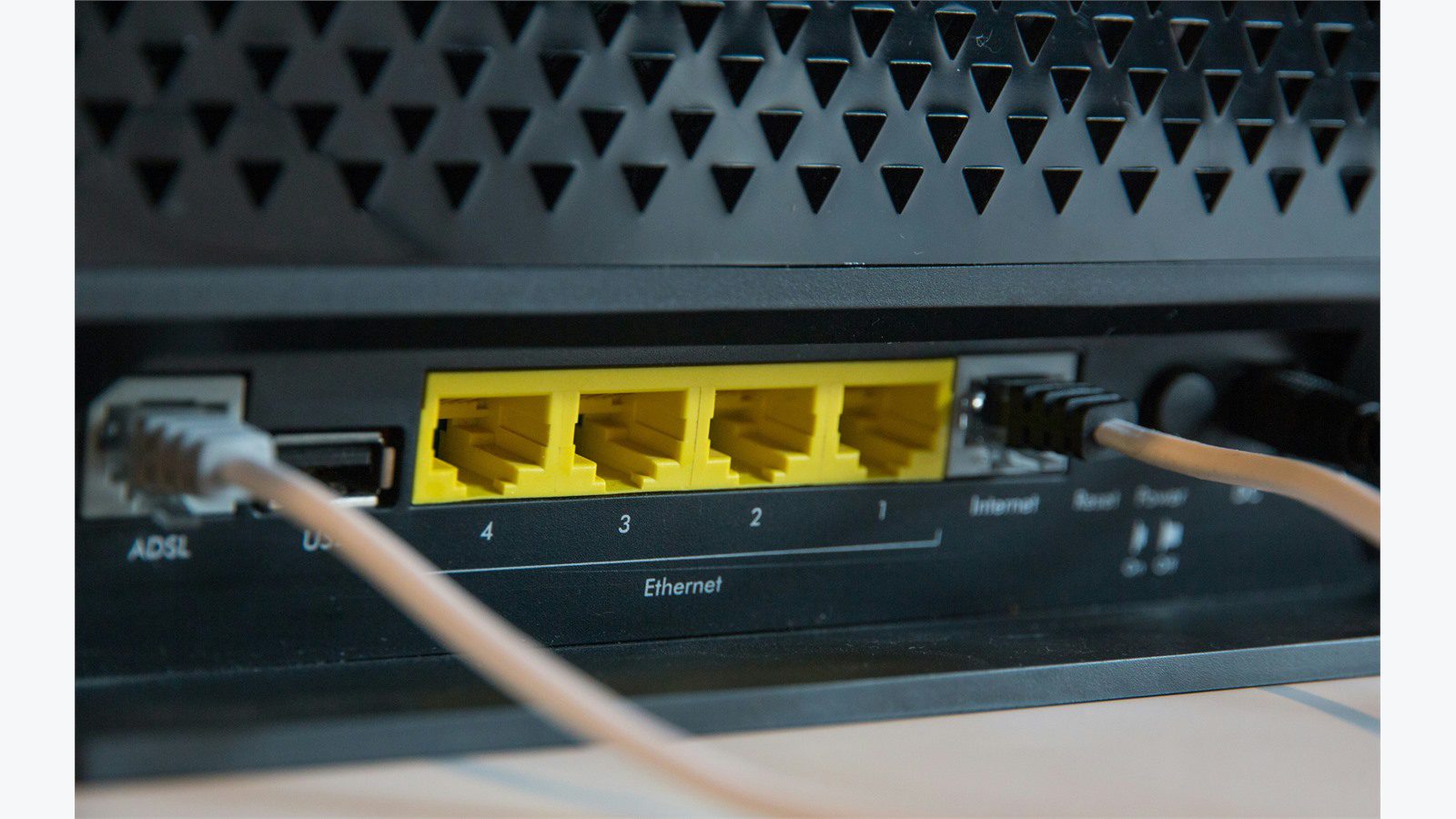
Remote worker laptops often depend on home Wi-Fi and public networks. That makes network habits important. Start with home routers. Employees should change default router passwords, use WPA2 or WPA3 encryption, install router firmware updates when available, and avoid old routers that no longer receive fixes. A separate guest network can keep family devices away from work devices.
Public Wi-Fi requires extra care. Employees should avoid sensitive work on open networks when possible. If remote worker laptops must connect, employees should confirm the network name with the venue, avoid fake lookalike networks, and disable automatic joining for public hotspots. They should also avoid approving certificate warnings or captive portal prompts that look suspicious.
Use VPN where it makes sense. A VPN can protect traffic on untrusted networks and provide controlled access to internal systems. However, VPN should not become a blanket excuse for weak device security. If a compromised laptop connects to the VPN, it may bring risk inside the network. Combine VPN with MFA, device compliance checks, least-privilege access, and monitoring.
Move toward zero trust principles gradually. Instead of assuming that any VPN-connected device is safe, require proof. Is the laptop managed? Is encryption on? Is endpoint protection active? Is the operating system current? Is the user signing in from a reasonable location? These checks help remote worker laptops access only what they should.
Remote desktop exposure is a common mistake. Do not expose RDP or similar remote access services directly to the internet. Use secure gateways, VPN, MFA, and logging. If vendors need access, give them named accounts with limited permissions and expiration dates. Shared vendor credentials are hard to trace and easy to forget.
Network security should feel practical, not mysterious. Give employees a one-page remote network checklist. Include home Wi-Fi settings, public Wi-Fi warnings, VPN rules, and the help desk contact. Remote worker laptops become safer when staff know what good looks like before they travel or work from a new location.
Step 6: separate work data from personal use

Remote worker laptops are tempting to use for everything because they are nearby and powerful. That creates risk. Personal browsing, family use, games, unofficial cloud storage, personal email, consumer messaging apps, and unapproved extensions can expose business data or introduce malware. The business should define a clear boundary between work and personal use.
The best rule is simple: company laptops are for company work. If that is not realistic for a small team, set strict limits. Remote worker laptops should not be shared with family members. Do not save business files in personal Dropbox, Google Drive, iCloud, or USB drives unless approved. Do not forward work documents to personal email. Do not install personal software without approval.
Use managed work profiles where possible. Browser profiles, device management policies, and cloud identity controls can separate work bookmarks, passwords, extensions, and data sync. Approved cloud storage should be the default location for files, not the local desktop. This helps with backup, access control, retention, and offboarding.
Data loss prevention can start small. Block downloads of sensitive reports to unmanaged devices. Prevent copy-and-paste from company apps into personal apps when feasible. Apply labels to confidential documents. Restrict external sharing links. Remote worker laptops should make it difficult to accidentally send private information to the wrong place.
Personal email is a major issue. Many phishing attacks arrive in personal inboxes, and personal accounts may have weaker security. If employees use the same browser session for personal and work activity, they may mix downloads, passwords, and cookies. Encourage separate browsers or profiles if personal access is allowed at all.
Separation also protects employees. Clear rules remove uncertainty about what is monitored, what is backed up, and what belongs to the company. A respectful policy should tell staff what the business can manage on remote worker laptops and what personal activities should stay on personal devices.
Step 7: back up files and prepare remote wipe

Backups turn a bad laptop day into a recoverable event. Remote worker laptops can be lost, stolen, damaged, infected, or locked by ransomware. If important files live only on the local drive, recovery becomes slow and uncertain. If files sync to approved cloud storage or a managed backup platform, the employee can return to work faster.
Start by deciding where work files belong. For many teams, the answer is a business cloud storage platform with version history, access control, and retention settings. Desktop, documents, and pictures folders can often be redirected or synced automatically. Employees should not have to remember to drag files into the right place every Friday.
Test recovery before you need it. Pick a sample file, delete it, restore it, and document the steps. Confirm that version history can recover from accidental overwrites. Confirm that backups still run when employees are outside the office. Confirm that departing employees’ files can be preserved before a laptop is reset.
Remote wipe is the companion control. If a device is lost or an employee leaves without returning hardware immediately, the business should be able to remove company data. This requires device management before the incident happens. Remote wipe cannot help if the laptop was never enrolled.
Remote worker laptops should also have a lost-device checklist. The employee should report the loss immediately, not after searching for several days. The response team should disable sessions, reset passwords, review recent sign-ins, check encryption status, locate or lock the device if possible, start remote wipe if needed, and document the incident.
Backups and remote wipe are practical resilience controls. They do not prevent every problem, but they reduce downtime and uncertainty. A laptop can be replaced. Unprotected data, missed orders, lost documents, and unclear incident timelines are much harder to repair.
Step 8: train staff to spot phishing and unsafe links

Employees using remote worker laptops make security decisions all day. They decide whether to click links, open attachments, approve MFA prompts, download tools, trust invoices, scan QR codes, respond to urgent messages, and call phone numbers listed in emails. Training helps people slow down at the right moments.
Keep training short and frequent. A yearly slide deck is not enough. Use brief reminders, real examples, and simple reporting steps. Show staff what fake login pages look like. Explain why urgent payment changes need verification. Demonstrate how attackers impersonate executives, vendors, delivery services, tax agencies, banks, and IT support.
Make reporting easy. Add a phishing report button if your email platform supports it. Tell employees that reporting suspicious messages from remote worker laptops is helpful even if they already clicked. The earlier the team knows, the faster it can reset passwords, block links, warn others, and investigate. Punishing honest reports makes people hide mistakes.
Remote worker laptops should display trusted support information. Scammers often pretend to be IT and ask users to install remote access tools or share codes. Employees should know how internal support will contact them, which tools are approved, and which information support staff will never ask for. If in doubt, they should stop and call a known number.
Train around MFA fatigue. If a user receives an MFA prompt they did not initiate, they should deny it and report it. If repeated prompts arrive, that may mean a password is already known to an attacker. The response should include password reset, session review, and possible endpoint checks.
Good training respects workload. Employees do not need to become security experts. They need clear patterns, permission to pause, and fast help. When remote worker laptops are backed by a reporting culture, the team catches more problems before they spread.
Step 9: monitor compliance and lost-device response
The last step is follow-through. A policy for remote worker laptops is only useful if the business can confirm that it is working. Compliance monitoring does not need to be heavy-handed. It needs to answer basic questions: Which devices are managed? Which are encrypted? Which are behind on updates? Which lack endpoint protection? Which have not checked in? Which user owns each laptop?
Create a monthly device review. Export a list from your device management, endpoint protection, identity, backup, and asset tools. Look for gaps across remote worker laptops. Follow up with employees whose devices are missing required controls. Remove stale devices from access. Review admin rights. Confirm that new hires and contractors were enrolled correctly.
Tie access to compliance where possible. Sensitive systems should require managed devices, current software, MFA, and healthy endpoint status. If a laptop falls out of compliance, the employee should receive clear instructions to fix it. For high-risk systems, access should pause until the issue is resolved.
Incident response should be rehearsed. Decide who handles lost devices, malware alerts, suspicious sign-ins, failed backups, and employee departures. Keep contact details current. Prepare message templates for employees, managers, legal contacts, insurance, and customers if needed. The first hour of an incident is easier when roles are already known.
Metrics help leaders see progress. Track the percentage of encrypted laptops, patch compliance, MFA coverage, endpoint health, backup success, phishing report rates, and time to disable a lost device. These numbers turn laptop security from a vague concern into manageable operations.
Remote worker laptops will keep changing as teams hire, travel, replace hardware, and adopt new cloud tools. The safest businesses treat laptop security as a routine operating habit. They set the standard, help employees follow it, check the standard regularly, and improve it after each lesson.
Remote worker laptops FAQ
What is the first security control to enable for remote worker laptops?
MFA is usually the first control because it reduces account takeover risk quickly. Pair it with a password manager, unique passwords, and local screen locks. If the laptop is already in use, also confirm encryption and automatic updates during the same review.
Do small businesses need device management for remote laptops?
Yes, if remote worker laptops access company email, files, customer data, or financial systems. Device management helps enforce encryption, updates, remote wipe, and compliance checks. A small team can start with basic management features included in many business cloud plans.
Is a VPN enough to secure remote work?
No. VPN protects certain network connections, but it does not fix weak passwords, missing patches, malware, unsafe personal use, or lost devices. VPN should be combined with MFA, device compliance, endpoint protection, least-privilege access, and monitoring.
How often should remote laptops be audited?
A monthly review is a practical starting point. High-risk teams may check more often. At minimum, review remote worker laptops during onboarding, offboarding, hardware replacement, travel changes, security incidents, and annual policy updates.
Should employees use personal laptops for work?
Personal laptops are harder to secure because the business may not control updates, encryption, backups, installed apps, or family use. If personal devices are allowed, require strong identity controls, approved cloud access, clear data rules, and conditional access that limits sensitive work to compliant devices.
What should an employee do if a remote laptop is lost?
They should report it immediately using a known support number or help desk channel. The response team should lock or wipe the device if possible, reset risky credentials, revoke sessions, confirm encryption status, review recent account activity, and document what data may have been involved.
Securing remote worker laptops is not a one-time project. It is a practical routine that keeps remote work reliable. Start with MFA, encryption, updates, endpoint protection, safe networks, work-data separation, backups, training, and monthly checks. Those nine habits give the business stronger protection today and a better foundation for whatever remote work looks like next.