
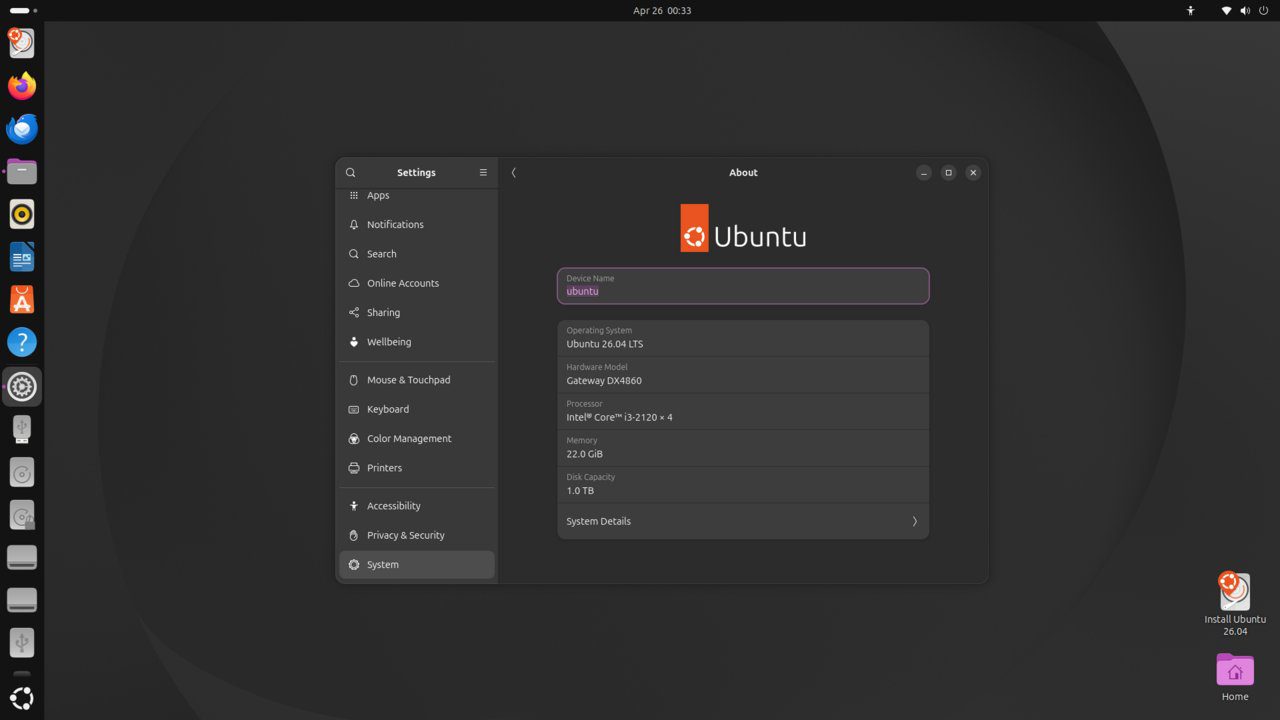
AppArmor (Application Armor) is a Linux kernel security module that restricts program capabilities using per-program profiles. It is enabled by default on Ubuntu and provides Mandatory Access Control (MAC) to contain the blast radius of exploited applications. This guide manages AppArmor profiles on Ubuntu 26.04 LTS.
Tested and valid on:
- Ubuntu 26.04 LTS
Prerequisites
- Ubuntu 26.04 LTS (AppArmor is enabled by default)
- A user with sudo privileges
Step 1 – Check AppArmor Status
sudo apparmor_status
sudo aa-status
Step 2 – Install AppArmor Utilities
sudo apt install apparmor-utils apparmor-profiles apparmor-profiles-extra -yStep 3 – List Profiles and Their Modes
sudo aa-status | grep -E 'enforce|complain'
ls /etc/apparmor.d/
Step 4 – Switch Profile to Complain Mode
Complain mode logs violations without blocking them — ideal for testing:
sudo aa-complain /usr/sbin/nginxStep 5 – Switch Profile to Enforce Mode
sudo aa-enforce /usr/sbin/nginxStep 6 – Create a Custom Profile
sudo aa-genprof /usr/local/bin/myappRun the application while aa-genprof watches, then press S to scan and F to finish. The profile is saved in /etc/apparmor.d/.
Step 7 – Load, Reload, and Disable Profiles
sudo apparmor_parser -r /etc/apparmor.d/usr.sbin.nginx  # reload
sudo aa-disable /usr/sbin/nginx                           # disable
sudo aa-enable /usr/sbin/nginx                            # enable
Step 8 – View AppArmor Denials
sudo dmesg | grep DENIED
sudo journalctl -k | grep apparmor | tail -20
Conclusion
AppArmor profiles are configured on Ubuntu 26.04 LTS. Use enforce mode for known applications and complain mode when developing new profiles. AppArmor significantly limits the damage an attacker can cause with a compromised process.










