

QuickBooks SMS invoice reminders help small and midsize businesses follow up on unpaid invoices without asking staff to chase every customer by hand. When QuickBooks invoice data is linked with customer SMS, the accounting team can send timely text reminders based on due dates, balance status, customer preferences, and payment links.
The goal is not to annoy customers. The goal is to create a polite, compliant, measurable reminder process that reaches customers where they actually respond. Email reminders still matter, but many customers read text messages faster than email. A well designed QuickBooks SMS invoice reminders workflow can reduce late payments, lower accounts receivable workload, and make follow-up more consistent.
This guide explains how to build the workflow safely. It covers data cleanup, customer consent, SMS rules, message personalization, payment links, replies, disputes, reporting, security, and rollout planning. Progressive Robot helps companies connect accounting and messaging systems through business process automation, workflow automation, IT consulting, software development services, and cybersecurity services.
Use this QuickBooks SMS invoice reminders map before connecting tools:
| Workflow area | What it controls | Why it matters |
|---|---|---|
| QuickBooks data | invoice number, amount, due date, customer, balance | prevents wrong reminders |
| Customer consent | SMS opt in, opt out, phone type, preferences | protects trust and compliance |
| Reminder rules | timing, frequency, tone, stop conditions | avoids over messaging |
| Message content | invoice reference, amount, due date, payment link | improves clarity |
| Replies and disputes | customer questions, promises to pay, complaints | prevents automation blind spots |
| Payment updates | paid status, partial payment, failed payment | stops reminders after payment |
| Reporting | delivery, response, collection, days sales outstanding | proves ROI |
| Security | access, audit logs, data retention, vendor review | protects financial data |
QuickBooks SMS invoice reminders at a glance
QuickBooks SMS invoice reminders combine accounting data from QuickBooks with a customer text messaging platform. The connection can be native, integration-platform based, or custom. The workflow usually checks invoice status, identifies customers who meet reminder rules, sends a text message, records message history, and stops reminders when payment is received or a dispute is flagged.
The best QuickBooks SMS invoice reminders flow is simple enough for the accounting team to understand. It should not be a black box. Staff should know which invoices are eligible, which customers can receive SMS, what message is sent, how often reminders run, and what happens when a customer replies.
For many businesses, the best starting point is not full automation. It is semi automated follow-up. The system prepares the reminder list, filters out sensitive exceptions, and lets staff review the batch before sending. After the process proves accurate, more steps can be automated.
This matters because invoice reminders touch customer relationships. A reminder for the wrong amount, a message after payment, or a text sent to a customer who opted out can create more work than the automation saves. QuickBooks SMS invoice reminders should therefore be designed with checks, logs, and stop conditions.
The core business case is straightforward: faster collection, fewer manual follow-ups, more consistent communication, and better visibility into accounts receivable. The strongest QuickBooks SMS invoice reminders implementations also improve customer experience because customers get a clear reminder with a convenient payment path.
Step 1: clean QuickBooks invoice and customer data first

QuickBooks SMS invoice reminders depend on clean source data. If invoice numbers, balances, due dates, customer names, phone numbers, and payment status are inaccurate, the reminder workflow will spread those errors. Before connecting SMS, review the accounting data that will drive messages.
Start with customer records. Each customer should have a primary contact, a mobile number where SMS is appropriate, a billing email, a billing contact name, and any communication preference notes. Duplicate customers should be merged or clearly separated. Old inactive customers should be archived or excluded.
Then review invoice fields. The workflow should know the invoice number, invoice date, due date, open balance, payment terms, customer name, job or project reference where relevant, and invoice status. If the company uses classes, locations, departments, service lines, or project fields, decide whether those values should affect reminder rules.
Data cleanup should also include exceptions. Some customers may be on payment plans. Some invoices may be under dispute. Some accounts may require purchase order confirmation before payment. Some customers may have contracts that require email or portal notices instead of SMS. These should be tagged before QuickBooks SMS invoice reminders automation starts.
A practical QuickBooks SMS invoice reminders data audit should answer:
- Which QuickBooks fields will trigger a reminder?
- Which customer phone number is allowed for SMS?
- Which invoices are excluded from reminders?
- Who owns corrections when QuickBooks data is wrong?
- How quickly does paid status update after payment?
QuickBooks SMS invoice reminders work best when QuickBooks remains the financial source of truth. The SMS platform should not become a second accounting system. It should read approved invoice data, send the reminder, log the communication, and respect payment status from QuickBooks.
Step 2: capture customer SMS consent and opt out rules
Customer consent is the foundation of QuickBooks SMS invoice reminders. A company should not assume that every phone number in QuickBooks can receive automated text reminders. Customers need a clear way to agree to SMS communication and a simple way to stop it.
Consent can be captured during onboarding, account setup, quote approval, service agreement signing, checkout, customer portal registration, or invoice delivery. The language should explain what types of messages customers may receive, such as QuickBooks SMS invoice reminders, payment links, balance notices, appointment updates, or service notifications.
The workflow should store consent status where staff can see it. Some companies keep it in a CRM, some in QuickBooks custom fields, and some in the SMS platform. The important point is that the QuickBooks SMS invoice reminders sending logic must check consent before every message. If a customer opts out, reminders should stop immediately.
The FCC consumer guide to unwanted texts is a useful starting point for understanding why consent and opt out handling matter. Businesses should also review applicable TCPA, state, industry, and carrier rules with qualified counsel because SMS requirements can vary by message type and audience.
A safe setup includes:
- Written opt in language for invoice text reminders.
- A clear STOP or unsubscribe process.
- A record of consent source, date, and phone number.
- Automatic suppression for opted out numbers.
- Staff training on when not to send manual texts.
QuickBooks SMS invoice reminders should also respect customer relationship context. A reminder sent to a business owner may be welcome. A reminder sent to an employee who is no longer responsible for billing may create confusion. Keep billing contacts current.
Step 3: build reminder rules that feel helpful, not aggressive

Reminder rules decide when QuickBooks SMS invoice reminders send and when they stop. The rules should balance collection speed with customer trust. A reminder program that texts too early, too often, or in the wrong tone can damage relationships.
Start with a simple QuickBooks SMS invoice reminders cadence. For example, send a friendly reminder three days before the due date, another on the due date, one three days after the due date, and a final message seven or ten days after the due date. Not every business needs all four steps. High touch professional services may use fewer reminders. High volume field service businesses may use more automation.
Stop conditions are just as important as send conditions. The workflow should stop if the invoice is paid, the invoice balance is zero, the customer opts out, the invoice is marked disputed, the account is on a payment plan, the customer replies with a question, or the account is escalated to a manager.
QuickBooks SMS invoice reminders should also consider invoice amount. A small recurring invoice may use a standard reminder cadence. A high value invoice may require account manager review before SMS. A past due balance over a threshold may need a personal call after the first automated reminder.
Useful QuickBooks SMS invoice reminders rule fields include:
- Days before or after due date.
- Invoice balance threshold.
- Customer type or segment.
- Payment terms.
- Dispute status.
- Payment plan status.
- Last reminder sent date.
- Last customer reply.
The tone should stay professional and concise. Avoid threatening language. The message should help the customer take the next step: review invoice, ask a question, or pay securely.
Step 4: personalize messages with invoice details and payment links
Personalization makes QuickBooks SMS invoice reminders more useful. A generic text that says please pay your invoice may be ignored. A clear QuickBooks SMS invoice reminders text with customer name, invoice number, due date, open balance, company name, and payment link is easier to understand.
Keep messages short. SMS space is limited, and long messages may split into multiple parts. A good message should answer four questions quickly: who is sending, which invoice is involved, what action is needed, and how the customer can respond.
Example QuickBooks SMS invoice reminders structure:
- Company name: so the customer trusts the sender.
- Invoice number: so the customer can match the reminder.
- Amount due: so the customer knows the balance.
- Due date or past due date: so urgency is clear.
- Secure payment link or portal link: so payment is easy.
- Reply option: so questions do not disappear.
A sample message might read: Acme Services reminder: Invoice 1048 for $425 is due May 15. Pay securely here: [link]. Reply HELP with questions or STOP to opt out.
QuickBooks SMS invoice reminders should never expose more sensitive data than needed. Do not include full account numbers, bank details, tax IDs, or private project details. If the invoice contains sensitive work, send a neutral message that asks the customer to log into the portal.
Payment links need attention. The link should be secure, branded where possible, and connected to the right invoice. Short links should be trusted and trackable, but avoid link formats that look suspicious. Customers are trained to watch for phishing, so the message should be recognizable.
Step 5: route replies, disputes, and promises to pay

Automation should not ignore customer replies. QuickBooks SMS invoice reminders work best when replies become a managed workflow. Customers may ask for a copy of the invoice, report that they already paid, request a payment plan, dispute a line item, update billing contact details, or promise payment on a specific date.
The SMS platform should capture replies and route them to the right team. Accounting may handle QuickBooks SMS invoice reminders payment status questions. Customer service may handle billing contact updates. Sales or account managers may handle relationship sensitive accounts. Operations may handle disputes related to completed work.
Every reply should have an owner, status, and next step. If a customer says the invoice is wrong, the reminder sequence should pause. If the customer promises to pay Friday, the workflow can create a follow-up task. If the customer asks for a copy, the system can send a secure invoice link or notify staff.
QuickBooks SMS invoice reminders should log reply history. The log can live in the SMS platform, CRM, ticketing system, or customer record. The key is that staff can see what was sent and how the customer responded before making the next contact.
Common QuickBooks SMS invoice reminders reply workflows include:
- HELP routes to billing support.
- PAID creates a payment verification task.
- DISPUTE pauses reminders and alerts an account owner.
- PLAN routes to a manager for payment arrangement review.
- STOP suppresses future SMS immediately.
Human review still matters. The best automation handles routine follow-up while making exceptions more visible.
Step 6: sync payment status and prevent duplicate reminders
Payment status sync protects the customer experience. Nothing undermines QuickBooks SMS invoice reminders faster than texting someone after they already paid. The integration should check QuickBooks for updated balance or paid status before every reminder batch.
If payments are collected through QuickBooks Payments, the status may update quickly. If payments arrive by ACH, check, wire, card terminal, lockbox, portal, or third party processor, the timing may vary. The workflow should account for posting delays and bank reconciliation timing.
The safest QuickBooks SMS invoice reminders design uses a pre send check. Right before messages go out, the automation refreshes invoice status from QuickBooks, removes paid invoices, removes zero balance invoices, removes disputed invoices, and confirms customer consent. This extra check reduces embarrassing mistakes.
Partial payments need rules. If a customer paid part of the balance, the next reminder should show the remaining amount only if the data is reliable. If there is uncertainty, route the account to staff review.
Duplicate reminders can happen when several tools send notices at the same time. QuickBooks may send email reminders, the SMS platform may send text reminders, a CRM may send tasks, and staff may call manually. Build one communication calendar so customers do not receive a flood of notices.
A clean QuickBooks SMS invoice reminders payment sync plan should define:
- Which system owns paid status.
- How often invoice data refreshes.
- How partial payments are handled.
- How failed payments trigger follow-up.
- How manual staff actions are logged.
- How duplicate reminders are prevented.
QuickBooks SMS invoice reminders should make collections calmer, not louder.
Step 7: measure cash flow impact and staff time saved
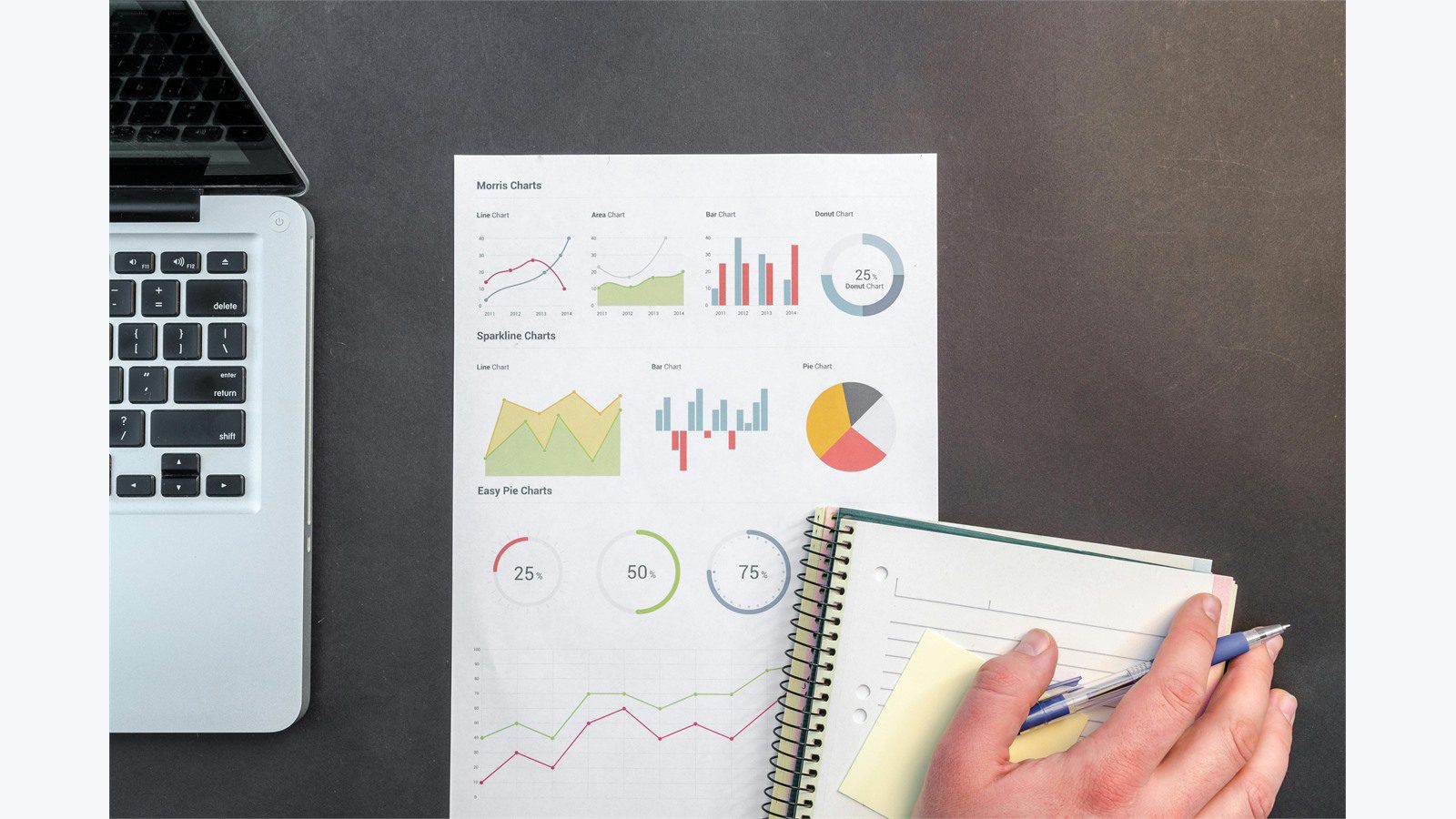
QuickBooks SMS invoice reminders should be measured like any other automation investment. The purpose is not only sending texts. The purpose is improving collection speed, reducing manual follow-up, increasing visibility, and protecting customer relationships.
Start with baseline metrics before launch. Measure average days to pay, past due balance by aging bucket, staff hours spent on reminders, number of manual follow-up emails or calls, invoice dispute volume, payment link usage, and days sales outstanding. After launch, compare QuickBooks SMS invoice reminders results by customer segment, invoice type, and reminder cadence.
Good QuickBooks SMS invoice reminders metrics include:
- SMS delivery rate.
- Response rate.
- Payment link click rate.
- Payment rate after reminder.
- Average days to pay.
- Past due balance reduction.
- Staff follow-up hours saved.
- Dispute rate.
- Opt out rate.
- Duplicate reminder incidents.
QuickBooks SMS invoice reminders should also be reviewed qualitatively. Are customers complaining? Are replies handled quickly? Are staff confident in the reminder list? Are high value accounts receiving enough human attention? Are there false positives or missed invoices?
A dashboard can help managers see both cash flow and process health. The accounting manager may care about aging buckets and DSO. The owner may care about cash receipts and staff time. Customer service may care about reply volume and complaints. Each group needs a simple view.
If the data shows weak results, adjust the cadence, message copy, customer segments, payment links, or exception rules. Automation should improve with evidence.
Security, privacy, and compliance checks before launch

QuickBooks SMS invoice reminders involve financial data, customer contact details, payment links, and communication records. That means security and privacy controls are not optional. A small invoice reminder workflow can still expose sensitive data if access, links, and logs are poorly managed.
Start with access control. Only authorized staff should configure reminder rules, edit customer phone numbers, see invoice details, export reports, or change opt out status. Use named accounts, multi factor authentication, and role based permissions wherever possible.
Review vendors before connecting them. The QuickBooks SMS invoice reminders provider, integration platform, payment processor, and any middleware should have appropriate security practices. Ask about encryption, access logs, data retention, breach notification, subcontractors, support access, and deletion processes.
Payment security matters even if the business does not store card data. The PCI Security Standards Council explains security responsibilities around payment data and environments. Use hosted payment links from trusted providers instead of collecting card details through text replies.
The FTC Safeguards Rule guidance is also useful for businesses that handle customer financial information, even if legal applicability depends on the company and industry. The broader lesson is clear: document who has access, protect customer data, monitor vendors, and train staff.
Keep QuickBooks SMS invoice reminders message content minimal. Avoid sending sensitive invoice details through SMS. Use a secure link when customers need more detail. Confirm that opt outs are honored automatically and that message history is retained only as long as business and legal needs require.
A 30 day rollout plan for QuickBooks and SMS automation
A 30 day rollout gives the team enough time to design QuickBooks SMS invoice reminders without rushing into customer facing mistakes. The plan should start small, prove accuracy, and expand only after staff trust the workflow.
Days 1 through 5 should focus on discovery. List current invoice reminder methods, QuickBooks fields, customer contact sources, payment methods, staff roles, existing reminder templates, opt in language, and exception cases. Identify the most common causes of late payment.
Days 6 through 10 should focus on data cleanup. Validate mobile numbers, billing contacts, invoice statuses, payment terms, dispute tags, payment plan tags, and customer exclusions. Decide which customer segment will be included in the pilot.
Days 11 through 15 should focus on workflow design. Choose the SMS platform or integration method, define trigger rules, write message templates, create opt out handling, design reply routing, and define stop conditions. Decide whether the first pilot is review-before-send or fully automated.
Days 16 through 20 should focus on testing. Use test customers, test invoices, and internal phone numbers. Confirm that messages show the right amount, due date, link, company name, and opt out text. Confirm that paid invoices are suppressed and replies create the right tasks.
Days 21 through 25 should focus on a limited pilot. Send reminders to a small customer segment with staff monitoring. Track replies, payments, complaints, opt outs, and data issues. Fix problems before expanding.
Days 26 through 30 should focus on measurement and expansion. Review collection impact, staff workload, customer response, and error rate. Then decide whether to expand by customer type, invoice type, location, or service line.
A successful QuickBooks SMS invoice reminders pilot should end with documented rules, owner names, support steps, reporting cadence, and a backlog of improvements. Progressive Robot can help design, integrate, test, and improve QuickBooks SMS invoice reminders so the automation supports cash flow without creating customer service risk.
QuickBooks SMS invoice reminders FAQ

Can QuickBooks send SMS invoice reminders by itself?
QuickBooks has invoice and payment reminder capabilities, but SMS workflows usually require a messaging provider, native integration, integration platform, or custom connection. The right approach depends on QuickBooks version, payment setup, customer data, consent process, and reporting needs.
What should the first reminder say?
The first reminder should be friendly, clear, and short. Include the business name, invoice number, amount due, due date, secure payment link, and opt out instruction. Keep sensitive details out of the text message and link customers to a secure invoice or payment page.
How often should SMS reminders be sent?
Many businesses start with a reminder before the due date, on the due date, and a limited number after the due date. The exact cadence should depend on customer relationships, invoice value, industry norms, and payment terms. QuickBooks SMS invoice reminders should stop when the invoice is paid, disputed, or opted out.
What happens when a customer replies?
Replies should route to a managed inbox, ticket queue, CRM, or accounting task list. A reply should be logged, assigned, and used to pause automation when needed. Do not let customer replies sit inside an unmanaged SMS tool.
Is it safe to include payment links in SMS?
It can be safe when the link is secure, branded, trusted, and connected to a reputable payment processor. Do not collect card data through text replies. Keep message content minimal and train customers to recognize official payment links.
What is the best way to start?
Start with a small pilot. Clean QuickBooks data, confirm SMS consent, write two or three templates, test paid invoice suppression, route replies to staff, and measure results. Expand after the team proves the workflow is accurate and customers respond well.










