

A custom mobile ERP app helps employees capture real work on a phone or tablet and feed it directly into an active ERP without waiting for spreadsheets, paper forms, duplicate entry, or end of day updates. The goal is simple: the people doing the work should be able to scan, submit, approve, receive, count, inspect, or report from the point of activity, while the ERP stays the trusted system of record.
Building a custom mobile ERP app is different from building a standalone mobile tool. The app must respect ERP rules, item masters, customer records, locations, approval paths, inventory status, finance controls, audit logs, user permissions, and integration limits. If the app bypasses those controls, it may look fast at first but create bad data inside the system that runs the business.
This guide explains how to design a custom mobile ERP app that works with an active ERP instead of working around it. It covers source of truth decisions, screen design, API patterns, online and offline workflows, validation, security, testing, rollout, and common mistakes. Progressive Robot supports these projects through software development services, business process automation, workflow automation, IT consulting, and cybersecurity services.
Use this custom mobile ERP app planning map before development starts:
| Design area | Mobile app question | ERP question | Best practice |
|---|---|---|---|
| Users | who will use the app in the field, warehouse, or shop floor | which ERP roles can update records | map app roles to ERP permissions |
| Workflow | what action must be faster on mobile | which transaction or record changes | design around real tasks, not screens copied from ERP |
| Data | what fields must users capture | which fields are required by ERP | validate before sync |
| Integration | when should updates post | which APIs, queues, or middleware are available | use supported integration paths |
| Offline mode | what happens without network access | how does ERP receive delayed updates | store, timestamp, and reconcile |
| Security | what data appears on the device | which data is sensitive or regulated | minimize data on phones and tablets |
| Monitoring | how will failures be found | who owns correction in ERP | create dashboards and alert queues |
Custom mobile ERP app at a glance

A custom mobile ERP app is a focused business application that gives employees a simpler way to interact with ERP data from a mobile device. Instead of asking workers to log into a full ERP interface, the app presents only the task they need: scan an item, confirm a delivery, receive inventory, approve a purchase request, record labor time, upload inspection photos, or close a work order.
The app is custom because it reflects the actual process. A warehouse receiving team may need barcode scanning, bin selection, lot number capture, photo evidence, and exception comments. A field service technician may need customer asset history, parts usage, time entry, offline work order notes, and signature capture. A production supervisor may need quality checks, scrap reporting, downtime codes, and shift approvals.
The ERP remains the system of record. The mobile app should not become a shadow database. It should read approved reference data, capture new activity, validate user input, and post clean updates back through supported APIs or integration services. A custom mobile ERP app succeeds when ERP users trust the data more because it was captured closer to the work.
Common use cases include:
- Inventory counts and cycle counts.
- Purchase receipt and put away.
- Pick, pack, ship, and delivery confirmation.
- Field service work order updates.
- Manufacturing quality checks.
- Equipment maintenance logs.
- Expense, purchase, or time approvals.
- Asset inspections and photo capture.
- Safety or compliance checklists.
A good first release is narrow. Choose one workflow where mobile capture clearly reduces manual entry, delays, or errors. After that workflow proves stable, the same platform can expand to related ERP tasks.
For that reason, a custom mobile ERP app should start as a controlled operational improvement rather than a broad replacement for the ERP interface.
Step 1: define the ERP source of truth and mobile use case

The first step is defining what the custom mobile ERP app is allowed to change. ERP systems often hold finance, inventory, procurement, manufacturing, customer, vendor, and asset records. A mobile app that touches those records needs strict ownership rules.
Start by identifying the business pain. Do workers retype paper forms at the end of the day? Are inventory counts delayed? Are field service notes missing? Are purchase approvals stuck when managers travel? Are shop floor quality checks recorded in spreadsheets? The use case should be specific enough to measure.
Then identify the ERP object or transaction involved. For example, a receiving app may update purchase orders, receipts, inventory locations, and inspection status. A field service app may update service orders, parts consumption, labor entries, and customer signatures. A custom mobile ERP app should be designed around the exact record changes that ERP will accept.
Create a source of truth worksheet:
- ERP record or transaction name.
- Mobile task that creates or updates it.
- User role allowed to perform the task.
- Fields displayed on the device.
- Fields entered by the user.
- Fields generated automatically.
- Validation rules before posting.
- Approval or review rules.
- Owner of failed updates.
This step also prevents scope creep. A team may ask for every ERP function in a mobile interface. That is rarely the right first move. The strongest custom mobile ERP app projects begin with one operational workflow and one clear success metric, such as reducing receipt entry time, improving inventory accuracy, or closing work orders faster.
Do not skip process observation. Watch the people who will use the app. Notice gloves, lighting, barcode label quality, device mounts, network coverage, handoff points, exception patterns, and supervisor approvals. Mobile design choices should reflect those conditions.
This observation helps the custom mobile ERP app fit real work instead of forcing mobile users into desktop habits.
Step 2: map app screens to ERP records and fields
After the use case is clear, map each app screen to ERP records and fields. This is where a custom mobile ERP app becomes practical. A phone screen should not simply reproduce a large ERP form. It should show the minimum information needed for the worker to make the correct update.
Start with a screen inventory. For a receiving workflow, the screens might include login, purchase order lookup, item scan, quantity entry, lot capture, bin selection, photo exception, review, and submit. For field service, the screens might include schedule, work order detail, asset history, checklist, parts used, time entry, customer signature, and closeout.
Each screen should map to the ERP fields it reads and writes. Include field type, source, requirement, validation, and transformation. For example, a quantity field may require decimal precision from ERP. A bin location may need a picklist filtered by warehouse. A lot number may be required only for certain items. A photo may need to be stored outside ERP with a secure link written back.
A screen to ERP map should include:
| App screen | ERP data read | ERP data written | Validation |
|---|---|---|---|
| Login | user role, location, shift | device session | role and device check |
| Order lookup | order number, customer, status | none | user can view order |
| Item scan | item master, barcode, unit of measure | selected line | barcode exists |
| Quantity entry | expected quantity, tolerance | received quantity | within allowed tolerance or supervisor review |
| Photo exception | receipt line, item, location | image link, reason code | required reason code |
| Submit | all pending updates | ERP transaction | all required fields present |
A custom mobile ERP app should also use ERP identifiers. Store the ERP record ID, line ID, item ID, location ID, and user ID wherever possible. Matching by names, descriptions, or typed codes creates errors.
If the ERP has custom fields, extensions, or user defined tables, document them carefully. Mobile developers need to know whether those fields are available through supported APIs and whether they trigger ERP workflows.
The custom mobile ERP app should expose only the fields that support fast, accurate decisions in that specific workflow.
Step 3: choose API middleware or direct ERP integration
Integration architecture determines how the custom mobile ERP app talks to the active ERP. The main choices are direct ERP APIs, middleware, integration platform as a service, message queues, or a custom backend service that sits between the app and ERP.
Direct API integration can be simple when the workflow is narrow, the ERP has strong APIs, and the mobile app only needs a few transactions. The risk is that mobile clients can become tightly coupled to ERP details. If the ERP changes, the app may need frequent updates.
A backend integration service is often safer. The mobile app calls the backend. The backend handles authentication, validation, mapping, retries, queues, rate limits, and ERP API calls. This keeps ERP credentials off the device and gives IT a controlled place to manage integration behavior.
Middleware can help when several systems are involved. For example, the app may need ERP, warehouse management, identity provider, document storage, reporting, and messaging. Middleware can coordinate transformations and logs. The tradeoff is licensing, governance, and platform complexity.
Major ERP platforms provide supported integration paths. SAP publishes API resources through the SAP Business Accelerator Hub, and Microsoft documents integration guidance for Dynamics 365 implementations. The exact approach depends on the ERP version, hosting model, modules, customizations, and vendor support rules.
A practical custom mobile ERP app architecture often looks like this:
- Mobile app authenticates the user.
- App requests reference data from backend services.
- Backend reads approved ERP data through APIs.
- User completes a mobile workflow.
- App submits a transaction to the backend.
- Backend validates and queues the update.
- Backend posts to ERP through supported APIs.
- ERP response returns a success, failure, or review status.
- Logs capture user, device, timestamp, record, and result.
Avoid direct database writes unless the ERP vendor explicitly supports the pattern. API paths preserve business rules, permissions, audit history, and upgrade compatibility.
Step 4: design mobile workflows for online and offline work

Mobile workflows must match the real environment. A custom mobile ERP app used in an office can assume stronger network access than an app used in a warehouse, yard, vehicle, plant floor, or customer site. If users lose connection during a task, the app should fail gracefully and protect the ERP from duplicate or stale updates.
Decide which actions require live ERP access. Pricing checks, inventory availability, credit holds, serial number validation, and approvals may require real time confirmation. Other actions, such as notes, photos, checklist answers, or time entries, may be stored locally and synced later.
Offline mode needs careful design. The app should store pending transactions securely, show users what has not synced, timestamp every action, and retry when connectivity returns. It should also prevent risky actions that cannot be validated offline. For example, allowing a user to consume inventory offline may be acceptable in a controlled field service workflow, but not in a high velocity warehouse without reconciliation rules.
A custom mobile ERP app should make sync status visible. Users should not wonder whether their work reached ERP. Use clear states such as saved on device, pending sync, synced, failed, and needs review. Supervisors should have a queue for exceptions.
Important design questions include:
- Which tasks are allowed offline?
- How long can data remain on the device?
- What happens if the ERP record changed while the device was offline?
- How are duplicate submissions detected?
- Can a supervisor approve an offline exception?
- How are photos or large attachments uploaded later?
- What does the user see when sync fails?
Network reality should drive the user experience. If workers scan items in a warehouse aisle with weak WiFi, the app must support fast local scanning and delayed posting. If field teams work at customer sites, the app must protect partially completed forms.
A custom mobile ERP app that handles weak connectivity well will earn more trust from frontline teams.
Step 5: validate inputs sync conflicts and approvals
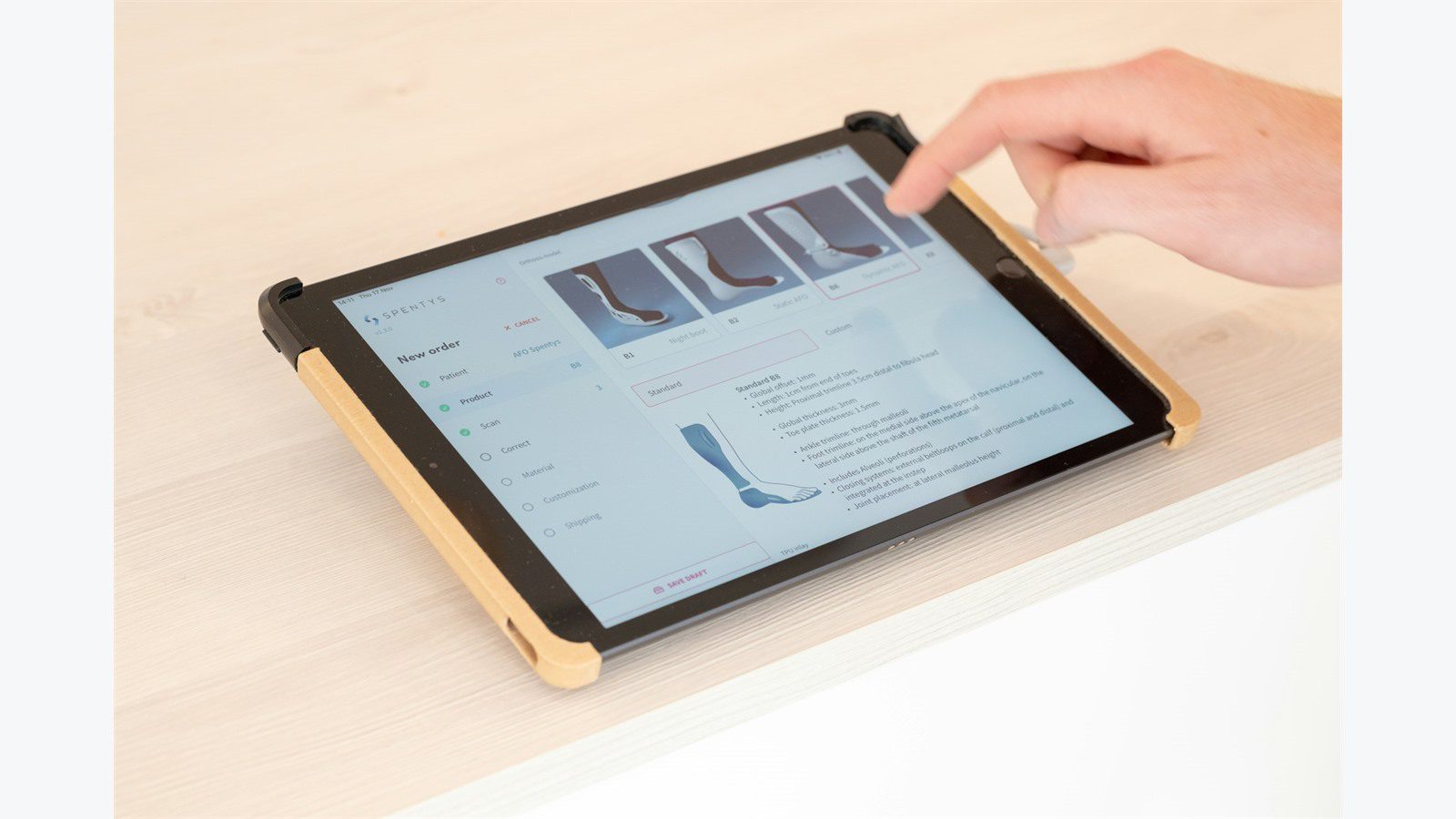
A custom mobile ERP app should stop bad data before it enters ERP. Validation is not only a technical feature. It is how the app protects inventory accuracy, financial controls, service quality, and audit readiness.
Validate as early as possible. If a barcode does not match an ERP item, tell the user immediately. If a quantity exceeds tolerance, route it for supervisor approval. If a work order is already closed, prevent updates. If a required lot number is missing, block submit. If a photo is required for damage, do not let the exception close without it.
There are three layers of validation:
- Device validation for simple required fields, formats, and user guidance.
- Backend validation for permissions, duplicate checks, workflow state, and business rules.
- ERP validation for final transaction acceptance.
Conflicts need a clear policy. A worker may update a record from the app while another user updates it in ERP. The app should not blindly overwrite live ERP data. Use record versions, timestamps, status checks, or ERP locking patterns when available.
Approvals should be built into the workflow, not bolted on later. A supervisor may need to approve over receipt, scrap, price variance, substituted parts, overtime, or inspection failure. The custom mobile ERP app should capture who approved, when, why, and under which threshold.
Create an error taxonomy before launch:
| Error type | Example | Action |
|---|---|---|
| User correction | missing lot number | show field-level message |
| Supervisor approval | quantity above tolerance | hold and route approval |
| Retryable sync | temporary ERP timeout | queue and retry |
| Conflict | record changed in ERP | compare and review |
| Security failure | user lacks role | block and log |
| Data model issue | unmapped code | send to integration owner |
A mature custom mobile ERP app makes errors actionable. Staff should know whether to correct data, retry, escalate, or contact IT.
Step 6: secure ERP data on phones tablets and networks
Security is essential because a custom mobile ERP app can expose customer data, pricing, inventory, purchase orders, production data, employee details, and operational schedules on portable devices. The app should follow least privilege and data minimization from the start.
Start with identity. Use a trusted identity provider where possible, enforce multi factor authentication for sensitive roles, and avoid shared logins. Device enrollment or mobile device management may be required for company devices. For bring your own device programs, set clear boundaries on storage, access, and remote wipe.
Do not store more ERP data on the device than the workflow requires. Cache reference data carefully, encrypt local storage, expire sessions, and remove stale records. If the app stores photos, signatures, documents, or offline transactions, protect them until they sync and define retention rules after sync.
The OWASP Mobile Application Security project is a useful reference for risks such as insecure data storage, weak authentication, insecure communication, and insufficient privacy controls. These risks are directly relevant when mobile devices update an active ERP.
Security controls should include:
- Role based access tied to ERP permissions.
- TLS for all traffic.
- No ERP credentials stored in the mobile app.
- Token expiration and refresh rules.
- Encrypted local storage for offline data.
- Device loss and remote wipe procedures.
- Audit logs for submissions and approvals.
- API rate limits and anomaly monitoring.
- Secure attachment handling for photos and documents.
A custom mobile ERP app should also separate internal and customer facing access. If customers, vendors, drivers, or contractors use the app, their permissions must be narrower than employee permissions.
Step 7: test performance adoption and support before launch

Testing should cover more than whether the app opens and posts one transaction. A custom mobile ERP app must be tested against real devices, real ERP rules, real network conditions, real user roles, and real exception cases.
Start with functional tests. Confirm that every screen reads the correct ERP data, writes the correct transaction, handles required fields, blocks invalid entries, and shows useful error messages. Then test the workflow end to end from device to ERP, including backend logs and supervisor queues.
Performance testing matters because mobile users expect speed. A scan flow that takes four seconds per item may frustrate warehouse teams. A field service app that pauses between screens may be abandoned. Test startup time, lookup speed, scan speed, form submission, photo upload, offline queue processing, and ERP response time.
Adoption testing is just as important. Put the app in the hands of actual users before launch. Watch where they tap, where they hesitate, what they misunderstand, and what slows them down. A custom mobile ERP app often succeeds or fails based on small usability details: button size, scan feedback, field order, default values, search filters, and clear status messages.
Support planning should include:
- A help path for users who cannot submit.
- A dashboard for failed syncs.
- A way to resend or cancel pending transactions.
- Release notes for app updates.
- Device compatibility rules.
- Ownership for ERP errors versus app errors.
- Monitoring for crashes and slow screens.
Do not launch without a rollback plan. If a workflow affects inventory, orders, production, or service billing, the business needs a way to pause mobile posting and return to the prior process while issues are resolved.
A 30 day rollout plan for a custom mobile ERP app

A phased rollout keeps risk manageable. A custom mobile ERP app touches real operations, so the first month should prove that users, ERP data, integrations, and support processes are ready.
Days 1 to 5 should focus on discovery and design. Confirm the workflow, observe users, define ERP ownership, document the field map, decide online and offline behavior, and define success metrics. Choose a pilot group with enough volume to prove value but not so much that issues disrupt the whole business.
Days 6 to 12 should focus on build and configuration. Create the mobile screens, backend services, ERP API connections, authentication, validation rules, logs, and dashboards. Prepare test data for normal and exception scenarios.
Days 13 to 18 should focus on internal testing. Run transactions through a test or sandbox environment if available. Validate ERP posting, permissions, offline sync, duplicate prevention, approvals, and error queues. Fix data mapping problems before users begin the pilot.
Days 19 to 24 should focus on pilot users. Train the group, deploy devices, monitor submissions, collect feedback, and review errors daily. Compare mobile updates against ERP reports. Track whether the custom mobile ERP app reduces manual entry and improves timeliness.
Days 25 to 30 should focus on controlled expansion. Add more users, more locations, or more transaction types only after the first workflow is stable. Publish a support runbook and decide the next enhancement based on measured results.
A successful rollout should leave the team with better ERP data, clearer accountability, and fewer manual workarounds.
The rollout should also confirm that the custom mobile ERP app is reducing duplicate entry rather than moving the same work to another screen.
Common mistakes to avoid

The biggest mistake is treating the custom mobile ERP app as a separate system. If users enter data into the app but ERP users still have to verify or retype everything, the project has not solved the core problem. The app should feed accepted ERP workflows with clean, validated transactions.
Another mistake is starting with too many workflows. A mobile app can eventually support receiving, cycle counting, approvals, inspections, work orders, and deliveries, but the first release should be focused. Too much scope makes testing harder and delays value.
A third mistake is ignoring ERP business rules. Mobile speed is useful only when it respects controls. If the app allows users to bypass required fields, tolerances, approvals, or permissions, the ERP will become less reliable.
Other mistakes include:
- Building screens before observing users.
- Matching records by names instead of ERP IDs.
- Assuming network access will always be available.
- Storing too much sensitive data on devices.
- Forgetting supervisor approval flows.
- Skipping API limit and retry planning.
- Hiding sync errors from operations teams.
- Launching without device management rules.
- Measuring downloads instead of business outcomes.
A custom mobile ERP app should be judged by operational trust. If staff trust the app, trust the ERP updates, and stop using paper or spreadsheets, the project is working.
Custom mobile ERP app FAQ

What is a custom mobile ERP app?
A custom mobile ERP app is a business mobile application that lets employees complete focused ERP related tasks from phones or tablets. It may capture inventory, approvals, work order updates, inspections, photos, or field notes and send validated updates to the ERP.
Should the app write directly into ERP?
The app should usually write through supported APIs, middleware, or backend services rather than direct database access. This protects ERP rules, permissions, audit logs, and upgrade paths. A custom mobile ERP app should post transactions in a controlled way.
Can the app work offline?
Yes, but offline mode needs rules. The app should store pending work securely, show sync status, timestamp activity, prevent risky offline actions, and reconcile conflicts when the device reconnects.
What ERP systems can a mobile app connect to?
A custom app can connect to many ERP platforms if supported APIs or integration services are available. The exact method depends on the ERP version, cloud or on premises setup, modules, customizations, and security policies.
How long does it take to build a first release?
A focused pilot can often be designed and tested faster than a broad mobile transformation program. Timeline depends on workflow complexity, ERP API readiness, offline requirements, security review, and user testing.
What should be measured after launch?
Measure transaction time, error rate, sync failures, manual entry reduction, inventory or work order accuracy, user adoption, support tickets, and ERP data timeliness. The custom mobile ERP app should improve business outcomes, not just add a new interface.










