
always on usb port sounds like a small hardware feature, but it solves a common daily frustration: charging accessories when your laptop is asleep, hibernating, or even shut down in certain modes. If you have ever left earbuds, a smartwatch, or a phone connected overnight and expected a top-up by morning, this is the USB behavior you were counting on. The confusion comes from inconsistent naming, subtle port markings, and vendor-specific firmware defaults that can make one machine charge reliably while another appears to ignore the same cable entirely.
Manufacturers market this capability under labels like Always On USB, USB charging in sleep mode, USB power share, or power-off charging. The concept is similar across brands: one or more USB ports remain energized under selected low-power states. But implementation details vary by chipset, motherboard design, BIOS policy, and operating-system power plans. That variance is why many users are unsure whether their computer supports the feature, whether it is enabled, and why charging sometimes works only in specific scenarios.
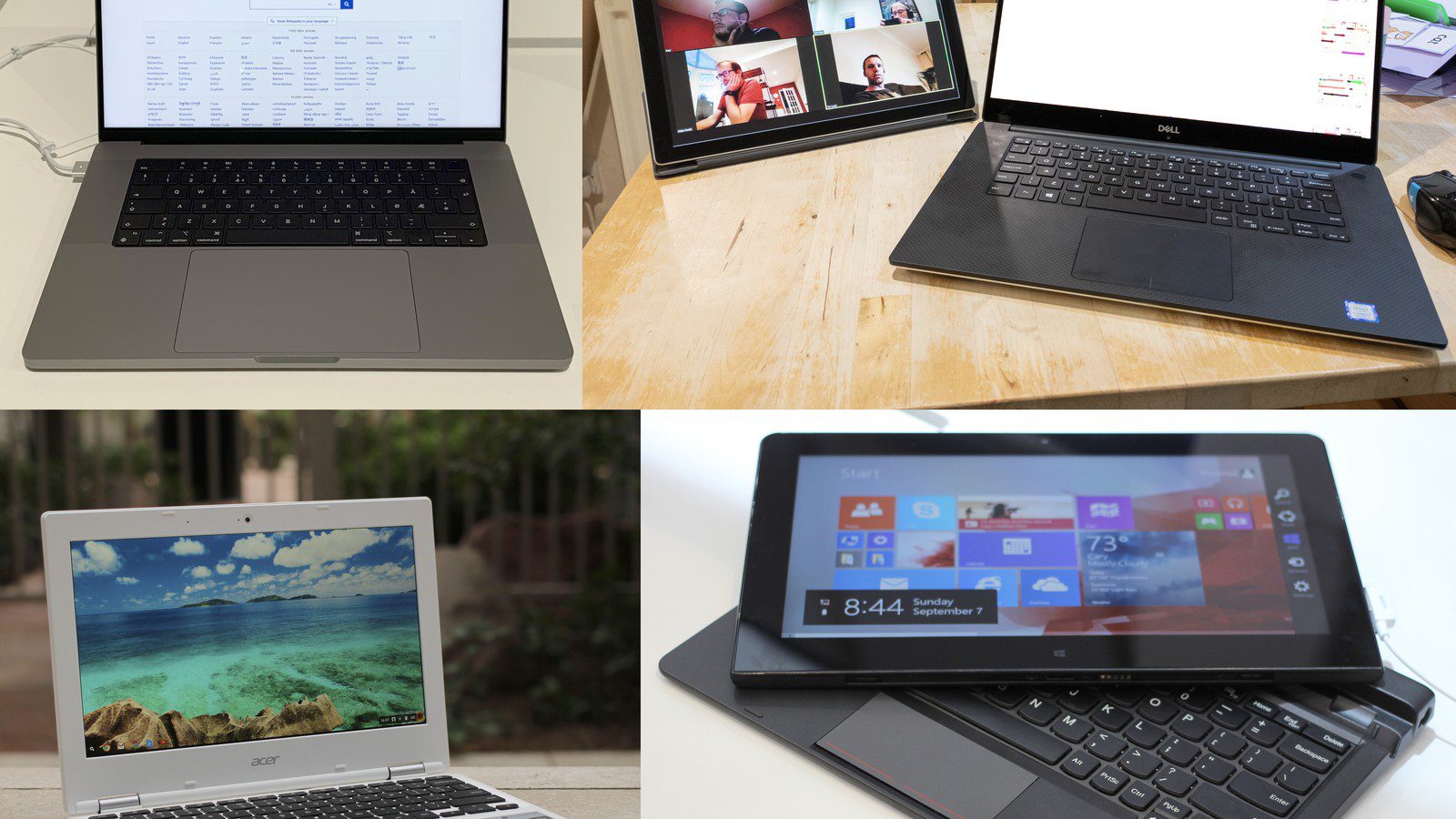
What an always on usb port really does
An always on usb port keeps standby voltage on selected USB lines when the system is not fully active. In practical terms, the port can continue supplying power to external devices without waking the machine for normal operation. That makes it useful for overnight charging, low-power accessories, and emergency top-ups when an outlet is unavailable. The key phrase is selected USB lines, because not every port is wired to the same power rail or governed by the same firmware policy.
This behavior does not mean your computer is performing full data communication while asleep. In many implementations, data lanes are inactive while power delivery remains available. On some systems, the feature works in sleep and hibernation but not full shutdown. On others, it can be configured for all three states. Understanding the difference between power-only continuity and full USB functionality prevents incorrect troubleshooting when charging works but file transfers do not.
How to identify if a port is always on
Check physical symbols first
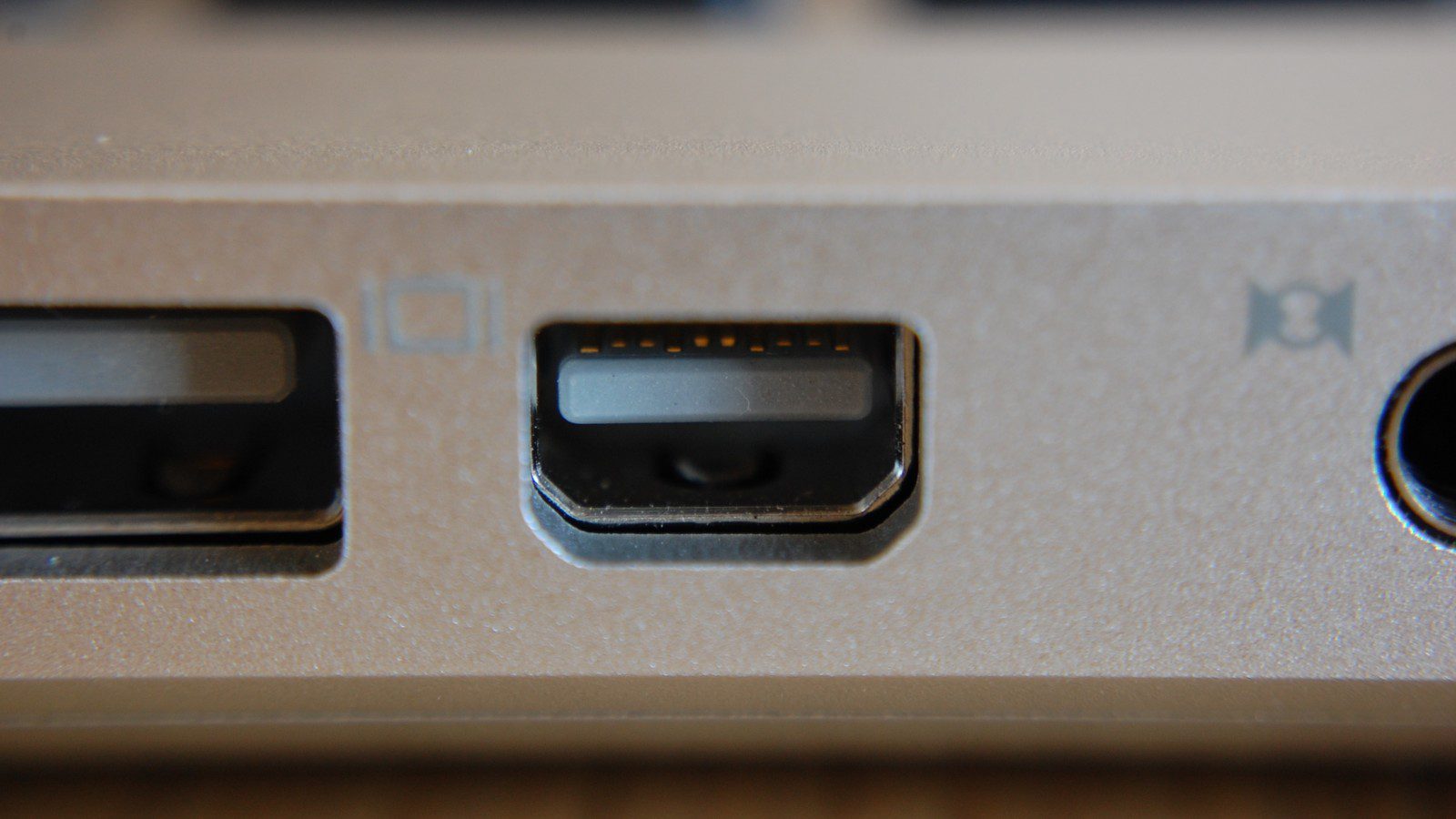
Start with physical markings. Many vendors use a battery icon, a lightning symbol, or a highlighted port color to indicate power-share capability. However, icon systems are not standardized, and some modern ultrabooks omit visible labels entirely. Next, check the user manual and support page for exact port maps, because vendor documentation usually states which side and which connector supports charging in low-power states.
Confirm settings and test behavior
Then confirm firmware settings. BIOS or UEFI menus often include toggles such as USB Charging in Power Off State, Always On USB, or Sleep and Charge. If that option is disabled, the always on usb port behavior may appear unavailable even on supported hardware. Finally, validate with a controlled test: connect a low-power device, enter sleep, wait several minutes, and check charging indicators. Repeat in hibernate and shutdown to map behavior precisely.
Why users think the feature is broken
Common misdiagnosis patterns
Most support complaints come from three causes: wrong port selection, disabled firmware policy, or modern standby interactions. Users often plug into a standard USB port while assuming all ports behave the same. Even on premium devices, only one connector may be wired for always-on charging. Another common issue is power-plan optimization that disables standby rails to maximize battery preservation. The machine is functioning as configured, but not as expected.
Cables and accessory-side limits
Cable and accessory behavior also matters. Some devices negotiate charging current differently when no data host is active, and cheap cables can reduce voltage under load. If a phone trickle-charges slowly overnight, users may assume the port failed when the real bottleneck is cable quality or device-side charging policy. Controlled tests with known-good cables and low-power accessories usually clarify whether the port itself is operating correctly.
Power states explained: sleep, hibernate, and shutdown
How each power state changes USB behavior
Sleep keeps memory in an active low-power state and wakes quickly, which often makes USB standby charging easiest to support. Hibernate writes memory state to storage and powers down more aggressively; some systems still allow USB charging if firmware permits. Full shutdown can cut nearly all standby rails unless explicit power-share logic is enabled. Because each mode has different electrical assumptions, one machine might charge in sleep only, while another supports all states.
Choosing the right mode for your routine
From an ownership perspective, this distinction helps you set realistic expectations. If your workflow relies on overnight charging from a closed laptop lid, sleep mode may provide the best balance between convenience and compatibility. If maximum battery retention is the priority, you may choose stricter shutdown behavior and use an external charger instead. Neither approach is wrong; the point is aligning system policy with your daily routine.
Battery impact and safety considerations
Battery trade-offs to expect
Keeping an always on usb port active draws energy from the host battery unless the system is plugged into AC power. For occasional accessory charging, the impact is usually moderate. For repeated phone charging from a laptop on battery, drain can be significant. Many firmware menus include thresholds or state restrictions to limit this trade-off. If you travel frequently and depend on all-day battery life, disable power-share when not needed.
Safe charging practices
Thermal and safety behavior is generally handled by built-in charging controllers, but airflow and placement still matter. Avoid covering vents while charging multiple devices, and do not rely on damaged cables. A quality cable and reasonable charging loads reduce heat stress and improve consistency. The feature is intended for convenience charging, not as a full substitute for high-wattage dedicated adapters.
Desktop versus laptop behavior
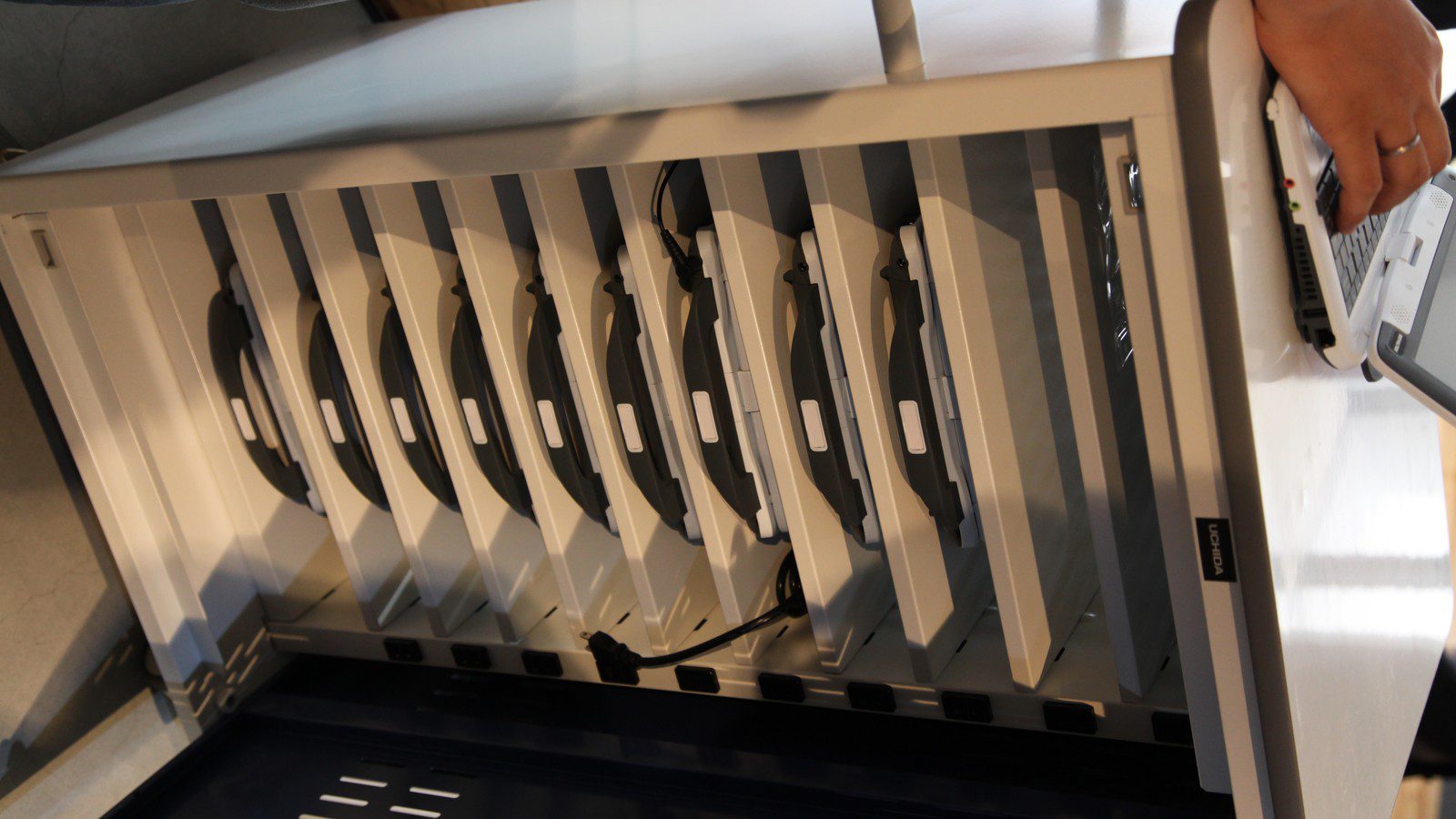
On desktops, always-on USB often appears on rear I/O ports tied to standby power from the motherboard. Front-panel ports may differ depending on case wiring and board headers. On laptops, the behavior is usually tied to one physical connector chosen for power-share efficiency and thermal limits. This means your desktop might support several standby-charging ports, while your ultrabook supports only one.
Mini PCs and all-in-one systems can blur these assumptions. Some expose USB-C ports with power delivery roles that change depending on system state and attached devices. Always verify per-model documentation rather than extrapolating from another machine in the same brand family.
USB-A, USB-C, and power delivery differences
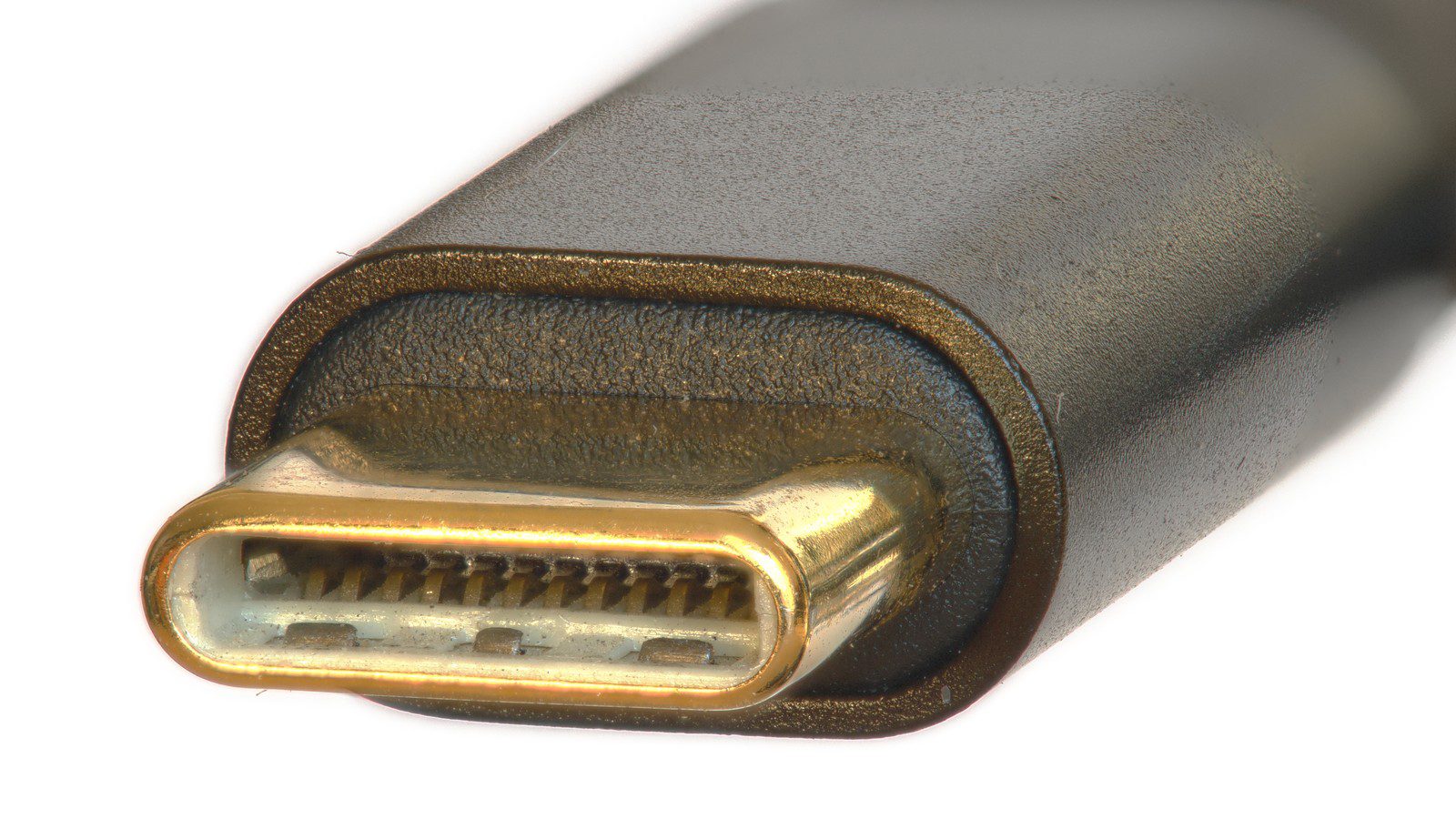
USB-A always-on ports typically deliver lower power suitable for accessories and moderate charging. USB-C ports can deliver more, especially when paired with USB Power Delivery negotiation, but not all USB-C ports are equal. Some are data-only, some support charging out, and some support charging in. Labeling can be inconsistent, so the exact role matrix matters more than connector shape.
If your primary use case is fast phone charging, confirm wattage expectations and PD support. An always on usb port can be present while still providing limited output. Users often interpret this as feature failure when it is actually a design limit. Published specs and measured output tests provide a better reality check than icon-based assumptions.
How to test your system in 10 minutes
- Identify candidate ports by symbol, manual, and support diagrams.
- Enable always-on USB or power-share in BIOS or vendor utility.
- Use a known-good cable and a low-power accessory first.
- Charge in sleep mode for five minutes and confirm indicator change.
- Repeat in hibernate and full shutdown to map supported states.
- Test one non-supported port as a control to avoid false assumptions.
- Document results so future troubleshooting starts with known behavior.
Troubleshooting checklist when charging fails
- Firmware toggle disabled after BIOS reset or update
- Wrong port selected on a multi-port chassis
- Fast-drain device exceeds standby output capability
- Cable voltage drop from poor quality or damage
- OS power plan forcing aggressive standby rail shutdown
- Vendor control app overriding BIOS defaults
- Accessory requiring active host negotiation for high-speed charging
Who benefits most from always-on USB
The always on usb port feature is most valuable for people who carry one machine for work and travel, charge small accessories overnight, and want fewer wall adapters. Students, field teams, and commuters often benefit because a single host device can top up earbuds, mice, or wearables in hotel rooms, classrooms, and transit hubs. It is also useful in desk setups where cable management is cleaner with one charging point.
Users who need high-speed charging for power-hungry phones or tablets may still prefer dedicated PD bricks. Always-on USB is a convenience layer, not necessarily a fastest-possible charging strategy. The right setup often combines both: always-on for accessories and dedicated adapters for large batteries.
12 practical rules for reliable daily use
- Use the documented always-on port, not just any open connector.
- Keep BIOS and vendor power utilities aligned after updates.
- Prefer certified cables for stable charging behavior.
- Test all power states once and keep a note of outcomes.
- Do not expect full data transfer while host is asleep.
- Disable power-share when traveling on battery-critical days.
- Avoid charging multiple high-drain devices from standby rails.
- Check accessory charging indicators before leaving overnight.
- Use AC power for long overnight charging sessions when possible.
- Re-test after major OS updates that affect sleep behavior.
- If troubleshooting persists, reset BIOS power settings once.
- Treat always-on USB as convenience charging, not a full dock replacement.
Procurement checklist for laptops and desktops
For buyers comparing business laptops, creator notebooks, and compact desktops, always-on charging should be treated as a documented capability requirement, not an assumed convenience. Vendor product pages often mention USB-C speed and port counts, but they do not always specify low-power charging behavior by state. During procurement, require a matrix that confirms whether each USB port can provide standby power in sleep, hibernate, and shutdown. This avoids costly post-purchase surprises when teams discover that only one model in a fleet supports reliable overnight accessory charging.
Questions to ask before purchase
Ask whether the feature is firmware-toggle dependent, whether defaults are enabled out of the box, and whether a BIOS reset can silently disable charging behavior. Also ask whether Windows and Linux power plans are both validated by the OEM, because cross-platform fleets can expose inconsistent behavior if vendor tuning is optimized for one OS only. Finally, request expected charging current ranges for standby mode so users understand performance expectations for phones versus low-power accessories.
Why this matters for IT operations
When these details are clarified up front, helpdesk ticket volume drops. Users can be given one-page setup guidance with exact port location and approved settings. Asset management teams can standardize BIOS profiles and enforce policy through management tooling. The result is fewer ambiguous “USB charging not working” incidents and better user trust in the hardware platform.
BIOS and operating system settings that most often cause confusion
Many systems expose the feature in BIOS but also allow operating-system policies to override behavior. A common pattern is that BIOS enables power share, but modern standby optimization in the OS aggressively cuts peripheral power to preserve battery. Users then experience inconsistent results across sessions. Correct troubleshooting must therefore inspect both firmware and OS layers in sequence, rather than toggling one setting and concluding the feature is broken.
Firmware layer
Look for options named Always On USB, USB charging in off state, or Sleep and Charge. Confirm whether the option applies to all USB ports or only labeled ports. Some systems include separate toggles for USB-A and USB-C. If available, enable verbose event logging for power transitions so behavior can be validated after sleep and wake cycles.
Operating system layer
In Windows environments, examine advanced power settings and vendor control utilities that may alter standby behavior. In Linux environments, review suspend targets and platform-specific power management rules. If enterprise policy tools are used, verify that baseline templates do not undo user-level charging preferences. Consistency requires explicit policy design, not per-device guesswork.
Real-world usage scenarios: what works best
The feature is most effective when paired with predictable, low-to-moderate charging loads. Earbuds, smartwatches, mice, keyboard batteries, and compact accessories are ideal because they draw manageable current and typically complete charging during normal sleep windows. Phones can also benefit, but charging speed and completion time depend heavily on cable quality, negotiated power profile, and host battery policy.
Overnight desk setup
On AC power, always-on USB can simplify cable management by consolidating accessory charging to the host device. This is convenient for hybrid workers who already dock and undock daily. In this scenario, battery drain concerns are minimal because the system remains externally powered while still delivering standby USB output.
Travel and mobility setup
On battery power, the feature should be used selectively. Charging two devices from a notebook in transit can significantly reduce available runtime for productivity workloads. A practical approach is to prioritize one essential accessory and disable power share when host battery drops below a defined threshold. This preserves flexibility without sacrificing mission-critical battery life.
Common myths about always-on USB ports
Myth 1: Every USB port should charge in sleep mode
False. Many devices support always-on charging on only one or two ports. Internal power-rail design and thermal budgets determine which connectors stay energized.
Myth 2: If charging is slow, the feature is broken
Not necessarily. Slow charging can result from cable resistance, conservative standby current limits, or accessory charging logic that expects a full host negotiation path.
Myth 3: USB-C automatically means always-on
Connector type alone does not guarantee behavior. USB-C capability depends on implementation details, including power role support, firmware policy, and platform power architecture.
Myth 4: Enabling always-on USB is always bad for battery health
Overstated. Sensible use is generally fine. Problems arise when users repeatedly deep-drain host batteries by charging high-draw devices without power management controls.
Security and policy considerations in managed environments
Always-on ports can be operationally useful, but policy teams should document expected behavior and abuse boundaries. For example, organizations may allow standby charging while restricting data transfer from removable media in locked states. Separating power policy from data policy keeps convenience while preserving endpoint security posture.
Recommended enterprise policy controls
Define approved ports, approved accessories, and approved power states for standby charging. Enforce BIOS baselines through management tools, and audit drift after firmware updates. Provide users with clear reporting channels when behavior changes unexpectedly so support can identify policy regressions quickly.
Maintenance and lifecycle management
Long-term reliability depends on simple habits: keep ports clean, replace worn cables, and revalidate settings after BIOS updates. Dust and mechanical wear can reduce charging consistency over time, especially on heavily used travel devices. A quarterly quick-check routine can catch issues early and prevent false assumptions about feature failure.
Quarterly validation routine
Test the documented always-on port in sleep and shutdown, verify expected indicator behavior on a known accessory, and log results in your asset notes. If behavior changes, compare firmware version and power policy revisions before replacing hardware.
Advanced diagnostics for inconsistent charging behavior
If always-on charging works intermittently, move from symptom guessing to repeatable diagnostics. First, isolate one accessory, one cable, and one target port. Then test across power states with fixed timing windows. Record whether charging begins instantly, after a delay, or not at all. This sequence reveals whether the issue is state-dependent, hardware-dependent, or accessory-dependent. Without controlled repetition, random success can mask the real root cause.
Use a controlled test matrix
Create a small table with rows for sleep, hibernate, and shutdown, and columns for each tested cable and accessory. Mark outcomes after five and fifteen minutes. If one cable fails across all states, replace it first. If one state fails consistently, review firmware and OS power-policy interactions for that state. If one port fails while another passes, you likely have a port-role mismatch rather than a platform-wide issue.
Measure output expectations realistically
Users often expect wall-charger speed from standby USB, but many systems intentionally cap output current when the host is inactive. Slow charging is not always a defect; it may be policy. The question is whether behavior matches documented limits. Where possible, compare measured behavior against vendor specs for standby charging current and supported charging protocols.
Watch for update-induced regressions
Major BIOS, chipset, or operating-system updates can alter low-power behavior. If a previously stable setup changes after an update, compare version history and restore known-good settings before replacing hardware. In managed fleets, this can be handled with staged rollouts and post-update validation checks on representative device samples.
Best-practice setup templates by user type
Students and commuters
Keep always-on charging enabled for sleep state only, use one dedicated accessory cable, and disable charging in shutdown to preserve host battery when traveling. This balances convenience with battery discipline.
Remote workers
Enable always-on charging in sleep and shutdown when on AC power at a desk, and disable battery-drain modes in vendor utilities when unplugged. This gives predictable overnight charging for accessories without compromising daytime mobility.
IT-managed enterprise fleets
Standardize BIOS policy, publish a one-page user guide with exact port location, and include post-update validation scripts in endpoint maintenance windows. This minimizes support variance and ensures policy consistency over time.
Field validation tip for support teams
Support teams can eliminate most ambiguity with a two-device verification kit: one low-power accessory (such as earbuds) and one higher-draw device (such as a phone). Testing both against the documented always-on connector in sleep and shutdown quickly reveals whether the issue is configuration, load expectation, or hardware path. This approach is faster than ad hoc user-reported checks and creates consistent evidence for escalation when firmware anomalies are suspected.
For end users, the same method works at home: test one known-good cable and one known-good accessory first, then add complexity only after a baseline pass. A simple, repeatable workflow prevents unnecessary replacements and keeps troubleshooting focused on measurable behavior.
Final verdict
An always on usb port is a genuinely useful feature when you understand its limits: correct port, correct firmware policy, and realistic output expectations. It is not magic charging on every connector and every power state, but it can be a daily quality-of-life upgrade once configured correctly. If you run the short validation workflow above, you can quickly tell whether your system supports it and how to use it reliably without battery surprises.










