
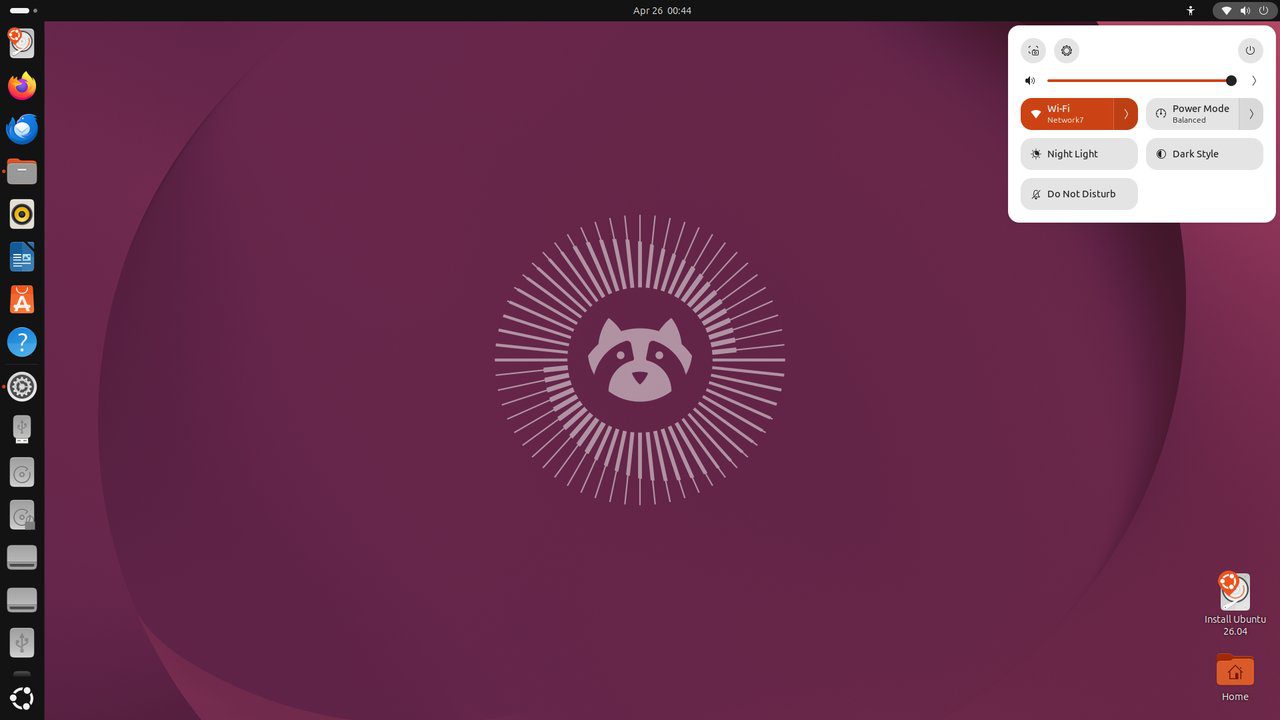
Let’s Encrypt provides free, automated, and open TLS certificates. Certbot is the official Let’s Encrypt client that automates certificate issuance and renewal. This guide installs Certbot on Ubuntu 26.04 LTS and manages SSL certificates for Nginx and Apache.
Tested and valid on:
- Ubuntu 26.04 LTS
Prerequisites
- Ubuntu 26.04 LTS with Nginx or Apache installed
- A domain name with DNS pointed at the server
- Ports 80 and 443 open in the firewall
Step 1 – Install Certbot
sudo apt update
sudo apt install certbot python3-certbot-nginx -y
certbot --version
Step 2 – Obtain a Certificate for Nginx
sudo certbot --nginx -d example.com -d www.example.comStep 3 – Obtain a Certificate for Apache
sudo apt install python3-certbot-apache -y
sudo certbot --apache -d example.com -d www.example.com
Step 4 – Obtain a Wildcard Certificate (DNS Challenge)
sudo certbot certonly --manual
  --preferred-challenges dns
  -d example.com
  -d '*.example.com'
Certbot will ask you to add a DNS TXT record to verify domain ownership.
Step 5 – List and View Certificates
sudo certbot certificatesStep 6 – Test Automatic Renewal
sudo certbot renew --dry-runStep 7 – Force Renewal
sudo certbot renew --force-renewal
# Or for a specific domain:
sudo certbot renew --cert-name example.com --force-renewal
Step 8 – Revoke and Delete a Certificate
sudo certbot revoke --cert-path /etc/letsencrypt/live/example.com/cert.pem
sudo certbot delete --cert-name example.com
Step 9 – Verify the Certificate
openssl s_client -connect example.com:443 -servername example.com /dev/null | openssl x509 -noout -datesConclusion
Certbot is managing free Let’s Encrypt certificates on Ubuntu 26.04 LTS. Certificates auto-renew every 60 days via a systemd timer. Check renewal status with systemctl status certbot.timer and always test renewals before they expire.










