
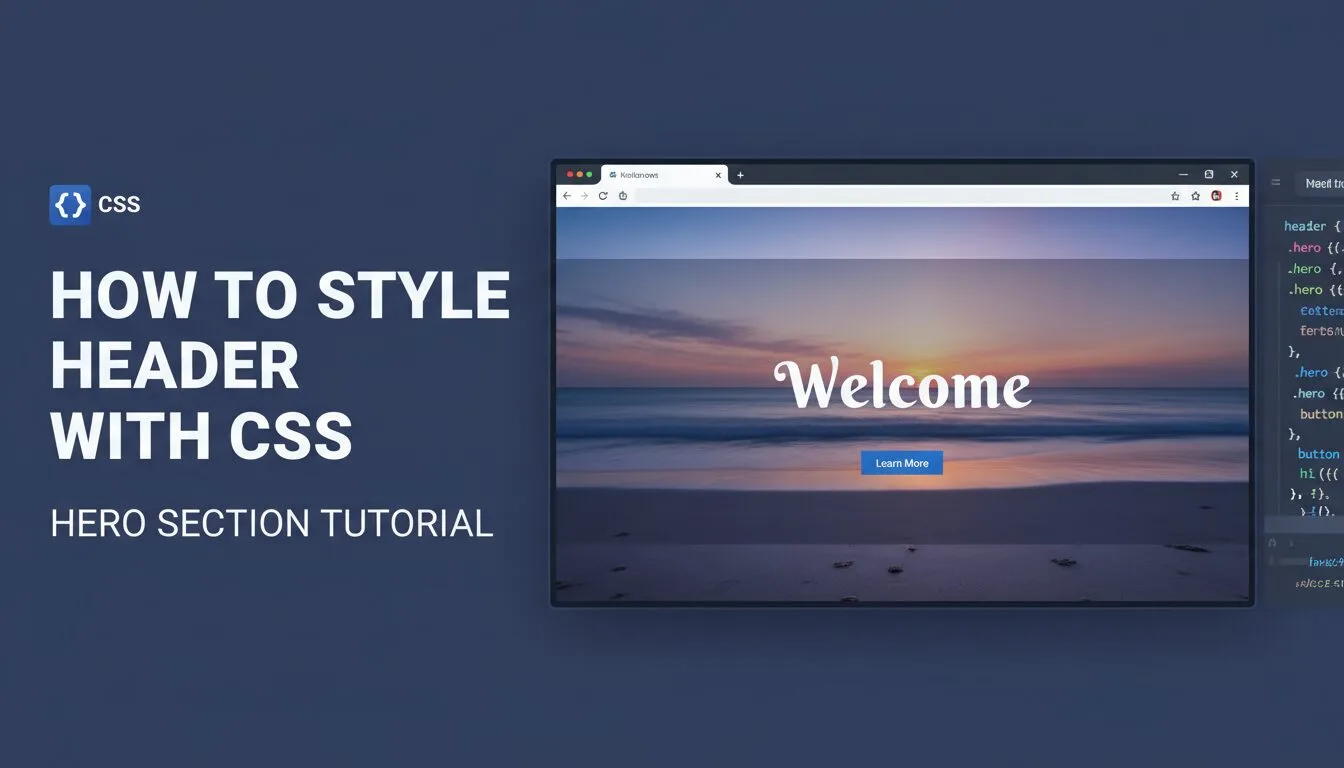
Learning how to style header with CSS is one of the most rewarding and frequently used skills in any CSS tutorial for beginners — the header (also called hero section) is the very first thing visitors see, and getting it right creates instant impact. In this hands-on guide, you’ll recreate the demonstration website’s top header section using pure HTML and CSS: circular profile image with yellow border, large centered headline, subtitle, and a call-to-action button — all wrapped in a styled container with background, padding, and modern typography.
This tutorial is Section 1 of our full HTML CSS website project series — building directly on your css-practice folder, you’ll create a beautiful, reusable header that looks professional on desktop and mobile.
Prerequisites
- Your css-practice project folder from previous lessons:
- index.html (with HTML5 boilerplate + <link> to styles.css)
- css/styles.css
- images/ folder
- A small profile image (150–200px square works best):
- Save it as small-profile.jpeg in images/
- Visual Studio Code with Live Server extension (highly recommended)
- Modern browser (Chrome/Edge/Firefox)
1. Add Header HTML Structure
Open index.html and replace everything inside <body> with this clean, semantic markup:
					<!DOCTYPE html>
<html lang="en">
<head>

    <meta name="viewport" content="width=device-width, initial-scale=1.0">
    <title>My HTML CSS Website – Header Section</title>
    <link rel="stylesheet" href="css/styles.css">
</head>
<body>
    <!-- Header / Hero Section -->
    <header class="header">
        <div class="header-container">
            <img fetchpriority="high" loading="eager" decoding="async" src="https://www.progressiverobot.com/images/small-profile.jpeg" alt="Your profile picture" class="profile-image" title="How to Style Header with CSS – Hero Section Tutorial 2025–2026 3">
            <h2>Zain – Web Developer</h2>
            <h2>Senior Front-End Engineer & CSS Enthusiast</h2>
            <a href="#projects" class="cta-button">View My Projects</a>
        </div>
    </header>
<script>(()=>{class RocketElementorPreload{constructor(){this.deviceMode=document.createElement("span"),this.deviceMode.id="elementor-device-mode-wpr",this.deviceMode.setAttribute("class","elementor-screen-only"),document.body.appendChild(this.deviceMode)}t(){let t=getComputedStyle(this.deviceMode,":after").content.replace(/"/g,"");this.animationSettingKeys=this.i(t),document.querySelectorAll(".elementor-invisible[data-settings]").forEach((t=>{const e=t.getBoundingClientRect();if(e.bottom>=0&&e.top<=window.innerHeight)try{this.o(t)}catch(t){}}))}o(t){const e=JSON.parse(t.dataset.settings),i=e.m||e.animation_delay||0,n=e[this.animationSettingKeys.find((t=>e[t]))];if("none"===n)return void t.classList.remove("elementor-invisible");t.classList.remove(n),this.currentAnimation&&t.classList.remove(this.currentAnimation),this.currentAnimation=n;let o=setTimeout((()=>{t.classList.remove("elementor-invisible"),t.classList.add("animated",n),this.l(t,e)}),i);window.addEventListener("rocket-startLoading",(function(){clearTimeout(o)}))}i(t="mobile"){const e=[""];switch(t){case"mobile":e.unshift("_mobile");case"tablet":e.unshift("_tablet");case"desktop":e.unshift("_desktop")}const i=[];return["animation","_animation"].forEach((t=>{e.forEach((e=>{i.push(t+e)}))})),i}l(t,e){this.i().forEach((t=>delete e[t])),t.dataset.settings=JSON.stringify(e)}static run(){const t=new RocketElementorPreload;requestAnimationFrame(t.t.bind(t))}}document.addEventListener("DOMContentLoaded",RocketElementorPreload.run)})();</script></body>
</html>
Notes for beginners:
- <header> — semantic tag for the top section (improves accessibility & SEO)
- .header-container — wrapper for centering and constraining content
- class=”profile-image” — will be styled circular with border
- h1 + h2 — main headline and subtitle (personalise with your info)
- .cta-button — call-to-action link (links to future #projects section)
Save and preview — you’ll see plain text and image (no styling yet).
2. Style Header with CSS – Core Rules
Open css/styles.css and add these rules:
					/* === Global Reset & Body === */
* {
  margin: 0;
  padding: 0;
  box-sizing: border-box;
}

body {
  font-family: "Helvetica Neue", Helvetica, Arial, sans-serif;
  background-color: #f8f9fa;
  color: #333;
  line-height: 1.6;
}

/* === Header / Hero Section === */
.header {
  background: linear-gradient(rgba(0, 0, 0, 0.5), rgba(0, 0, 0, 0.5)), url('../images/background-image.jpeg');
  background-size: cover;
  background-position: center;
  min-height: 80vh;                /* at least 80% of viewport height */
  display: flex;
  align-items: center;
  justify-content: center;
  text-align: center;
  color: white;
  position: relative;
}

/* Center content wrapper */
.header-container {
  max-width: 900px;
  padding: 0 20px;
}

/* Profile image – circular with yellow border */
.profile-image {
  width: 180px;
  height: 180px;
  border-radius: 50%;
  border: 8px solid #fe0;         /* yellow border from demo */
  object-fit: cover;
  margin-bottom: 30px;
  box-shadow: 0 8px 25px rgba(0, 0, 0, 0.4);
}

/* Main headline */
.header h1 {
  font-size: 4.5rem;
  margin-bottom: 15px;
  text-shadow: 2px 2px 10px rgba(0, 0, 0, 0.6);
}

/* Subtitle */
.header h2 {
  font-size: 1.8rem;
  margin-bottom: 40px;
  font-weight: 400;
  opacity: 0.9;
}

/* Call-to-action button */
.cta-button {
  display: inline-block;
  background-color: #fe0;
  color: #000;
  padding: 16px 40px;
  font-size: 1.3rem;
  font-weight: bold;
  text-decoration: none;
  border-radius: 50px;
  transition: all 0.3s ease;
}

.cta-button:hover {
  background-color: #ffd633;
  transform: translateY(-4px);
  box-shadow: 0 10px 25px rgba(0, 0, 0, 0.3);
}
Save and refresh — your header should now look modern and professional:
- Full-screen background image with dark overlay for readability
- Centered circular profile photo with thick yellow border & shadow
- Large white headline + subtitle with text shadow
- Bright yellow CTA button with hover lift and shadow effect
3. Optional: Add Sticky Navigation Bar
Add this simple sticky nav above .header-container in HTML:
					<nav class="nav">
    <ul>
        <li><a href="#about">About</a></li>
        <li><a href="#projects">Projects</a></li>
        <li><a href="#experience">Experience</a></li>
        <li><a href="#contact">Contact</a></li>
    </ul>
</nav>
Style in CSS:
					.nav {
  position: sticky;
  top: 0;
  background: rgba(0, 0, 0, 0.8);
  padding: 15px 0;
  z-index: 1000;
}

.nav ul {
  list-style: none;
  display: flex;
  justify-content: center;
  gap: 40px;
}

.nav a {
  color: white;
  text-decoration: none;
  font-weight: bold;
  transition: color 0.3s;
}

.nav a:hover {
  color: #fe0;
}
Now the nav stays fixed at the top when scrolling.
4. Best Practices & Modern Tips (2025–2026 – Progressive Robot Style)
- Use min-height: 80vh for hero — feels full but not overwhelming
- Add dark overlay (rgba(0,0,0,0.5)) for better text contrast
- Use object-fit: cover on profile images
- Always include meaningful alt text
- Test mobile — header should stack vertically on small screens
- Use clamp() for fluid typography:
font-size: clamp(2.5rem, 6vw, 4.5rem);
- Add backdrop-filter: blur(5px) to nav for glass effect (modern look)
How to Style Header with CSS – FAQ (2025–2026)
- How do I style header with CSS?
Target .header or <header>: background-image, display: flex, align-items: center, text-align: center. - How do I make a sticky header with CSS?
position: sticky; top: 0; z-index: 1000; - How do I center content in header with CSS?
display: flex; align-items: center; justify-content: center; - How do I add hover effects when styling header with CSS?
a:hover { color: #fe0; transform: scale(1.05); } - What’s the best way to handle background images in header?
background-size: cover; background-position: center; + overlay for readability.
Summary
You now know exactly how to style header with CSS: hero background, centered circular profile image, large headline/subtitle, CTA button, sticky nav basics, and responsive-ready layout.
Mastering how to style header with CSS gives your website a strong, professional first impression — essential for portfolios, resumes, and landing pages.
Keep your css-practice folder open — in the next tutorials you’ll build the About Me section, Projects grid, and more — turning your HTML CSS website project into a real portfolio.










