
A corrupted user profile can turn your daily computing experience into a nightmare. You log in only to find a blank desktop, missing files, temporary profile warnings like “You’ve been signed in with a temporary profile”, broken Start menu, or apps refusing to launch properly. These issues stem from damaged profile data that stores your settings, desktop layout, application preferences, and more.
Learning how to fix corrupted user profile problems is essential in 2026, as hybrid cloud-sync setups, frequent Windows updates, power interruptions, and third-party software conflicts continue to cause profile damage. Microsoft Support pages receive thousands of related queries monthly, and similar issues appear across macOS and Linux environments.
This comprehensive 2500+ word guide covers causes, symptoms, diagnosis, and proven step-by-step solutions for fix corrupted user profile across major operating systems. Follow these methods carefully to recover your personalised environment with minimal data loss.
What Is a User Profile and Why Does It Get Corrupted?
A user profile is a collection of files and registry entries (Windows) or hidden configuration folders (macOS/Linux) that define your personalised computing experience:
- Desktop icons and wallpaper
- Start menu/taskbar layout
- Browser bookmarks and extensions
- Application settings (e.g., Outlook profiles, VS Code extensions)
- Mapped drives and network credentials
- Shell folders (Documents, Downloads, etc.)
Corruption occurs when key files become unreadable, registry hives fail to load, or configuration plists/directories get damaged.
Common Causes of Corrupted User Profile
Understanding root causes helps prevent recurrence while you fix corrupted user profile issues:
- Abrupt Shutdowns or Power Failures — Especially during logoff/login or Windows updates.
- Failed Windows Updates or Feature Upgrades — Interrupted upgrades corrupt NTUSER.DAT or profile registry entries.
- Antivirus/Security Software Conflicts — Overzealous scanning locks profile files.
- Disk Errors or Failing Hardware — Bad sectors on SSD/HDD damage profile folders.
- Third-Party Sync Tools — OneDrive, Dropbox, or Google Drive mishandling profile folders during sync.
- Malware or Rogue Software — Targets user hives/settings.
- Domain/Enterprise Policies — Roaming profiles or Group Policy misconfigurations (common in work environments).
- Manual Edits Gone Wrong — Deleting AppData folders or registry tweaks.
On macOS: Time Machine restores gone wrong, SIP conflicts, or kernel extensions. On Linux: Damaged ~/.config, ~/.local, or shell init files (.bashrc, .profile).
Signs Indicating You Need to Fix Corrupted User Profile
Watch for these red flags:
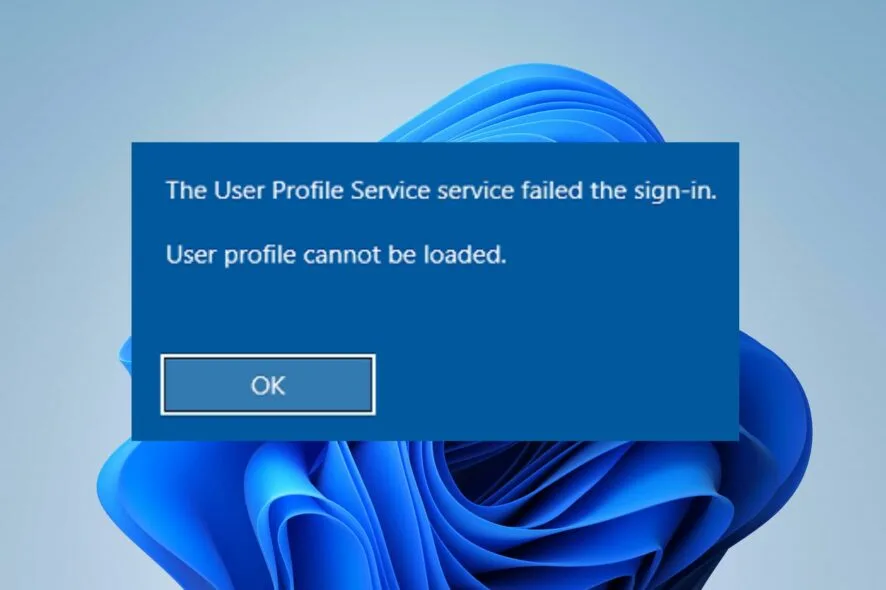
- “The User Profile Service failed the logon. User profile cannot be loaded.”
- “You’ve been signed in with a temporary profile” (changes lost on logout).
- Blank desktop, missing taskbar/icons, or black screen after login.
- Start menu/search not working.
- Applications open with default settings (no saved preferences).
- Desktop background reset, pinned items gone.
- Slow login or repeated “Preparing Windows” messages.
- On macOS: Repeated login loops, missing Dock items, or apps forgetting settings.
- On Linux: Shell starts without aliases, wrong PATH, or home folder apps misbehave.
If multiple symptoms appear after a restart/update, profile corruption is likely.
Diagnosing a Corrupted User Profile
Before repairs, confirm the issue:
Windows
- Check Event Viewer (Win + R → eventvwr) → Windows Logs → Application/System for Event ID 1511, 1500, or 1530 (profile service failures).
- Look for C:\Users\TEMP or .TMP folders — sign of temp profile fallback.
- Registry check (advanced): HKLM\SOFTWARE\Microsoft\Windows NT\CurrentVersion\ProfileList — look for .bak extensions on SIDs.
macOS
- Console.app logs → Search for “profile” or “loginwindow” errors.
- Safe Mode boot (hold Shift) — if issues disappear, profile-related.
Linux
- Check ~/.xsession-errors or journalctl -b -u gdm (for graphical issues).
- Compare ls -la ~ with a working user.
Step-by-Step: How to Fix Corrupted User Profile on Windows 11/10
Microsoft’s official method remains the most reliable: create a new profile and migrate data.
Method 1: Create New Profile & Copy Files (Recommended – Microsoft Official)
From Microsoft Support:
- Log in with another admin account (or create one: Settings → Accounts → Family & other users → Add account).
- Make the new account Administrator.
- Sign out and log in to the new admin account.
- Open File Explorer → Navigate to C:\Users.
- Copy all folders/files from the old profile (e.g., C:\Users\OldUsername) EXCEPT:
- NTUSER.DAT*
- Ntuser.dat.LOG*
- Ntuser.ini
- UsrClass.dat*
- Paste into the new profile folder (C:\Users\NewUsername).
- Log out → Log in to new account.
- If Microsoft account: Settings → Accounts → Your info → Sign in with Microsoft account instead.
- (Optional) Rename old profile folder to .old and delete old account after verifying everything works.
Method 2: Registry Fix for .bak Profiles (Temporary Profile Fix)
If logged into TEMP profile:
- Boot normally or use another admin.
- Win + R → regedit.
- Navigate: HKEY_LOCAL_MACHINE\SOFTWARE\Microsoft\Windows NT\CurrentVersion\ProfileList
- Find your SID key (long string matching your username).
- If there’s a duplicate with .bak:
- Rename the non-.bak to .old
- Remove .bak from the backup one
- Edit ProfileImagePath to correct username path
- Restart → Log in.
Method 3: System File Repair First (Before Profile Migration)
Run in admin Command Prompt:
DISM /Online /Cleanup-Image /RestoreHealth
sfc /scannow
Reboot and test login.
Method 4: Advanced – Boot to Recovery & Copy
Use Windows USB recovery → Command Prompt → Xcopy old profile to new.
These steps resolve most Windows cases to fix corrupted user profile.
Fixing Corrupted User Profile on macOS (Sonoma/Sequoia/Ventura)
macOS profiles are lighter but still prone to .plist corruption.
Method 1: Create New User & Migrate (Safest)
- System Settings → Users & Groups → Add User (admin).
- Log in to new account.
- Copy from old ~/ (use Cmd+Shift+G → ~/):
- Desktop, Documents, Downloads, Pictures, etc.
- ~/Library/Application Support (selective apps)
- ~/Library/Preferences (risky – copy selectively or skip)
- Avoid ~/Library/Caches, ~/Library/Containers if suspect.
- Log back to new user.
- (Advanced) Rename old home folder in /Users → oldusername-old, delete old account via Users & Groups.
Method 2: Reset Specific App Configurations
For OneDrive/Office issues (common trigger):
/Applications/OneDrive.app/Contents/Resources/ResetOneDriveAppStandalone.commandOr manually trash ~/Library/Application Support/OneDrive, ~/Library/Preferences/com.microsoft.*, then relaunch.
Method 3: Safe Mode & Cache Clear
Boot Safe Mode → Delete ~/Library/Caches → Reboot normally.
Apple rarely provides direct profile repair; new user is standard.
Repairing Corrupted User Profile / Home Directory on Linux
Linux home directories (~/) rarely “corrupt” fully but can break configs.
Method 1: Restore from Backup or Skeleton
- Log in as root or another user.
- Backup current home: sudo cp -r /home/user /home/user-old
- Create fresh home: sudo mkhomedir_helper user (Debian/Ubuntu) or copy /etc/skel: sudo cp -r /etc/skel/. /home/user && sudo chown -R user:user /home/user
- Selective copy back: Documents, .ssh, .config (app-specific), etc.
- Fix ownership: sudo chown -R user:user /home/user
Method 2: Fix Shell Init Files
If .profile/.bashrc broken:
cp /etc/skel/.profile ~/.profile
cp /etc/skel/.bashrc ~/.bashrc
source ~/.bashrc
Method 3: Check for Extended Issues
fsck on home partition (unmounted), or strace login to debug.
Prevention Tips to Avoid Needing to Fix Corrupted User Profile
- Use UPS for power stability.
- Avoid force shutdowns during updates.
- Regular backups (File History, Time Machine, rsync).
- Keep antivirus updated but exclude profile folders if conflicts arise.
- Use local accounts for testing risky software.
- Monitor disk health (chkdsk, SMART stats).
- Avoid heavy sync tools on profile folders.
Advanced Troubleshooting & When to Seek Help
- Persistent issues after new profile → Hardware fault (test RAM/SSD).
- Domain-joined machines → Contact IT (roaming profile issues).
- Data recovery → Tools like Recuva (Windows), TestDisk (cross-platform).
Real-World Examples & Case Studies
- Windows 11 after failed 24H2 update → Temp profile → Registry .bak fix + data copy.
- macOS Sonoma OneDrive corruption → Reset script + new user migration.
- Ubuntu server home misconfig → Copy from /etc/skel → Fixed shell.
FAQs on How to Fix Corrupted User Profile
Q: Can I repair without losing settings? A: Rarely fully; selective copy of non-registry data works best.
Q: Temporary profile – where did my files go? A: Still in old C:\Users\username; copy before deleting.
Q: Is it safe to delete old profile folder? A: Yes, after successful login and data verification.
Q: macOS – same username possible? A: Delete old first, then recreate with same short name (careful with file permissions).
Q: Linux – why only shell broken? A: Often .profile/.bash* edits; restore from skel.
Conclusion

A corrupted user profile feels devastating, but with the right steps—primarily creating a new profile and migrating clean data—you can fix corrupted user profile issues reliably. Windows users should follow Microsoft’s official guide first, macOS favours new accounts, and Linux relies on ownership/skeleton restores.
Regular backups remain your best defence. Implement the prevention tips, and you’ll rarely face this headache again.
Further reading & authoritative sources:
- Microsoft Support: Fix a corrupted user profile
- Apple Discussions: User account issues
- Ubuntu Community: Home directory fixes
- NeoSmart Technologies: Corrupt User Profile Wiki
Stay proactive—your profile is your digital identity!










