
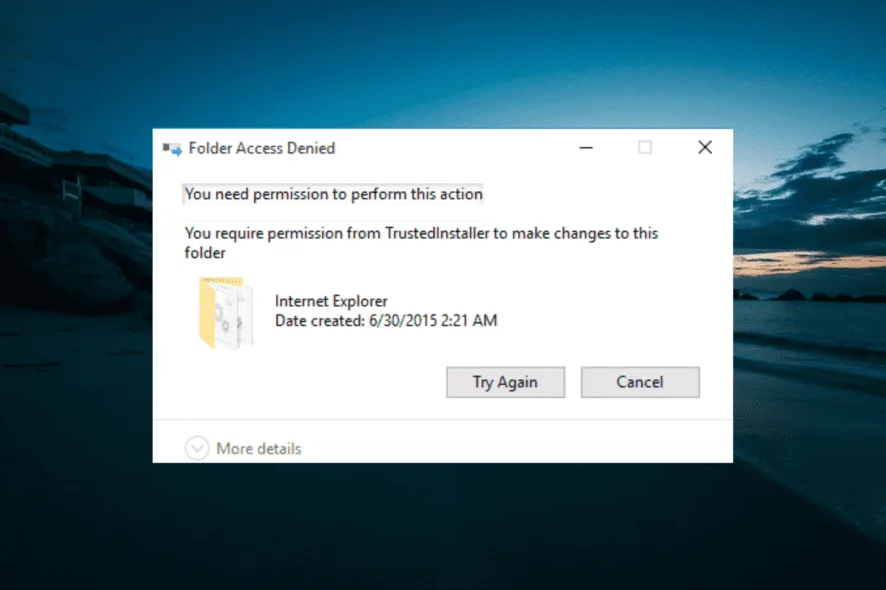
Permission denied errors — whether showing as “Access is denied”, “Permission denied (publickey)”, “EACCES: permission denied”, or “You need permission to perform this action” — frustrate users daily. These messages appear when your user account lacks the required read, write, or execute rights on a file, folder, script, or device. Learning how to fix permission denied errors quickly restores productivity, whether you’re a developer running scripts, an admin managing servers, or a home user accessing old files.
In 2026, with hybrid work, cloud-synced folders, and stricter OS security (like Windows Protected folders, macOS SIP, and Linux SELinux), these issues remain common. Microsoft reports millions of “access denied” support queries yearly, while Linux communities on Reddit and Stack Overflow see thousands of chmod-related posts monthly.
This 2500+ word guide explains causes, symptoms, diagnosis, and proven step-by-step fixes for fix permission denied errors on Windows, Linux, and macOS. Follow along to regain control safely.
Understanding Permission Denied Errors: Read, Write, Execute Basics

Every modern OS uses permissions to protect files and processes:
- Read (r): View or copy file contents.
- Write (w): Modify, delete, or create inside.
- Execute (x): Run scripts, binaries, or enter directories.
Errors occur when the current user/process lacks one or more of these for the target resource.
Common messages:
- Windows: “Access is denied”, “You don’t currently have permission to access this folder”, “Destination Folder Access Denied”.
- Linux/macOS: “Permission denied”, “EACCES: permission denied”, “zsh: permission denied”.
- Cross-platform tools (VS Code, npm, git): Often “permission denied” during file operations.
Fixing requires understanding your OS’s model:
- Windows → NTFS ACLs (Access Control Lists) + ownership.
- Linux/macOS → Unix-style permissions (owner/group/other) + extended attributes.
Common Causes of Permission Denied Errors

Knowing why errors happen helps prevent recurrence when you fix permission denied errors.
- Insufficient User Privileges Running without admin/root rights on protected areas (e.g., C:\Windows, /etc, /usr).
- Wrong Ownership Files owned by another user (root, previous account, system migration).
- Restrictive Permissions Files set to 600 (owner-only rw), folders missing execute (x) bit for traversal.
- Immutable or Locked Files chattr +i (Linux), locked attributes (macOS), or antivirus holding files.
- Mount Options / File System Issues NTFS drives mounted read-only on Linux/macOS, or noexec mounts.
- UAC / SIP / SELinux / AppArmor Security features block even admins.
- Script/Executable Flags No +x on shell scripts or binaries.
- Inheritance Problems Parent folder permissions not propagating correctly.
- External Drives / Network Shares Different machine ownership or policy restrictions.
- Corrupted Profiles or ACLs After migrations, crashes, or malware.
Symptoms You Need to Fix Permission Denied Errors
- Cannot open, edit, save, or delete files/folders.
- Scripts fail with “bash: ./script.sh: Permission denied”.
- npm/yarn/pip install fails in home directories.
- VS Code refuses to save in certain paths.
- External drive shows “Access Denied” on Windows.
- “Operation not permitted” even with sudo (immutable bit or SELinux).
Early recognition prevents data loss attempts.
How to Diagnose Permission Issues
Before fixing, check current state.
Windows Diagnosis
- Right-click file/folder → Properties → Security tab.
- Advanced → Check owner and effective permissions.
- Command: icacls “path\to\file”
Linux/macOS Diagnosis
- ls -l or stat file → Shows permissions/owner.
- getfacl file (if ACLs used).
- whoami and groups to confirm user context.
Use these to identify the exact missing right (r/w/x).
Step-by-Step: Fix Permission Denied Errors on Windows 11/10
Windows NTFS permissions cause most “access denied” issues.
Method 1: Run as Administrator (Quickest Fix)
Right-click app/explorer → Run as administrator. For permanent: Properties → Compatibility → Run as admin.
Method 2: Modify Permissions
- Right-click file/folder → Properties → Security.
- Click Edit.
- Select your username (add if missing: Add → type name → Check Names).
- Check Full control under Allow.
- Apply → OK.
- If denied: Advanced → Disable inheritance → Convert inherited → retry.
Method 3: Take Ownership (Common for Old/External Drives)
- Properties → Security → Advanced.
- Owner tab → Change → type your username → Check Names.
- Check “Replace owner on subcontainers and objects”.
- Apply → OK.
- Now edit permissions as above.
Command-line (Admin CMD/PowerShell):
takeown /F "C:\path\to\folder" /R /D Y
icacls "C:\path\to\folder" /grant Administrators:F /T
icacls "C:\path\to\folder" /reset /T /C /Q
Method 4: Enable Hidden Administrator Account
CMD (admin):
net user administrator /active:yesLog in as Administrator for repairs, then disable.
Method 5: Reset Folder Permissions
For system folders (e.g., Temp):
icacls "%userprofile%\AppData\Local\Temp" /reset /T /CAvoid third-party “permission fixers” — they can break more.
These resolve ~80% of Windows cases to fix permission denied errors.
Fixing Permission Denied on Linux (Ubuntu, Fedora, etc.)
Unix permissions dominate Linux issues.
Method 1: Add Execute Permission for Scripts
chmod +x script.sh
./script.sh
Method 2: Change Permissions (chmod)
Symbolic:
chmod u+rwx file       # User read/write/execute
chmod g+rw folder      # Group read/write
chmod -R 755 directory # Recursive: dirs 755, files usually inherit
Numeric:
- 777: Everyone full access (avoid on production!)
- 755: Owner full, others read/execute
- 644: Owner rw, others r
Recursive fix:
chmod -R 755 /path/to/projectMethod 3: Change Ownership (chown)
sudo chown -R $USER:$USER /home/user/project
sudo chown -R www-data:www-data /var/www/html  # Web servers
Method 4: Fix When chmod Denied Itself
If chmod is not executable:
sudo /bin/chmod 755 /bin/chmodOr reinstall coreutils.
Method 5: SELinux / AppArmor Issues
Check: ls -Z file Temporary: sudo setenforce 0 (test only) Permanent fix: restorecon -R /path or adjust policies.
Avoid blanket 777 — security risk.
How to Fix Permission Denied on macOS (Ventura/Sonoma/Sequoia)
macOS combines Unix perms with System Integrity Protection (SIP).
Method 1: chmod/chown in Terminal
chmod +x ~/script.sh
sudo chown -R $USER ~/problem-folder
chmod -R u+rw ~/Documents/project
Method 2: Get Info (GUI)
Right-click (or Cmd+I) → Get Info → Sharing & Permissions (unlock padlock) → add your user → Read & Write → gear icon → Apply to enclosed items.
Method 3: Disable SIP Temporarily (Advanced)
Recovery mode (Cmd+R) → Utilities → Terminal:
csrutil disableReboot, fix, then re-enable.
Method 4: Full Disk Access for Apps
System Settings → Privacy & Security → Full Disk Access → grant Terminal/VS Code.
Common for Homebrew, npm global installs.
Prevention: Avoid Future Permission Denied Errors
- Use user-owned directories for projects (~Documents, ~/projects).
- Avoid sudo for everyday tasks — creates root-owned files.
- Run installers/scripts with proper context.
- Backup ACLs before changes: getfacl -R /path > backup.acl
- External drives: Format exFAT/FAT32 for cross-OS, or take ownership immediately.
- Scripts: Always chmod +x after creation.
- Update OS regularly — patches fix permission bugs.
Advanced Troubleshooting & Tools
- Process Monitor (Windows Sysinternals) — see denial cause.
- strace (Linux) / dtruss (macOS) — trace system calls.
- Test in Safe Mode — isolate third-party interference.
- Reset All Permissions (risky): icacls /reset or reinstall OS as last resort.
Real-World Examples
- Developer: npm install global → EACCES → Fix: chown -R $USER ~/.npm or use nvm.
- Migrated drive: Access denied → Take ownership + reset inheritance.
- Script won’t run: bash: ./myscript: Permission denied → chmod +x.
FAQs About Fixing Permission Denied Errors
Q: Why still denied after chmod 777? A: Missing execute on parent dirs, SELinux, or wrong user.
Q: Safe to use 777? A: No — only temporarily, on personal machines.
Q: External HDD access denied? A: Take ownership (Windows) or mount with uid/gid (Linux).
Q: VS Code permission denied save? A: chown folder or run VS Code elevated.
Conclusion: Master Permission Management
Permission issues are solvable once diagnosed. Use targeted changes — chmod/chown on Linux/macOS, ownership/ACLs on Windows — and always least-privilege principle.
Regular backups and careful sudo usage prevent most headaches. With these methods, you’ll confidently fix permission denied errors and keep systems running smoothly.
Further reading & sources:










