
The Blue Screen of Death (BSOD) is one of the most notorious error states in Microsoft Windows. Recognizable by its signature blue background and abrupt system halt, a BSOD indicates that the operating system has encountered a critical error that it cannot safely recover from. When it occurs, Windows abruptly stops running to prevent further system damage, data corruption, or hardware harm. Modern versions of Windows (8, 10, 11) have made BSOD screens more user-friendly, yet the underlying causes remain complex.
This article explains the BSOD phenomenon in extensive detail—covering symptoms, root causes, error-code interpretation, diagnostics, and comprehensive methods to permanently fix Blue Screen issues. Whether you are an IT technician, enthusiast, system administrator, or an everyday user wanting to understand the problem, this guide serves as a full strategic reference.
1. What Is the Blue Screen of Death?

The Blue Screen of Death is a system-level stop error thrown by Windows when the kernel detects that continuing execution poses a risk. It is technically known as a STOP error, Bug Check, or Fatal System Error.
The BSOD serves several critical purposes:
Prevents further corruption of files, memory, or hardware states.
Captures diagnostic information in a dump file (minidump).
Resets the system to a safe initial state.
Signals deeper underlying issues—hardware faults, driver errors, corrupted system files, etc.
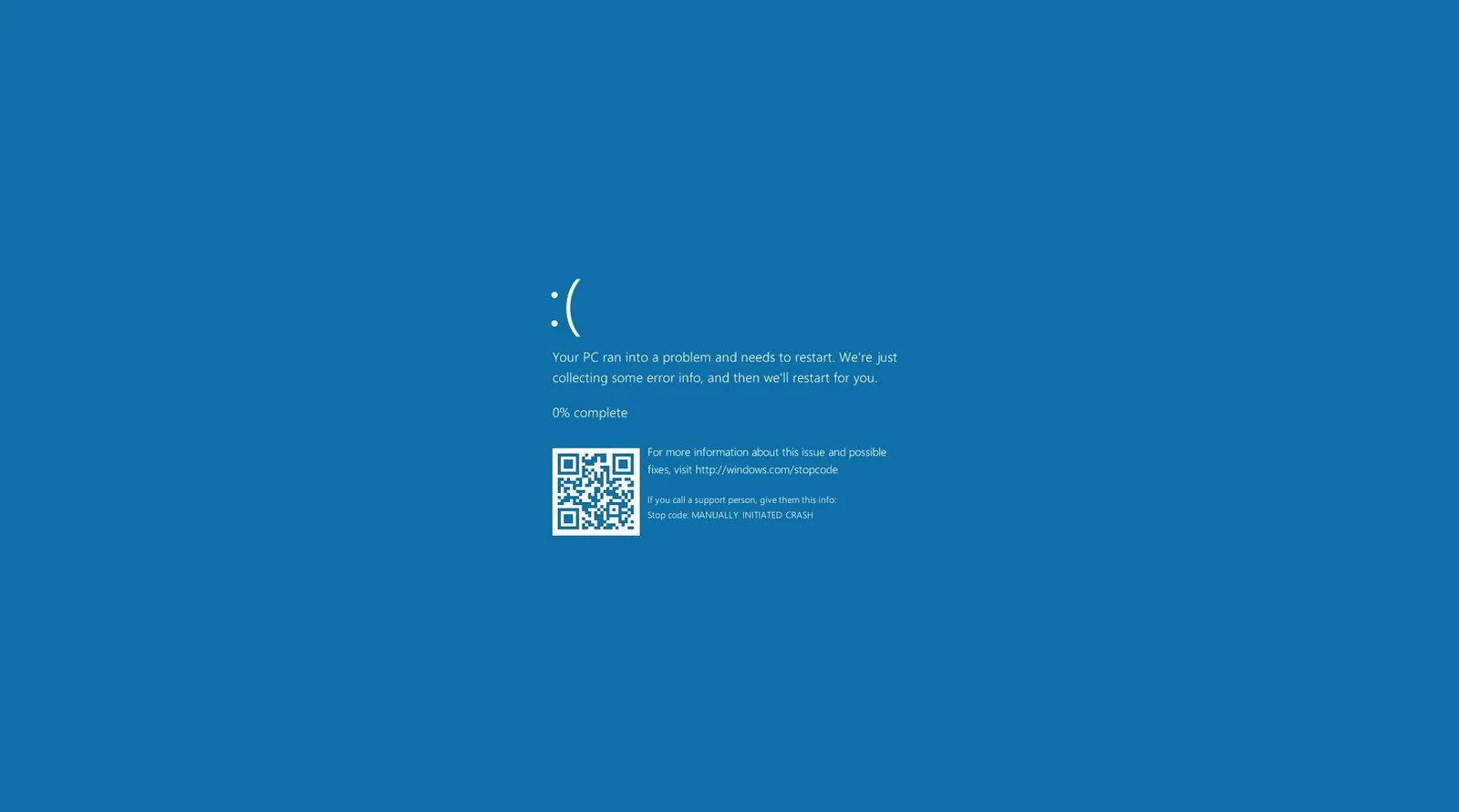
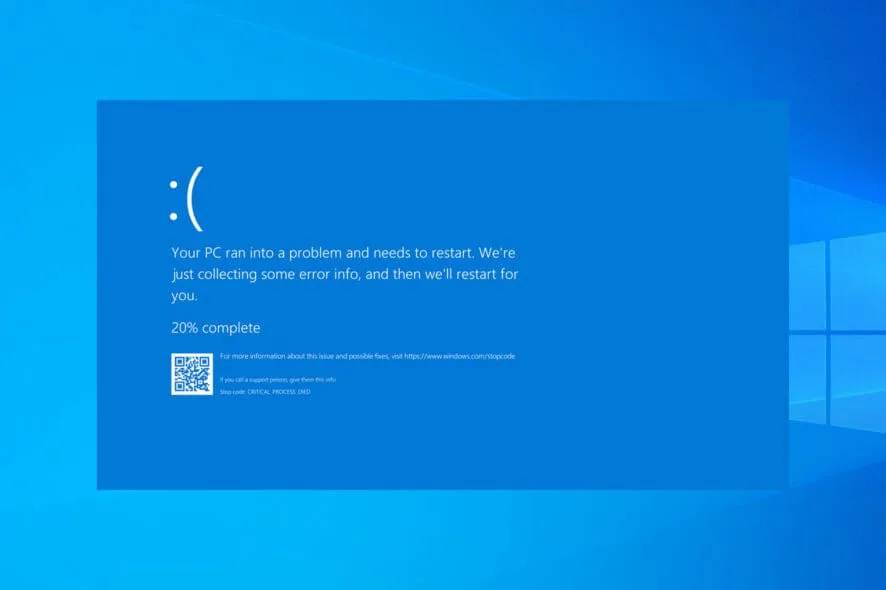
A typical modern BSOD includes:
A sad face emoji
A short description (“Your PC ran into a problem…”)
An error code (e.g., MEMORY_MANAGEMENT, CRITICAL_PROCESS_DIED, IRQL_NOT_LESS_OR_EQUAL)
A QR code linking to Microsoft documentation
Automatic restart after data is saved
2. Symptoms Indicating an Impending BSOD
While BSODs sometimes occur without warning, several precursors may signal an unstable system:
Random application crashes
Windows freezing during startup or shutdown
Unusually slow system performance
Strange clicking noises (possible HDD failure)
Sudden driver failures (display, audio, network)
Overheating signs (fan noise, throttling)
Frequent errors in Event Viewer
USB devices disconnecting intermittently
System resets or unexpected restarts
If these symptoms precede your BSOD, it increases the likelihood of underlying hardware or driver problems.
3. Major Causes of a BSOD

Understanding the origin is key to applying the right fix. Here are the most common BSOD causes with explanations.
3.1 Faulty or Incompatible Drivers
Drivers control the communication between hardware and the operating system. If a driver becomes corrupt or outdated, it can crash the kernel.
Typical driver-related BSOD codes:
IRQL_NOT_LESS_OR_EQUAL
DRIVER_POWER_STATE_FAILURE
SYSTEM_THREAD_EXCEPTION_NOT_HANDLED
KMODE_EXCEPTION_NOT_HANDLED
Common culprits:
GPU drivers
Network drivers
USB chipset drivers
Storage controller drivers
Printer or peripheral drivers
3.2 Faulty RAM or Memory Issues
RAM problems are a leading BSOD cause because the kernel depends on stable memory.
Symptoms include:
Random crashes
Corrupted files
Failure to boot into Windows
Typical memory error codes:
MEMORY_MANAGEMENT
PAGE_FAULT_IN_NONPAGED_AREA
BAD_POOL_HEADER
0x0000000A
3.3 Corrupted System Files
Windows system files may become corrupted due to:
Sudden power loss
Malware
Disk errors
Improper shutdowns
Typical BSODs caused by file corruption:
CRITICAL_PROCESS_DIED
SYSTEM_SERVICE_EXCEPTION
KERNEL_SECURITY_CHECK_FAILURE
3.4 Hard Drive or SSD Problems
Disk issues—especially on failing HDDs or SSDs nearing end-of-life—can trigger BSODs.
Common disk-related codes:
UNMOUNTABLE_BOOT_VOLUME
INACCESSIBLE_BOOT_DEVICE
KERNEL_DATA_INPAGE_ERROR
Symptoms include:
Clicking noises
“Repairing disk errors” message
Slow boot times
3.5 Malware or Rootkits
Malware can interfere with kernel processes or load malicious drivers.
Signs include:
Deleted system files
Sudden BSOD after downloading unknown programs
Suspicious services running at startup
3.6 Overheating or Hardware Failure
Excessive heat affects:
CPU
GPU
VRMs
RAM
SSD thermal throttling
Hardware overheating may generate BSODs like:
WHEA_UNCORRECTABLE_ERROR
MACHINE_CHECK_EXCEPTION
3.7 Overclocking Problems
Overclocking CPU/GPU/RAM increases voltage and may destabilize the system.
Codes include:
CLOCK_WATCHDOG_TIMEOUT
WHEA_UNCORRECTABLE_ERROR
3.8 Windows Update Conflicts
A failed or buggy update may install unstable drivers or system files, triggering a BSOD shortly afterward.
3.9 Software Conflicts
Certain programs—especially low-level utilities—may clash with Windows kernel behaviour:
Antivirus
Firewall drivers
Virtualization software
Disk-encryption software
System “optimizers”
4. How to Interpret BSOD Error Codes
Error codes are grouped into categories:
High-level STOP codes
Examples:
0x0000007E
0x00000050
0xC000021A
Readable text-based codes
Examples:
DRIVER_IRQL_NOT_LESS_OR_EQUAL
SYSTEM_SERVICE_EXCEPTION
Driver-specific fault indicators
Example:
atikmpag.sys (AMD GPU driver)
nvlddmkm.sys (NVIDIA GPU driver)
ntoskrnl.exe (Windows kernel)
These indicate which module triggered the crash.
Minidumps
Windows stores crash logs in:
C:\Windows\Minidump\
These files can be analysed using:
WinDbg
BlueScreenView
WhoCrashed
Understanding these logs helps pinpoint the exact cause.
5. Complete Step-by-Step Guide to Fix BSOD Issues

Below is a comprehensive troubleshooting procedure designed to systematically isolate and fix BSOD problems.
Step 1: Boot into Safe Mode
Safe Mode loads only essential drivers.
How to Enter Safe Mode
Hold Shift and click Restart.
Go to:
Troubleshoot > Advanced Options > Startup Settings > RestartSelect 4: Enable Safe Mode or 5: Enable Safe Mode with Networking
If BSODs stop occurring in Safe Mode → driver or software conflict is likely.
Step 2: Update or Roll Back Device Drivers
A. Update Drivers
Prioritise:
GPU
Chipset
Network
Storage (Intel Rapid Storage, AHCI)
Use:
Nvidia GeForce Experience
AMD Adrenalin
Intel Driver & Support Assistant
Dell/HP/Lenovo OEM tools for laptops
B. Roll Back Drivers
If BSOD started recently:
Open Device Manager
Right-click a device → Properties
Select Roll Back Driver
Step 3: Check for RAM Issues
Run Windows Memory Diagnostic
Press Win + R, type:
mdsched.exe
Choose Restart now and check for problems
Advanced RAM Testing
Use MemTest86 for deeper analysis (USB boot).
If errors appear → replace the faulty RAM stick.
Step 4: Scan and Repair Corrupted System Files
Run the following commands in Command Prompt (Admin).
SFC Scan
sfc /scannow
DISM Repair Commands
DISM /Online /Cleanup-Image /CheckHealth

DISM /Online /Cleanup-Image /ScanHealth

DISM /Online /Cleanup-Image /RestoreHealth
These replace corrupted system components.
Step 5: Check Disk Health
A. Run CHKDSK
chkdsk C: /f /r
This scans for bad sectors and logical errors.
B. Check SMART Status
Use:
CrystalDiskInfo
Hard Disk Sentinel
Manufacturer diagnostics
If disk health shows warnings → clone & replace the drive.
Step 6: Remove Recently Installed Software
Uninstall programs installed shortly before the BSOD started.
Common offenders:
Third-party antivirus (especially old Norton, McAfee)
Overclocking utilities (MSI Afterburner)
Virtual machine software
USB drivers
Registry cleaners
After removing → reboot.
Step 7: Perform a Full Malware Scan
Use:
Windows Defender Full Scan
Malwarebytes
ESET Online Scanner
Look for:
Rootkits
Boot sector viruses
Kernel-level malware
Step 8: Inspect Windows Update History
If BSOD started after an update:
Undo Windows Updates
Settings → Windows Update → Update History → Uninstall updates
Or use:
wusa /uninstall /kb:xxxxxxx
Step 9: Check Hardware Temperatures
Use tools like:
HWMonitor
HWiNFO64
Core Temp
GPU-Z
Safe temperature ranges:
| Component | Normal Load Temp |
|---|---|
| CPU | 60–85°C |
| GPU | 60–85°C |
| NVMe SSD | 40–70°C |
| HDD | 30–50°C |
Temperatures above 90°C indicate severe overheating.
Fix by:
Cleaning fans
Applying new thermal paste
Improving airflow
Replacing failing coolers
Step 10: Undo Overclocking
If you overclock:
Enter BIOS → Load Optimised Defaults
Disable:
XMP
CPU overclock profiles
GPU overclocking
Voltage tweaks
Unstable overclocks frequently cause BSODs.
Step 11: Analyse Minidump Files
Use BlueScreenView or WhoCrashed to see:
Faulting driver
Crash addresses
Kernel calls
Bug check descriptions
This helps pinpoint the exact component causing the crash.
Step 12: Perform a System Restore
If the system was stable previously:
Open System Restore
Select a date before the first BSOD
Restore Windows settings
This doesn’t affect personal files.
Step 13: Reset Windows (Last Resort)
Windows Reset Options
Keep My Files (recommended)
Remove Everything (fresh start)
This resolves deep corruption but is only needed if other steps fail.
6. Preventing Future BSODs
Once fixed, take the following preventive measures.
6.1 Keep Drivers Updated
Outdated drivers = instability.
Use:
Windows Update
OEM driver managers
GPU driver updaters
6.2 Maintain Healthy Hardware
Clean fans every 3 months
Avoid dust buildup
Use stable power sources
Monitor temperatures regularly
6.3 Avoid Unnecessary Utility Software
Registry cleaners, “PC boosters,” and cracked utilities create instability.
6.4 Keep Windows Updated (Strategically)
Install updates after a few days—not immediately on release.
6.5 Use Antivirus Wisely
Windows Defender is sufficient for most users.
Disable or uninstall:
Duplicate antivirus
Aggressive firewalls
6.6 Replace Failing Components Early
If diagnostics show:
Bad RAM
Failing HDD/SSD
Overheating GPU/CPU
Replace them promptly.
7. When to Replace Hardware Instead of Troubleshoot
Some BSODs are hardware failures that cannot be repaired through software fixes.
Replace the hardware when:
MemTest86 shows RAM errors
SMART reports failing disk sectors
System shuts down due to overheating
PSU fails power delivery tests
GPU shows artifacts, black screens, or thermal issues
8. Most Common BSOD Codes and Their Meaning
Here is a table summarizing the most frequent BSODs:
| BSOD Code | Meaning | Primary Cause |
|---|---|---|
| IRQL_NOT_LESS_OR_EQUAL | Illegal memory access | Drivers, RAM |
| CRITICAL_PROCESS_DIED | Essential Windows process crashed | Corrupted system files |
| MEMORY_MANAGEMENT | Memory corruption | RAM, drivers |
| PAGE_FAULT_IN_NONPAGED_AREA | Bad memory reference | RAM, paging issues |
| SYSTEM_SERVICE_EXCEPTION | Protected code violation | Drivers, GPU |
| KMODE_EXCEPTION_NOT_HANDLED | Kernel exception | Drivers |
| WHEA_UNCORRECTABLE_ERROR | Hardware failure | CPU, RAM, PSU |
| INACCESSIBLE_BOOT_DEVICE | Boot drive failure | Disk, SATA drivers |
| DRIVER_POWER_STATE_FAILURE | Power transition issue | GPU, network drivers |
9. How IT Professionals Typically Diagnose BSODs
Technicians follow this sequence:
Check minidump file
Look at Event Viewer logs
Run SFC/DISM
Update or roll back drivers
Check RAM with MemTest86
Check disk health with SMART tools
Monitor CPU/GPU temperatures
Test PSU voltages if needed
Disable overclocks
Perform clean install if required
This structured approach ensures that root causes are identified efficiently.
10. Final Thoughts
The Blue Screen of Death is an intimidating but solvable problem in nearly all cases. While BSODs may stem from anything—drivers, RAM, disks, heat, updates, malware—the root cause can be located through systematic diagnostics.
Modern Windows makes troubleshooting easier with logs, crash dumps, and built-in repair tools, but persistent issues usually reflect:
failing hardware,
corrupt system modules,
incompatible drivers,
or misconfigured software.
By following the step-by-step procedures above, users can resolve most BSODs permanently and prevent future occurrences. Whether you’re managing a single desktop or an entire fleet of Windows systems, understanding BSODs is essential for maintaining system stability and reliability.










