
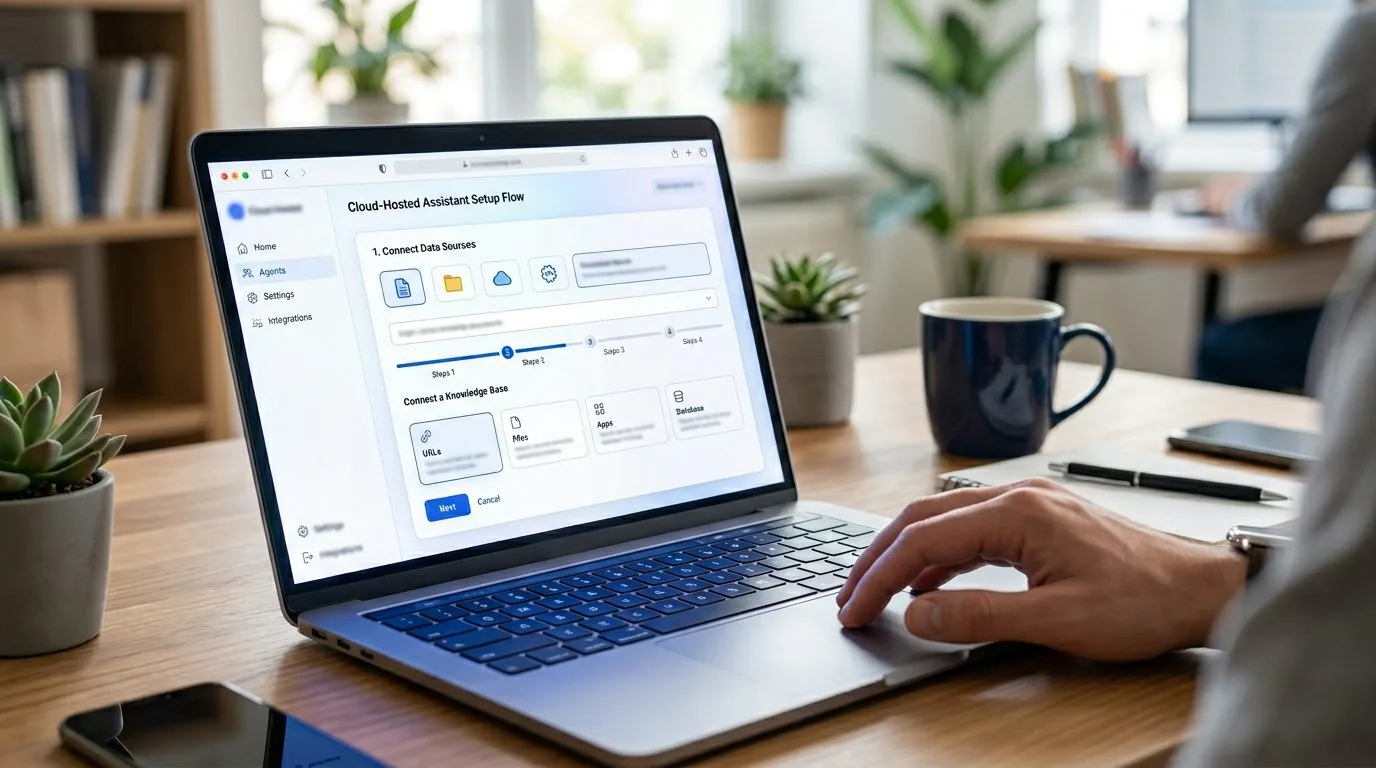
If you want to learn how to set up Kimi Claw, the most important thing to understand is that Kimi Claw is not a traditional self-hosted tool with a local installer. It is a hosted agent experience inside the Kimi product ecosystem, which means setup is more about account access, workspace configuration, and first-use personalisation than package managers or infrastructure.
This guide covers the public Kimi-hosted setup flow based on the Kimi Claw entry point. If you are expecting a local open-source install, you should know that Kimi Claw is better treated as a cloud agent feature rather than a standalone developer runtime.
Why learning how to set up Kimi Claw correctly matters
If you want better results from how to set up Kimi Claw, the key is to treat it as a hosted agent workflow from the beginning. The more clearly you define the first role and task, the easier it is to evaluate the platform honestly.
When people search for how to set up Kimi Claw, they sometimes expect a local developer install. In practice, the important setup decisions are account access, hosted agent creation, and a narrow first workflow.
What you need before you start

Before you set up Kimi Claw, make sure you have the basic requirements ready.
- A working Kimi account or access to the Kimi platform.
- A browser session with stable login support.
- A clear idea of whether you want a new cloud agent or to connect an existing assistant flow.
- A simple first use case, such as research, task support, or automation assistance.
If you are comparing Kimi Claw to other hosted AI worker systems, Progressive Robot’s page on autonomous AI agents provides useful context on how these agent experiences fit into business operations.
How to set up Kimi Claw step by step

1. Open the official Kimi Claw experience
The first step in how to set up Kimi Claw is to use the official Kimi entry point rather than relying on cloned landing pages or third-party summaries. Open the hosted Kimi Claw page and confirm you are in the official environment.
This matters because Kimi Claw is a cloud experience, and using the correct product entry point is part of the setup.
2. Sign in to your Kimi account
Because Kimi Claw is hosted, account access is part of the initial setup, not an optional extra. Sign in first so your agent state, history, and configuration can persist correctly.
If you skip this step or rely on a temporary session, your setup may feel incomplete or inconsistent.
3. Choose the cloud setup path
Current public information around Kimi Claw points to a hosted “On Cloud Server” style setup. In practical terms, that means you should begin with the vendor-managed route unless you have a specific reason to connect an existing OpenClaw-style environment.
For most users, the hosted path is the easiest successful first setup.
4. Create the initial agent profile
Once inside the product, set up the first agent carefully. Do not over-personalise it immediately. Start with a basic profile, one intended use case, and one operating style.
Good first-use profiles include:
- Research assistant.
- Workflow helper.
- Planning assistant.
- Lightweight operations
- support agent.
The goal is to get one useful behaviour working, not build a full digital workforce in the first session.
5. Configure the first task flow
After the agent exists, give it one simple job. This is the fastest way to validate the setup.
Examples of good first tasks:
- Summarize research.
- Organise notes into action items.
- Draft a short workflow output.
- Help track a small operational process.
This proves the setup is real and not just a successful login.
6. Add more capabilities only after the first success
Once the first task flow works, then you can expand the agent profile, add more instructions, or connect it to broader operating patterns. This is where many users overbuild too early.
The safest sequence is:
- Sign in.
- Create one cloud agent.
- Give it one real task.
- Review the output.
- Expand gradually.
Common mistakes to avoid
Most Kimi Claw setup issues come from treating it like a local developer tool when it is actually a hosted product feature.
- Expecting a traditional installer.
- Skipping account sign-in.
- Trying to configure too many instructions at once.
- Judging the product before testing one real task.
- Using third-party explanations instead of the official Kimi entry point.
Keep the first setup narrow and the product becomes much easier to evaluate.
Who should use Kimi Claw?
Kimi Claw is a strong fit for users who want a hosted agent experience without managing local infrastructure. If you are trying to learn how to set up Kimi Claw because you want a browser-based cloud assistant for research, planning, or lightweight task support, it is a better fit than more technical self-hosted projects.
It is less suitable for people who want a fully local developer workflow. Kimi Claw is best evaluated as a hosted product feature inside a larger AI platform.
Troubleshooting common problems when you learn how to set up Kimi Claw

If you are still working out how to set up Kimi Claw, these are the most common issues to review:
- Using unofficial product links instead of the real Kimi environment.
- Treating the product like a local install instead of a hosted setup.
- Skipping account login and expecting configuration to persist.
- Over-customising the first agent before testing one real task.
- Trying to judge the platform without a narrow workflow.
The cleanest troubleshooting path is to return to one hosted agent, one login session, and one practical task. That gives you a much clearer picture of whether the setup is working.
What to do after you set up Kimi Claw

Once you finish how to set up Kimi Claw, focus on proving value with one repeatable workflow.
- Keep one primary role for the agent.
- Reuse the same task pattern a few times before expanding scope.
- Adjust instructions only after you see consistent behaviour.
- Track whether the hosted agent actually saves time.
- Expand into broader workflows only when the first one is stable.
That makes it easier to evaluate Kimi Claw as a working assistant instead of just a product demo.
Quick checklist to confirm your Kimi Claw setup is working
Before you decide that you have fully handled how to set up Kimi Claw, confirm these points:
- You are inside the official Kimi environment.
- Login is complete and stable.
- One hosted agent profile is created.
- One narrow first workflow has been tested.
- The agent is producing useful output for that defined task.
Frequently asked questions
Is Kimi Claw self-hosted?
No. The public setup path points to a hosted Kimi product experience rather than a conventional self-hosted agent install.
Do I need an account to use Kimi Claw?
Yes, for a reliable persistent setup. Account access is part of the normal hosted workflow.
What is the best first-use test?
Create one agent and assign it one narrow job, such as summarization or planning assistance.
Should I customise the agent heavily on day one?
No. Start with a minimal configuration, validate one useful outcome, and then expand.
Final thoughts
If your goal is to learn how to set up Kimi Claw quickly, the winning approach is simple: use the official Kimi environment, sign in, create one hosted agent, assign one practical task, and only then layer on more behaviour. That gives you the clearest read on whether the tool fits your workflow.
Kimi Claw works best when you treat it as a hosted agent experience that should prove value early. Keep the first setup lean and judge it on one real use case, not on how many settings you can touch in the first hour.
More AI coverage: explore Progressive Robot's AI Models, Tools & Releases hub — hands-on reviews, setup guides and benchmarks in one place.










