

In the world of computing, system files are the backbone of your operating system’s functionality. When these essential files go missing or become corrupted, it can lead to frustrating issues like crashes, error messages, and performance slowdowns. If you’re searching for ways to fix missing or corrupted system files, you’ve come to the right place.
This in-depth guide will walk you through everything you need to know, from identifying the problem to implementing effective solutions. Whether you’re a Windows user dealing with DLL errors or a Linux enthusiast troubleshooting kernel issues, we’ll cover step-by-step methods to restore your system to optimal health.
Understanding how to fix missing or corrupted system files is crucial for maintaining a stable computer environment. According to recent data from Microsoft Support, system file corruption affects millions of users annually, often stemming from malware, hardware failures, or improper shutdowns.
By the end of this article, you’ll have the tools and knowledge to diagnose and repair these issues efficiently, potentially saving you time and money on professional repairs.
What Are System Files and Why They are Important?

System files are core components of your operating system (OS) that manage hardware interactions, software execution, and overall system stability. In Windows, these include DLLs (Dynamic Link Libraries), EXE files, and registry entries. On macOS, they encompass kernel extensions and plist files, while Linux relies on binaries in /bin, /sbin, and configuration files in /etc.
These files are vital because they ensure seamless operation. When you boot your computer, the OS loads these files to initialize drivers, services, and user interfaces. If any are missing or corrupted, the system may fail to function properly, leading to blue screens of death (BSOD) in Windows or kernel panics in macOS.
To fix missing or corrupted system files, it’s essential to first grasp their role. For instance, a corrupted winload.exe in Windows can prevent booting entirely. Similarly, in Ubuntu Linux, a damaged /etc/fstab file might cause mount failures. Recognising this importance helps in prioritising repairs and preventing future occurrences.
Common Causes of Missing or Corrupted System Files

Before diving into how to fix missing or corrupted system files, let’s explore the root causes. Identifying these can help you avoid repeats.
- Malware and Virus Infections: Malicious software often targets system files to gain control or disrupt operations. Ransomware, for example, encrypts files, making them inaccessible. A 2023 report from Cybersecurity Ventures estimates that ransomware attacks occur every 11 seconds, frequently corrupting system integrity.
- Hardware Failures: Faulty hard drives or RAM can lead to file corruption during read/write operations. Bad sectors on a HDD or SSD might scramble data, causing system files to vanish or alter.
- Improper Shutdowns: Power outages or forced restarts interrupt file operations, leading to corruption. Windows users often see this after abrupt power loss, triggering chkdsk on reboot.
- Software Conflicts: Installing incompatible drivers or applications can overwrite or delete system files. For macOS users, third-party apps might interfere with System Integrity Protection (SIP), corrupting protected files.
- Windows Updates Gone Wrong: Failed updates can leave system files in a limbo state. Microsoft’s own forums are filled with reports of updates causing corruption in files like ntoskrnl.exe.
- User Errors: Accidentally deleting files via Command Prompt or Terminal, or using unreliable cleanup tools, can remove critical components.
- File System Errors: Issues with NTFS (Windows), APFS (macOS), or ext4 (Linux) can propagate corruption. Over time, wear and tear on storage media exacerbates this.
By understanding these causes, you can take proactive steps to fix missing or corrupted system files and safeguard your system.
Symptoms Indicating Missing or Corrupted System Files
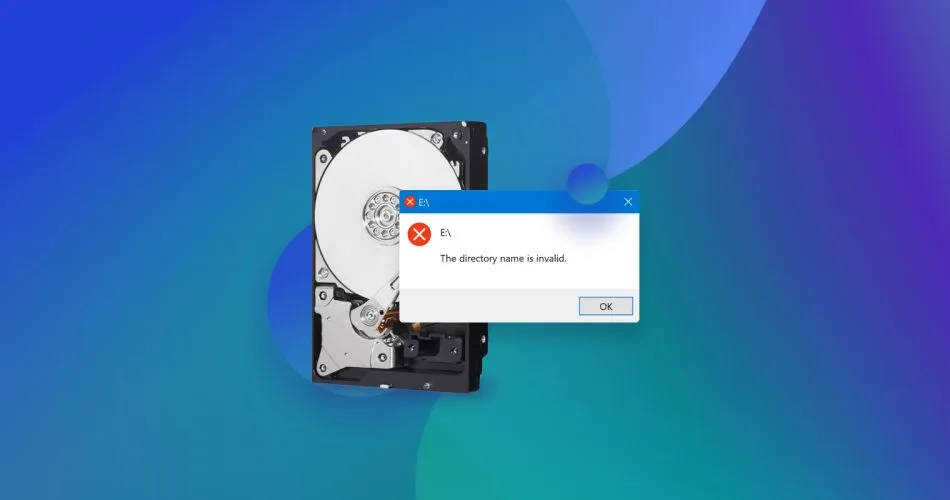
Recognising symptoms early is key to effectively fix missing or corrupted system files. Here are the most common signs:
- Error Messages: Pop-ups like “The file or directory is corrupted and unreadable” or “Windows cannot find [file name]” are telltale indicators.
- Blue Screen of Death (BSOD): In Windows, errors such as SYSTEM_SERVICE_EXCEPTION often point to corrupted drivers or kernel files.
- Slow Performance or Freezes: Corrupted cache files can bog down your system, leading to lags during multitasking.
- Boot Failures: Your computer might enter a loop, failing to load the OS. macOS users may see a prohibitory symbol, while Linux could display grub errors.
- Application Crashes: Programs refusing to launch, citing missing DLLs, suggest system file issues.
- Unusual Behaviour: Random restarts, missing icons, or inaccessible folders signal deeper problems.
If you notice these, don’t panic—most can be resolved with built-in tools to fix missing or corrupted system files.
How to Diagnose Missing or Corrupted System Files
Diagnosis is the first step to fix missing or corrupted system files. Start with these methods:
For Windows Users
- Event Viewer: Press Win + R, type “eventvwr”, and check System logs for errors related to file corruption.
- CHKDSK Utility: Boot into Command Prompt (from recovery) and run “chkdsk C: /f /r” to scan for bad sectors.
- System File Checker (SFC): This is a go-to tool; more on it later.
For macOS Users
- Disk Utility: Open via Spotlight, select your drive, and run First Aid to verify and repair.
- Console App: Check logs for file system errors.
For Linux Users
- fsck Command: Boot into single-user mode and run “fsck -f /dev/sda1” on your partitions.
- dmesg: Use this to view kernel messages for file issues.
Advanced users can employ third-party tools like CrystalDiskInfo for hardware diagnostics. Accurate diagnosis ensures targeted fixes.
Step-by-Step Methods to Fix Missing or Corrupted System Files in Windows
Windows offers robust tools to fix missing or corrupted system files. Here’s a detailed walkthrough.
Method 1: Using System File Checker (SFC /scannow)
SFC scans and replaces corrupted files using a cached copy.
- Open Command Prompt as Administrator: Search for “cmd” in Start, right-click, and select Run as administrator.
- Type “sfc /scannow” and press Enter. This process can take 30-60 minutes.
- If it finds issues, it will repair them automatically. Restart your PC afterward.
SFC is effective for 80% of cases, per Microsoft documentation. If SFC fails, proceed to DISM.
Method 2: Deployment Image Servicing and Management (DISM)
DISM repairs the Windows image that SFC relies on.
- In Admin Command Prompt, run “DISM /Online /Cleanup-Image /CheckHealth”.
- If issues are found, use “DISM /Online /Cleanup-Image /ScanHealth”.
- For repairs: “DISM /Online /Cleanup-Image /RestoreHealth”. This may require internet for source files.
Combine with SFC for best results. Users report high success rates on forums like Reddit.
Method 3: Windows Recovery Environment (WinRE)
If your PC won’t boot:
- Boot from Windows installation media or recovery drive.
- Select Repair your computer > Troubleshoot > Command Prompt.
- Run SFC and DISM as above.
For persistent issues, consider System Restore to roll back to a previous state.
Method 4: CHKDSK for Disk Errors
- In Command Prompt: “chkdsk C: /f /r /x”.
- Schedule for next reboot if the drive is in use.
This fixes underlying disk problems contributing to file corruption.
Advanced Windows Fixes
- Reset This PC: Keeps files but reinstalls Windows. Go to Settings > Update & Security > Recovery.
- Manual File Replacement: Download clean files from trusted sources (e.g., Microsoft DLL site), but use caution to avoid malware.
- Registry Repair: Use “regedit” sparingly; back up first. Tools like CCleaner can help, but stick to official methods.
These steps should resolve most Windows issues when trying to fix missing or corrupted system files.
Fixing Missing or Corrupted System Files on macOS
macOS users can fix missing or corrupted system files using Apple’s built-in utilities.
Method 1: Disk Utility First Aid
- Open Disk Utility from Applications > Utilities.
- Select your Macintosh HD, click First Aid, and Run.
This verifies and repairs file system structures.
Method 2: Reinstall macOS
- Boot into Recovery Mode (Command + R on startup).
- Choose Reinstall macOS. This overlays the OS without erasing data.
For Ventura and later, this preserves user files while fixing system ones.
Method 3: Safe Mode Boot
- Restart and hold Shift to enter Safe Mode.
- This loads minimal files; if issues persist, it’s likely hardware-related.
Method 4: Terminal Commands
Use “fsck_apfs -y /dev/disk1” in Recovery Mode for APFS drives.
For older HFS+ systems, “fsck_hfs -fy /dev/disk1”.
Third-party tools like Drive Genius offer advanced scans.
macOS’s SIP protects system files, making corruption less common but not impossible.
Repairing Missing or Corrupted System Files in Linux
Linux distributions provide powerful commands to fix missing or corrupted system files.
Method 1: fsck for File System Check
- Boot into recovery mode or live USB.
- Unmount the partition: “umount /dev/sda1”.
- Run “fsck -f /dev/sda1”.
This repairs ext4, btrfs, etc.
Method 2: Package Manager Repairs
For Debian/Ubuntu: “sudo apt install –reinstall [package]” to reinstall corrupted packages.
For Fedora: “sudo dnf reinstall [package]”.
Method 3: Debsums for Debian-Based Systems
Install debsums: “sudo apt install debsums”.
Run “sudo debsums -c” to check for changed files.
Method 4: Bootloader Fixes
If grub is corrupted: “sudo grub-install /dev/sda”.
For kernel issues, boot older kernels from the grub menu.
Tools like TestDisk can recover missing files.
Linux’s open-source nature allows granular fixes.
Prevention Strategies to Avoid Missing or Corrupted System Files
Prevention is better than needing to fix missing or corrupted system files. Implement these tips:
- Regular Backups: Use Time Machine (macOS), File History (Windows), or rsync (Linux) to back up system files.
- Antivirus Software: Install reputable tools like Malwarebytes or Windows Defender.
- Safe Shutdowns: Always shut down properly; use UPS for power protection.
- Update Regularly: Keep OS and drivers current to patch vulnerabilities.
- Hardware Maintenance: Run diagnostics like memtest86 for RAM.
- Avoid Risky Software: Download from official sources only.
- File System Optimisation: Defrag NTFS drives or trim SSDs periodically.
Following these reduces the need for repairs.
Advanced Troubleshooting for Persistent Issues
If basic methods fail to fix missing or corrupted system files, try advanced approaches:
- Clean Install: Wipe and reinstall the OS. Back up data first.
- Hardware Replacement: Test with new HDD/SSD or RAM.
- Professional Help: Consult technicians for complex hardware faults.
- Virtual Machines: Test in a VM to isolate issues.
Forensic tools like Autopsy can analyse corruption depth.
Case Studies: Real-World Examples of Fixing System Files
Consider a Windows 10 user facing BSOD due to corrupted hal.dll. Running SFC fixed it in minutes.
A macOS Big Sur user with app crashes used Disk Utility to repair plist files.
In Linux, a Ubuntu server with missing /lib modules was restored via debsums.
These examples show practical applications.
FAQs on How to Fix Missing or Corrupted System Files
What if SFC says it can’t repair some files?
Run DISM first, then SFC again.
Can I fix system files without internet?
Yes, but DISM may need installation media.
How long does it take to fix missing or corrupted system files?
From 10 minutes for scans to hours for full repairs.
Is it safe to download DLL files online?
Only from trusted sites like DLL-files.com, but prefer official tools.
What about Android or iOS system files?
Mobile OSes are more locked down; resets are common fixes.
Conclusion: Mastering the Art of System File Repairs
Learning to fix missing or corrupted system files empowers you to handle computer woes independently. From causes like malware to solutions like SFC and fsck, this guide covers it all. Remember, regular maintenance prevents most issues. If problems persist, seek professional aid.
For more resources, visit Microsoft’s official support page or Apple’s repair guides. Stay vigilant, and your system will run smoothly.










