
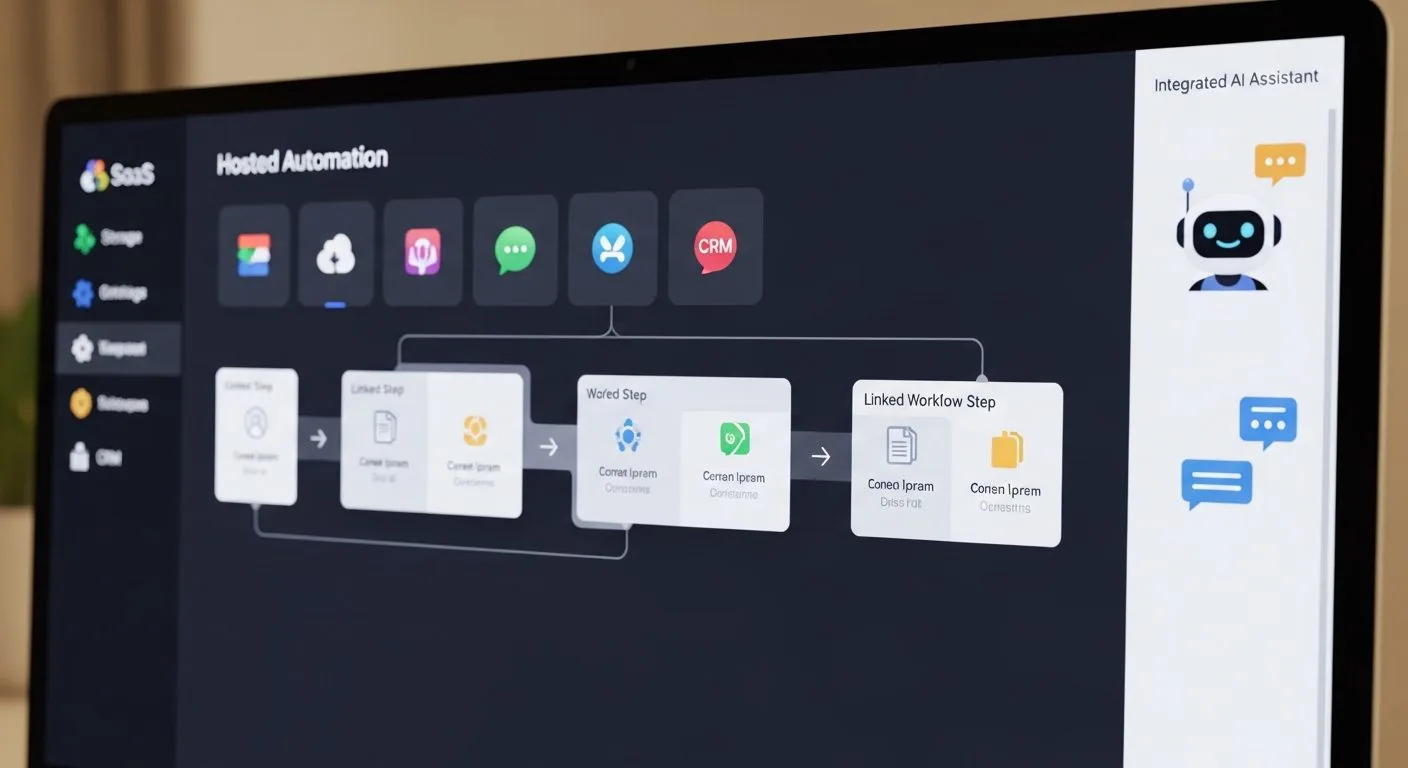
If you want to learn how to set up TrustClaw, the first thing to know is that the public TrustClaw you should follow is the hosted service at trustclaw.app, not parody repositories or unrelated code projects that happen to use the same name. That matters because the actual setup flow is account-based and integration-driven, not a traditional local software installation.
This guide focuses on the public hosted TrustClaw service and uses the official TrustClaw app as the reference point. If your goal is to get an assistant running with connected apps and scheduled tasks, the hosted flow is the setup that matters most.
Why learning how to set up TrustClaw correctly matters
If you want better results from how to set up TrustClaw, the key is to treat the platform like a connected workflow assistant instead of a generic AI login page. The first useful setup is usually one app, one workflow, and one successful action.
When people search for how to set up TrustClaw, they often stop at sign-in. In practice, the real setup milestone is the first working integration and the first task that finishes correctly.
What you need before you start

Before you set up TrustClaw, prepare the basics.
- A supported browser.
- An email, Google, or X login you are willing to use for the service.
- A shortlist of the apps you want to connect.
- A simple first workflow to test once setup is complete.
If you want to understand where tools like TrustClaw fit operationally, Progressive Robot’s guide to workflow automation is a helpful internal reference.
How to set up TrustClaw step by step

1. Open the official hosted TrustClaw service
The first step in how to set up TrustClaw is using the official app domain and not relying on code repositories or third-party landing pages. Since TrustClaw is a hosted experience, the product website is part of the actual setup path.
2. Sign in and create your account session
TrustClaw supports account-based login methods such as Google, X, or email. Complete login first so your integrations and agent behaviour can persist correctly.
Without a real account session, setup remains incomplete.
3. Choose the first workflow you want the agent to support
Before you start connecting apps, define the actual job you want TrustClaw to do. This keeps the setup focused and makes the first evaluation meaningful.
Good first workflows include:
- Task coordination.
- Follow-up reminders.
- Basic scheduling.
- Linked app actions.
- Repetitive administrative work.
4. Connect one app at a time
TrustClaw appears to be built around app connections and hosted execution. That means your first real setup milestone is usually the first successful OAuth connection.
Do not connect five apps at once. Start with one app you actually need and confirm the connection is stable.
5. Run one simple task through the hosted workflow
After the first integration is connected, test a very simple task. The best validation is not that the account exists. It is that the tool completes a real action correctly.
At this stage, test for:
- Correct integration access.
- Reliable task execution.
- Clear output or status.
- Predictable behaviour.
If that works, your setup is already useful.
6. Add more connected actions gradually
Once the first task flow is stable, you can broaden your setup. Add one new app or one new workflow at a time. This keeps the environment understandable and prevents troubleshooting from becoming messy.
That is especially important with hosted AI tools that depend on multiple app permissions.
Common mistakes to avoid
TrustClaw setup is usually straightforward, but users still create unnecessary problems.
- Following unofficial TrustClaw sources.
- Confusing the hosted service with parody or unrelated code repositories.
- Connecting too many apps at once.
- Testing vague workflows instead of one clear job.
- Assuming the service is configured just because login worked.
The first successful task matters more than the first successful sign-in.
Who should use TrustClaw?
TrustClaw is best for users who want a hosted AI assistant that can connect to apps and execute lightweight workflows without a local install. If you are learning how to set up TrustClaw because you want fast onboarding and browser-based automation support, it is a much better fit than a self-hosted agent framework.
It is less suitable for users who want full local control or deep runtime customisation. TrustClaw makes the most sense when convenience and connected workflows matter more than infrastructure ownership.
Troubleshooting common problems when you learn how to set up TrustClaw

If you are still working out how to set up TrustClaw, these are the main issues to check first:
- The wrong TrustClaw source is being used.
- Login completed, but no real workflow was defined.
- Too many apps were connected during the first session.
- The first test task was too broad to validate easily.
- The user assumed sign-in alone meant the tool was ready.
The best fix is to reduce everything to one connected app and one simple task. Once that works, the rest of the setup becomes much easier to evaluate.
What to do after you set up TrustClaw

Once you finish how to set up TrustClaw, focus on repeatability instead of novelty.
- Keep your first workflow narrow and measurable.
- Add one integration at a time.
- Review connected permissions carefully.
- Track whether the agent actually saves time.
- Expand only after the first task flow is stable.
That sequence helps TrustClaw become a useful hosted workflow assistant instead of a scattered collection of app connections.
Quick checklist to confirm your TrustClaw setup is working
Before you decide that you have fully handled how to set up TrustClaw, confirm these points:
- You are using the official hosted service.
- Login completed successfully.
- One real app integration is connected.
- One narrow workflow completed correctly.
- You understand which permissions the connected app is using.
Frequently asked questions
Is TrustClaw self-hosted?
No. The verified public TrustClaw setup path is a hosted web service.
Do I need to install anything locally?
Not for the core hosted setup. The main flow is account-based and browser-driven.
What should I test first?
One simple workflow with one connected app. That is the fastest way to confirm the setup is real.
Why is the TrustClaw name confusing online?
Because there are unrelated repositories and noisy results that use the same name. For setup purposes, stick to trustclaw.app.
Final thoughts
If your goal is to learn how to set up TrustClaw with minimal confusion, use the official hosted app, sign in, define one real workflow, connect one app, and test one successful action before expanding. That gives you a clean and reliable onboarding path.
TrustClaw is easiest to evaluate when you treat it as a hosted connected assistant, not as a generic AI product name. Start with one useful workflow, verify it works, and then scale gradually.
More AI coverage: explore Progressive Robot's AI Models, Tools & Releases hub — hands-on reviews, setup guides and benchmarks in one place.










